Architectural and Construction Details: Types, Standards and How Firms Reuse Them
What architectural and construction details are, the main types and scales, how firms draw them in Revit, and how to keep typical details findable and current.

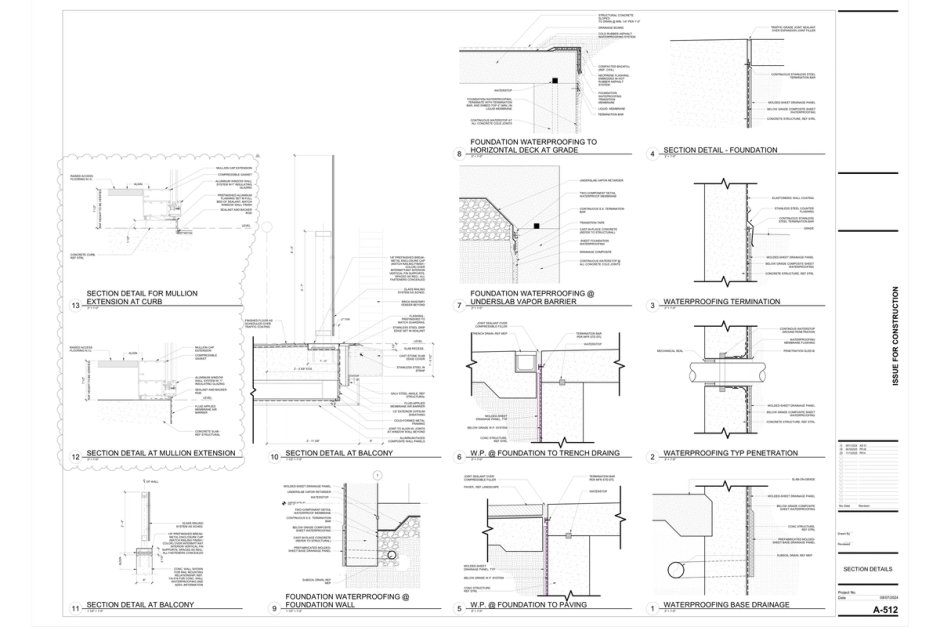
Architectural details, also called construction details or detail drawings, are large-scale drawings that show how materials and components come together at one condition, such as a window head or a parapet. They turn design intent into something a contractor can build. Most firms have drawn their common conditions many times. The hard part is finding the version that worked.
What architectural details are
An architectural detail is a drawing at a larger scale than the plans, sections and elevations, showing one place where the building comes together. The plan tells the contractor where a wall goes. The detail tells them how that wall meets the slab, what holds the window in it, where the water goes, and which layer laps over which. Notes, dimensions and keynotes name each material, while rules that hold across the whole set live in the general notes. A callout on a plan, section or elevation sends the reader to the right detail sheet.
Details come in two kinds, and good detailing does both at once:
- Technical details are about performance and assembly: keeping water out, holding a fire rating, letting a joint move, giving a contractor a sequence that works.
- Design details are about how a space looks and feels up close: a reveal where two materials meet, a handrail you want to hold, a slot of light at a ceiling edge.
Charles Eames made the point decades ago: the details are what make the design.
People also use "architectural details" for decorative features such as crown molding, cornices and corbels. This guide is about the drawings.
The main types of architectural details
Details are usually grouped two ways: by the kind of drawing, and by the part of the building they resolve.
By drawing
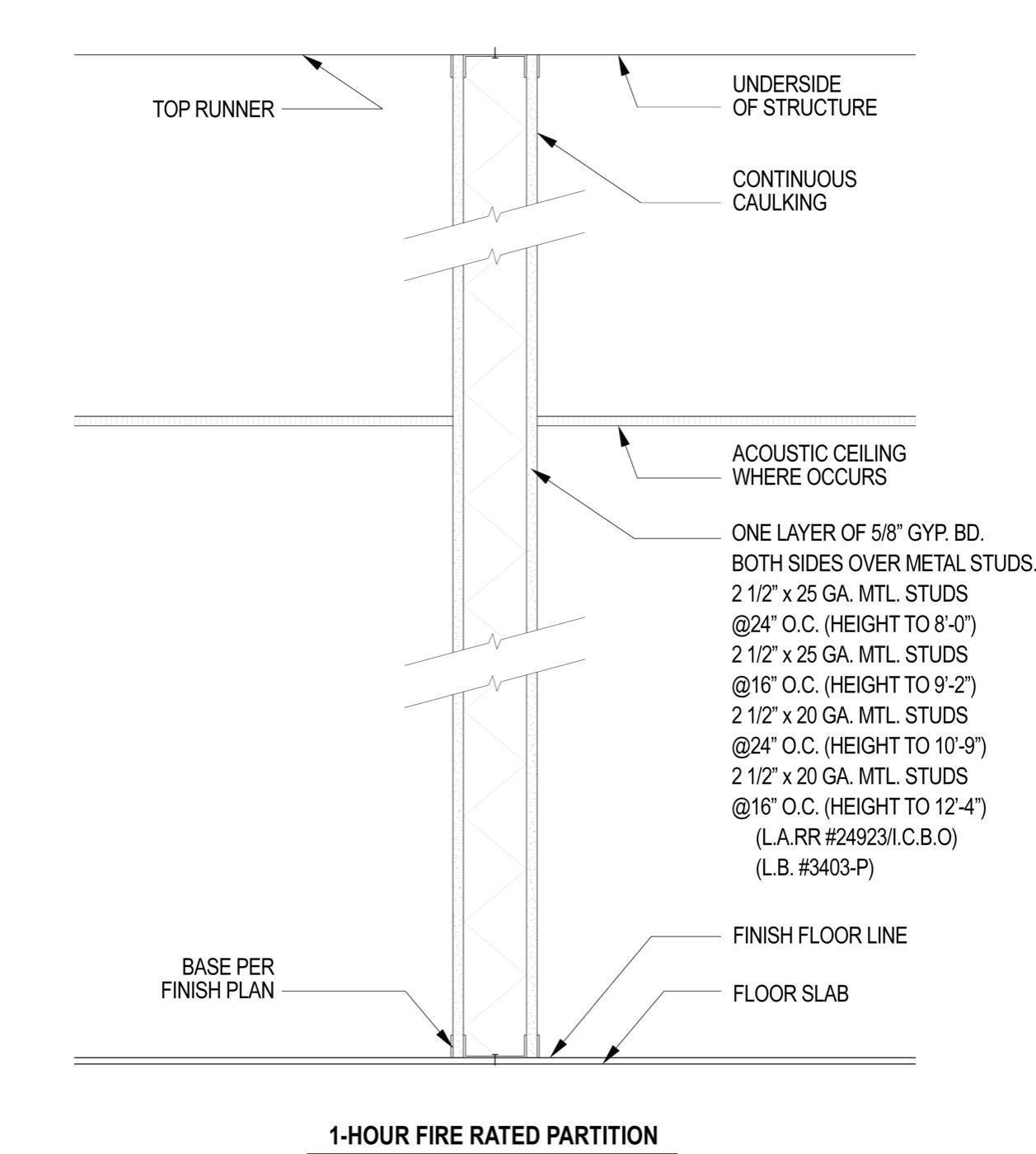
- Section details cut through an assembly: a wall at the roof, a slab edge, a window sill. They are the workhorse of most sets.
- Plan details look down on a condition: a window jamb, an outside corner, a door frame in a partition.
- Elevation details show a face: a guardrail, a storefront mullion pattern, a millwork front.
- Wall sections run the full height of an exterior wall, foundation to roof, and tie the details along it together. See how to draw a wall section.
- Enlarged plans blow up a room the small-scale plan can't carry: toilet rooms, stairs, kitchens.
- 3D or axonometric details show a sequence that flat drawings make hard to read, such as a membrane wrapping an outside corner.
By building system
- Envelope: window head, jamb and sill; storefront; wall base; control joints.
- Roof: parapet, eave, roof drain, curb, expansion joint.
- Foundation and below grade: footing, slab edge, waterproofing, foundation drain.
- Interiors: partition head and base, ceiling transitions, door frames, millwork.
- Life safety and accessibility: rated partitions, penetrations through rated assemblies, grab bar blocking.
- Stairs and guards: treads, stringers, handrails and guard attachments.
Detail drawing scales and sheet numbers
Details are drawn at the scale where every layer and note reads clearly when printed. Common starting points in US practice, with the usual metric equivalents:
- Wall sections: 3/4" = 1'-0" or 1/2" = 1'-0" (1:20 in metric sets).
- Construction details: 1 1/2" = 1'-0" or 3" = 1'-0" (1:10 or 1:5).
- Enlarged plans: 1/4" = 1'-0" or 1/2" = 1'-0" (1:50 or 1:20).
In the US, many firms number sheets by the Uniform Drawing System in the National CAD Standard. It reserves sheet type 5 for details, so architectural details land on A-501, A-502 and onward. Sections sit on the 300 series and large-scale views on the 400 series. Our guide to construction documents walks through the rest of the set. To read one sheet by sheet, see our guide to construction drawings.
Typical details and project details
Every firm runs on two kinds of details: typical details it trusts on any job, and project details drawn for one building.
- Typical details (or standard details) are firm-approved and reused wherever their condition comes up: a partition head at deck, a standard door frame, a roof drain.
- Project details solve one condition on one building. Many are excellent and should become typicals. Some are workarounds from a value-engineering round that nobody should copy.
The trouble is that a Revit project can't tell them apart. On a sheet, a typical the firm has built on for years looks exactly like a one-off fix drawn the night before an issue date. Which is which lives in people's heads.
How firms keep details today
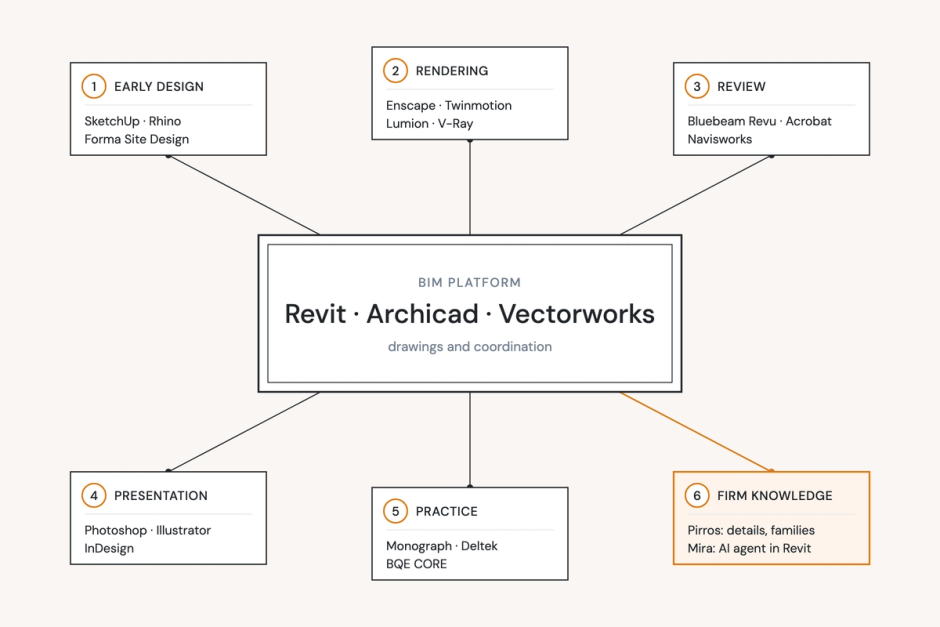
Most firms keep their details in Revit, spread across past projects. Many add a container model of typicals, a folder of older CAD details, and the details manufacturers publish for their own products.
In Revit, a detail is one of two view types
- Detail views are callouts or sections cut from the model. They show the model at a finer scale and update when it changes. You draw on top with detail components, filled regions and detail lines.
- Drafting views are 2D only and not tied to the model. Create one with View tab › Create panel › Drafting View. Typicals usually live here because they can move between projects.
A callout can point to a drafting view instead of the model. When you place the callout, check Reference Other View on the Options Bar and pick the drafting view.
Moving details between projects
Revit's built-in route is Insert tab › Import panel › Insert from File › Insert Views from File. It copies drafting views from another project, along with schedules, rendered images and sheets that hold only drafting views (Autodesk Revit 2027 Help). To build a source file, right-click a drafting view in the Project Browser and choose Save to New File, or save several at once with File tab › Save As › Library › View.
Around that, firms build their own habits:
- A container model. One Revit file holds the firm's typicals, and teams insert from it.
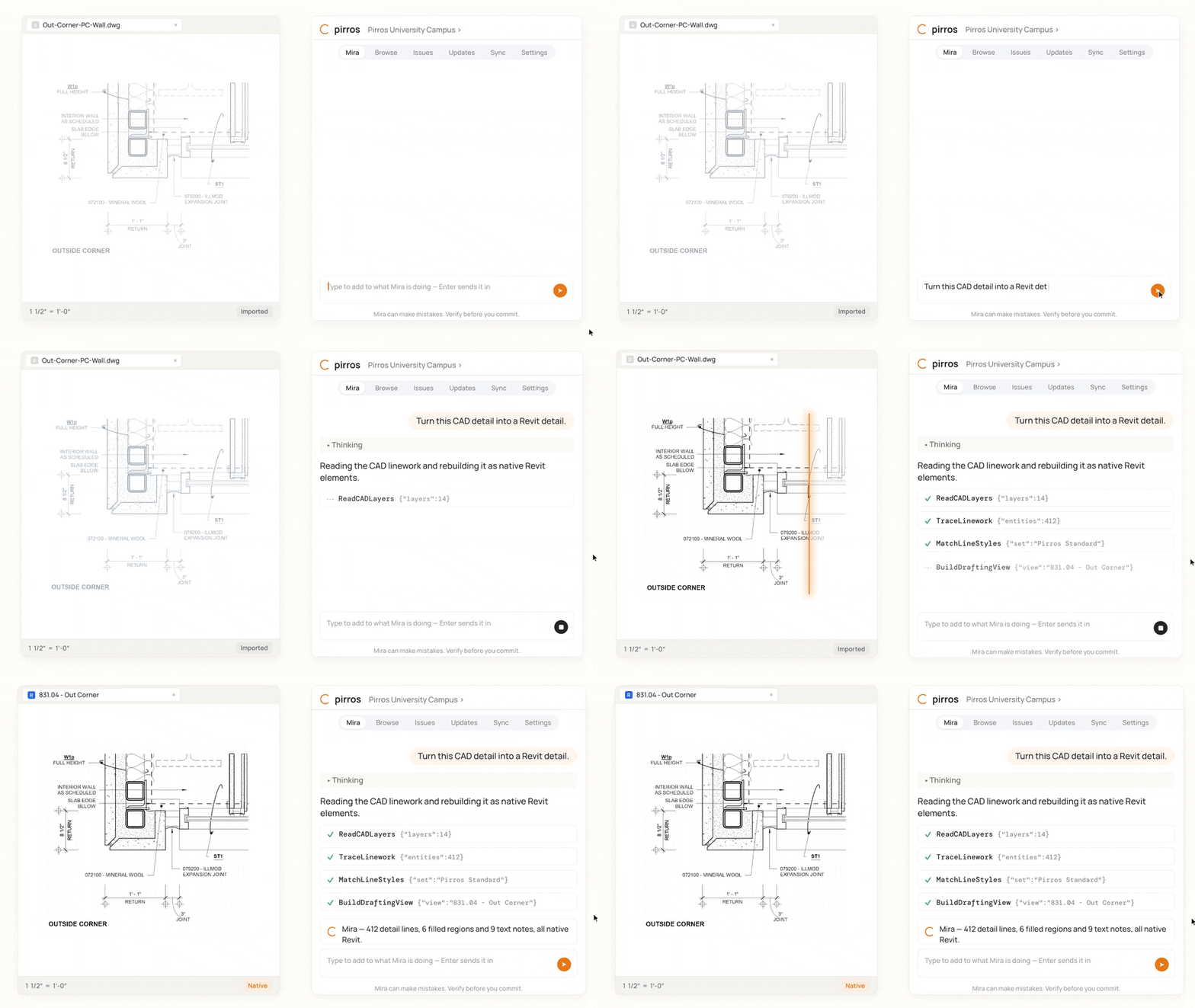
- A CAD folder. Older details sit as DWG files on a server until someone needs one and has to convert the CAD detail to Revit or redraw it.
- The last job. The most common method: open the last similar project, find the sheet, copy the detail.
Who decides what's standard
A BIM manager or a standards committee usually curates the typicals, and rarely keeps up. At Lake Flato, curated sets helped, but the committees couldn't keep pace with the good details project teams kept producing. Strong solutions stayed buried in past projects.
Where it breaks at firm scale
Drawing a detail once is the easy part. Finding, trusting and moving the right one across years of projects, several offices and staff who come and go is where firms lose time.
Nobody can find it. Details are named for the sheet they sat on ("Detail 7", "WALL SECTION 3 Copy 1"), not the condition they solve. Finding one means remembering which project had it, then opening a model that may need upgrading to your current release first. Dan Stine, Lake Flato's Director of Design Technology, put it this way:
"Prior to Pirros, I had been working on compiling/consolidating details across multiple higher-ed projects and it was such a drag to sit and wait for older Revit files to upgrade and open, copy over details, deal with the messy linework... I'm getting frustrated just talking about it."
Dan Stine, Lake Flato Architects
When finding a detail takes longer than drawing it, people redraw it under deadline, and the firm ends up with one more version of the same condition.
Nobody knows if it's current. The approved detail and the field fix look the same. A detail copied from an old project can still name a discontinued product or an assembly listing that has since changed. That shows up later as an RFI.
The best details don't travel. Insert Views from File moves drafting views, not detail views cut from the model. Insert 2D Elements from File can bring over a detail view's 2D layer, but not the model behind it. So details cut live from the model, often the most precise work on a job, tend to stay in the project that made them. That was CRAFT Engineering Studio's experience, since it cuts most project-specific details live from the model.
The graphics drift. When an inserted view brings a type name the project already has, Revit keeps the project's version and warns you. Types the project doesn't have come in as new ones. After years of copying, projects collect near-duplicate text and line styles, and details stop matching the set they sit in.
Offices draw the same condition differently. CRAFT works across four offices on two continents, and its standards have to carry regional versions: a wood-framed house in the mountain west isn't built like one in the Northeast. Without one place for the firm's details, each office keeps its own copy, and the copies drift apart.
People leave and take the why with them. The senior architect knew which parapet detail leaked and which one replaced it. When they leave, newer staff inherit the drawing but not the reason.
Doing it well: seven habits
Firms that detail well treat their details as firm knowledge, with owners, a status and one place to find them.
- Keep typicals and project details apart, and label them. A detail is approved for reuse, or it's reference only until someone reviews it.
- Name details by the condition they solve. "Parapet, membrane roof, CMU backup" finds itself. "Detail 7" never will. Include the assembly, the rating and the substrate.
- Pick the right view type. Use detail views where the model should drive the geometry. Use drafting views for typicals that must move between projects, and point callouts at them with Reference Other View.
- Draw on the template. Use the firm's line styles, text types, filled regions and detail components. Don't leave exploded CAD linework in a typical; it carries stray line styles into every project it touches.
- Tie notes to one source. Keynote from the firm's keynote file (Annotate tab › Tag panel › Keynote). A product change then becomes one edit in one file, not a hunt through every note.
- Hold one sheet and numbering convention. Details go on 500-series sheets, numbered in the same order on every sheet, in every office.
- Give every typical an owner and a reason to review it. Review it when a product is discontinued, when the code cycle changes, or when an RFI traces back to it. Then get the fix to the projects that use it.
Underneath all seven is one rule: the approved detail has to be the easiest one to reach. If the old project is faster to open than the firm's standards, people will use the old project. The same rule holds for families.
What AI does for construction detailing today
AI doesn't replace the judgment inside a construction detail: which layers, in what order, at this condition, on this building, under this code. That call stays with the architect who signs the set, and a detail generated from a prompt still needs that person to check every line.
Where AI earns its place is the work around that judgment. It can find the detail your firm already solved instead of letting someone redraw it, run an AI drawing review of a set against your firm's standards before it goes out, and take on the repetitive cleanup when a set changes late. The next two sections show how Pirros and Mira do each.
How Pirros helps: find it, trust it, place it
With Pirros, every detail your firm has drawn becomes searchable by the condition it solves, the approved ones are marked, and your team places them straight into Revit. Pirros is the AI project hub for architects and engineers, built for Revit and used alongside it.
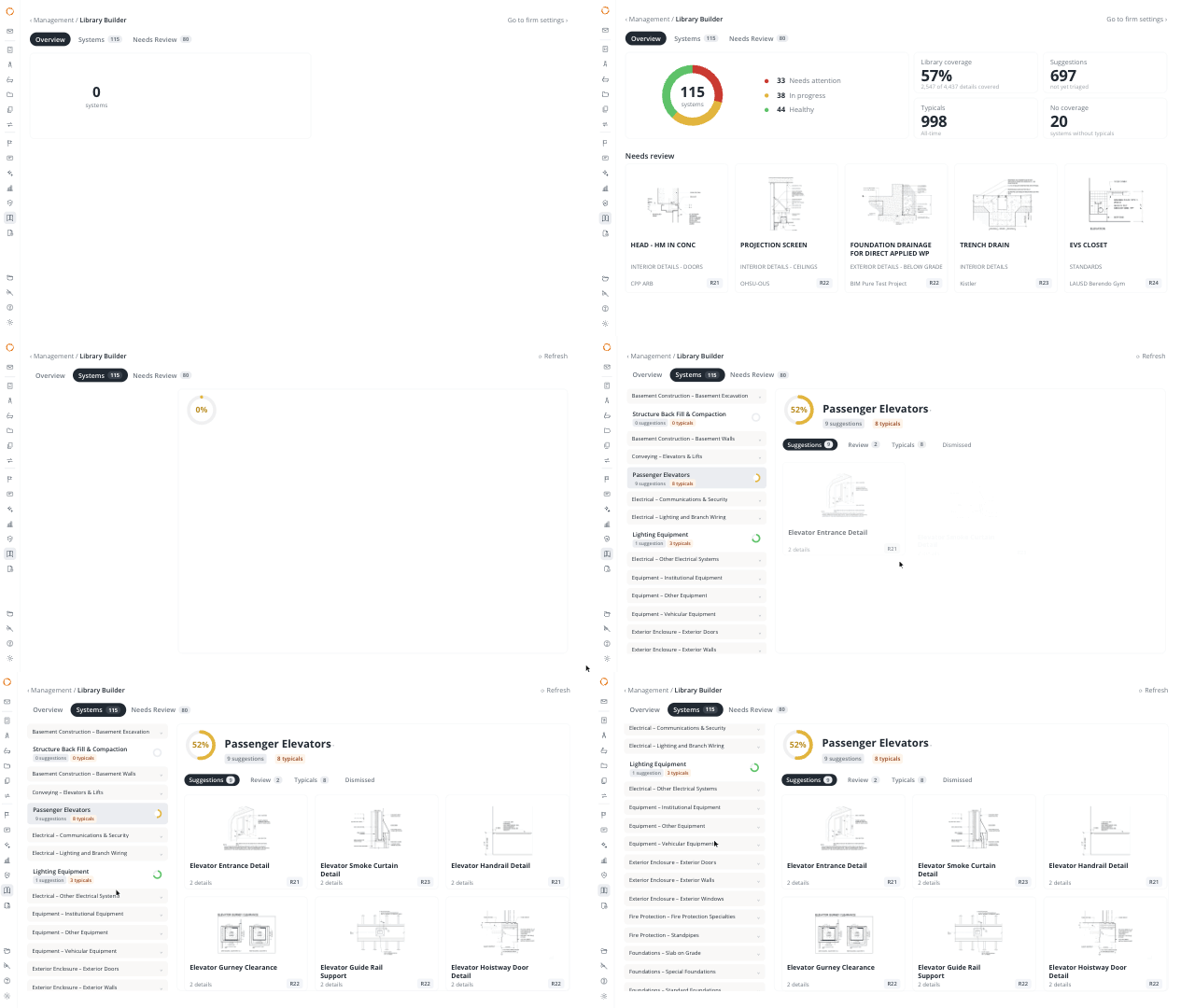
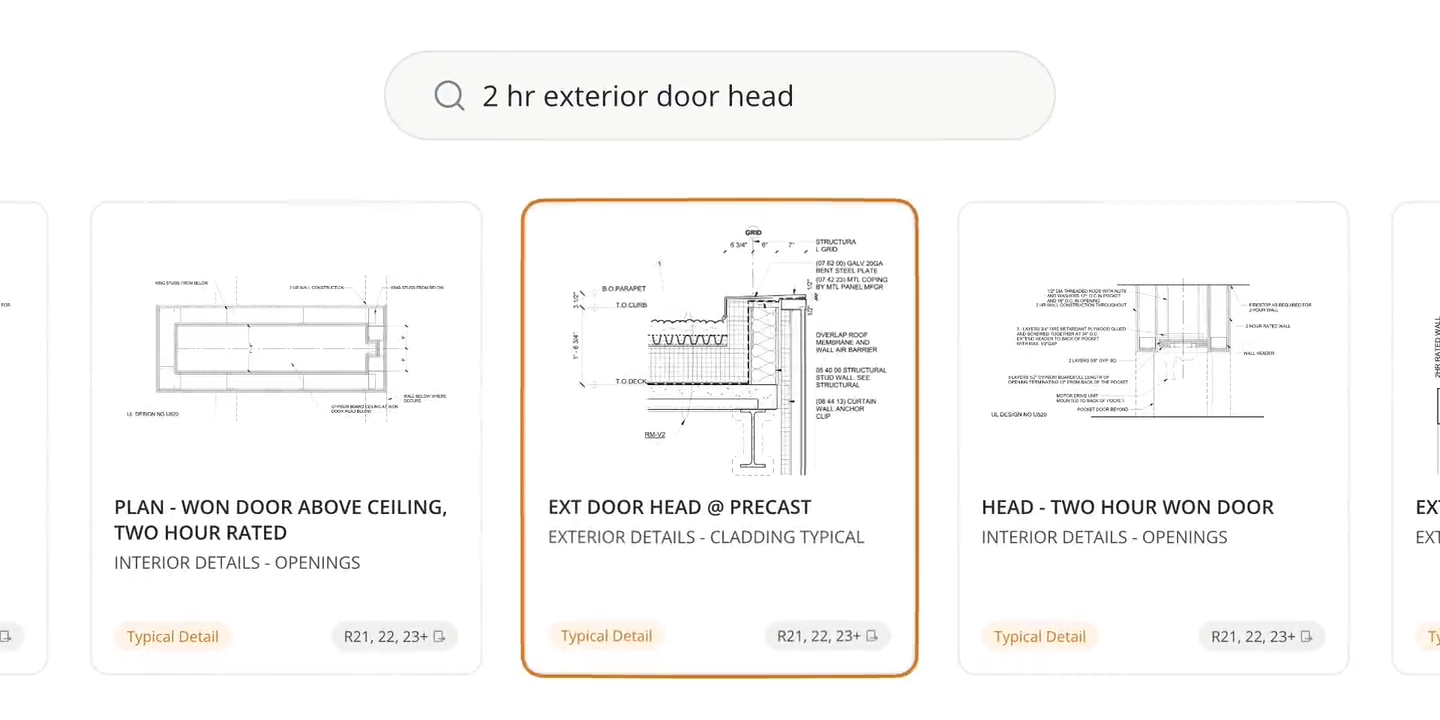
- Search by what's drawn. Upload past projects and Pirros reads the geometry and annotations inside each detail. Search "1 hr partition head at deck" instead of guessing a name; typos, your firm's abbreviations and product names still find it. Nobody tags anything. Details arrive linked to the sheets they sat on, with duplicates grouped. See detail management.
- Live details too. Upload a detail cut live from the model and search it like any other. Model elements are shown, then left behind when the detail is reused.
- A status on every result. Each detail is firm-approved or reference only. Live details and drafting views from past projects can require a senior sign-off before they land in a set.
- Standards that grow from real work. Pirros ranks the details your projects repeat. Anyone can flag one, and an admin promotes it to your firm standards. Nothing becomes a standard without a person deciding it should. Version history is tracked and carried into live projects.
- Placed in Revit. Pirros in Revit puts the same search in a Revit sidebar, so you drag a detail into the open model. Its Download Latest tab checks the model for details with a newer version in Pirros, shows what changed, and updates the ones you pick.
Lake Flato's teams spend "50% less time opening models, upgrading, and previewing Revit content," according to its case study.
At David Baker Architects, that loop between project work and firm standards is the point. As Orrin Goldsby, an architect at DBA, puts it: "We also use Pirros as a tool to vet details. Vetted details filter into our Revit template, and then back into Pirros. It's a feedback loop that keeps everything organized and current."
Your details stay yours. Pirros is SOC 2 Type II, each firm works in a private workspace, and Pirros never trains on customer models or drawings.
The time that used to go into hunting for last year's parapet goes back into the next detail that needs a designer.
Mira handles the repetition. You approve the result.
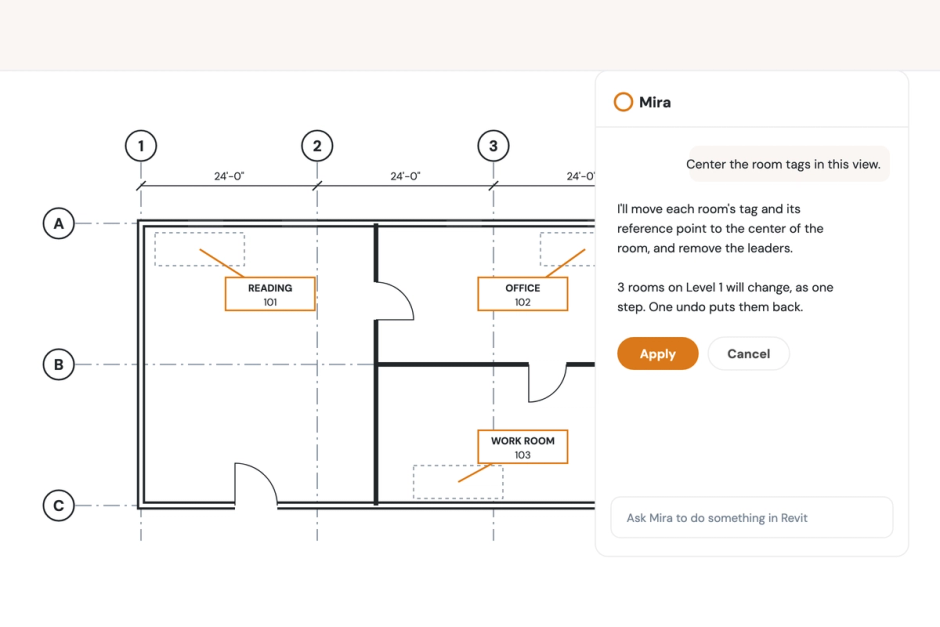
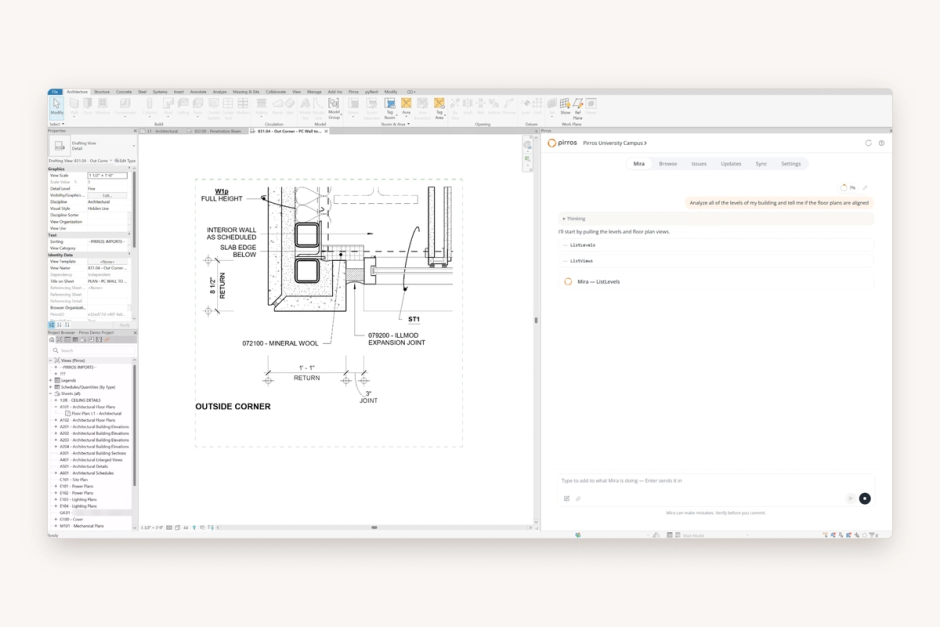
Inside the model, Mira, the AI agent for Revit, takes on the detail chores you would otherwise do one element at a time. It's free to download for Revit 2025 and later, and you ask in plain language.
- Bring an old or consultant detail onto your graphics. Type: "Audit this view against our standards. Here's our template." Mira learns your template in the background without disturbing the live project. It audits the view by properties, not names, so "Solid_02" matches "Pen 2" if weight, pattern and color agree. Judgment calls come back as ranked options with counts. It never edits what a note says and never touches anything outside the view. A style the project doesn't have is reported, not invented.
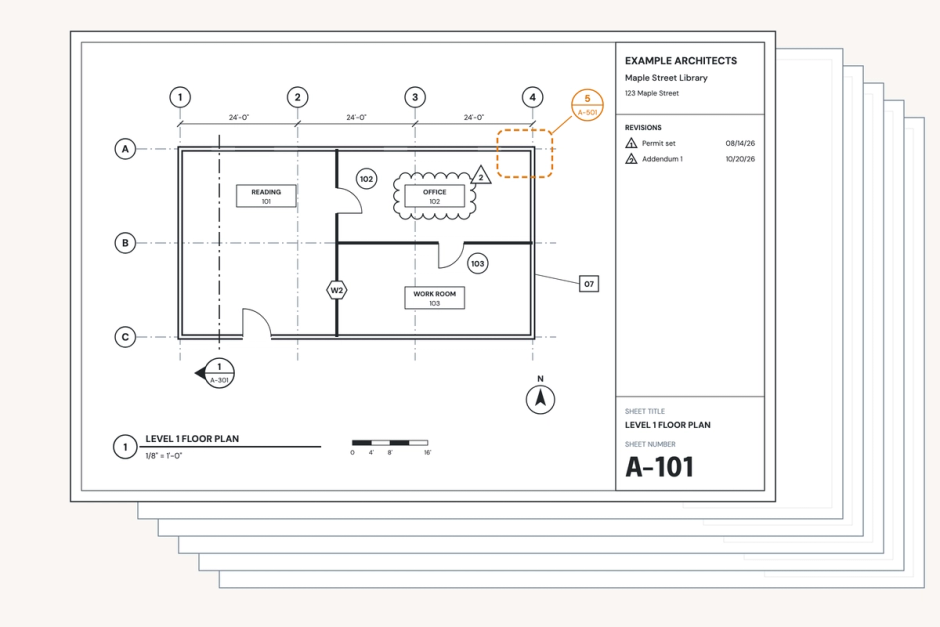
- Renumber a detail sheet after late changes. Type: "Renumber the details on this sheet." Mira draws each numbering convention on a diagram of your actual sheet before writing anything, and checks a few other sheets to suggest a match. It handles the temporary-number shuffle Revit forces, since two details on a sheet can't share a number. Details marked SIM or N.T.S. are flagged, not overwritten.
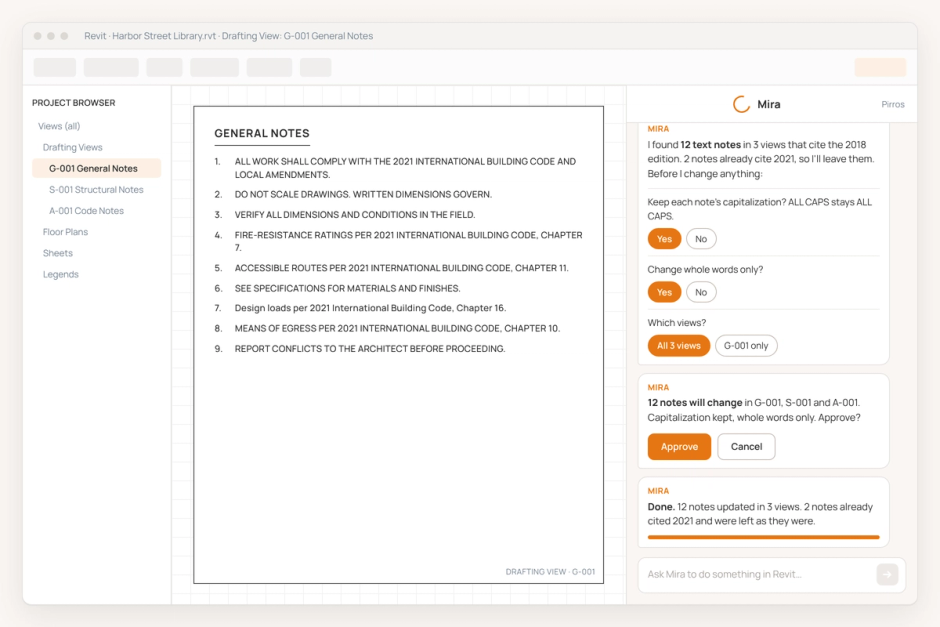
- Swap a product name everywhere it's noted. Type: "Replace 'Old Material Name' with 'New Material Name' in every text note." Mira searches every view, because each text note belongs to a single view. It keeps each note's casing and asks the awkward questions first, such as whole word or part of a word.
Every skill works the same way, whether it's renumbering a detail sheet or centering room tags on a plan. Mira reads first and shows you what it found. Nothing is written until you confirm. The whole batch is one undo. Anything it skipped is named, with the reason.
See your firm's details in one place
Book a demo to see how Pirros finds, vets and places the details your firm has already drawn. Working in Revit right now? Try Mira free.