Construction Documents: What Goes in a CD Set and How Architects Build One
What construction documents are, what goes in a CD set (drawings, specifications, schedules), how architects prepare one, and where firms lose hours doing it.

Construction documents are the drawings and specifications that tell a contractor exactly what to build, with what materials, and how to execute the project. Architects produce them in the construction documents (CD) phase, after design development, and issue the set for permits, bidding and construction. A typical set runs from general sheets through each discipline's plans, sections, details and schedules.
Most guides to construction documents are written for contractors and list the paperwork on a job site. This one is written from the architect's side: what goes in the set, how a team builds it sheet by sheet, and where the hours go.
What construction documents are
Construction documents are the drawings and written specifications that describe a building precisely enough for a contractor to price it, get it permitted and build it. They have three parts:
- Drawings: plans, elevations, sections, details and schedules for every discipline on the project. Our guide to construction drawings explains how to read them.
- Specifications: the written requirements for materials, products, workmanship and testing, collected in the project manual.
- Schedules: door, window, finish and equipment schedules, on the drawings or in the specifications.
The AIA places the phase right after design development: once the owner and architect approve the design, the architect "produces drawings with greater detail" (AIA: Defining the architect's basic services). Design development settled what the building is. Construction documents settle how every part of it goes together.
Construction documents are also part of a larger package, the contract documents. Those add the owner-contractor agreement, the general and supplementary conditions, and any addenda and modifications. For how the work runs once the set is out, see the five construction phases.
What goes in a CD set
A CD set opens with general sheets and then gives each discipline its own group of drawings, numbered so anyone on site can find a sheet by its number.
Sheets by discipline
The U.S. National CAD Standard gives each discipline a letter, so a set from one firm reads much like a set from another (National CAD Standard). The ones you'll see in most building sets:
- G, General: cover sheet, sheet index, code analysis, symbols, abbreviations and general notes.
- C, Civil: grading, utilities and site work.
- L, Landscape: planting, hardscape and irrigation.
- S, Structural: foundations, framing and structural details.
- A, Architectural: plans, elevations, sections, details and schedules for the building itself.
- I, Interiors: finishes and furniture, when they aren't folded into architectural.
- F, Fire protection: sprinklers and standpipes.
- P, Plumbing, M, Mechanical and E, Electrical: each system's plans, details and schedules.
Drawings by type
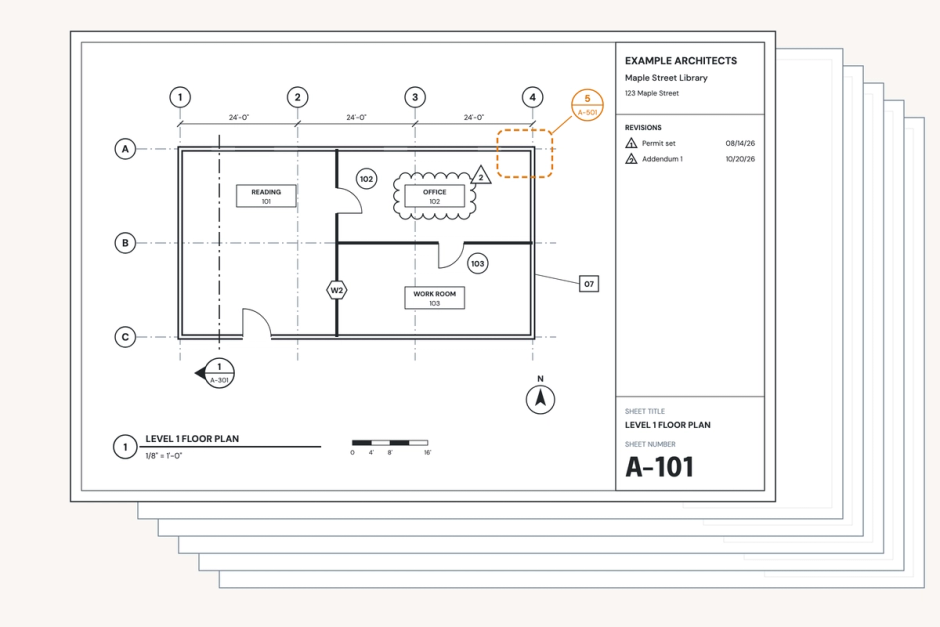
The first digit after the letter says what kind of drawing a sheet holds. In the National CAD Standard, 0 is general information, 1 is plans, 2 is elevations, 3 is sections, 4 is large-scale views, 5 is details and 6 is schedules and diagrams. So A-101 is the first architectural floor plan, and A-501 is the first sheet of architectural details.
What each type carries:
- Plans: floor plans, reflected ceiling plans, roof plans and enlarged plans of stairs, toilet rooms and other tight spaces.
- Elevations: exterior elevations, and interior elevations wherever finishes, casework or fixtures need dimensions.
- Sections: building sections that show heights and relationships, and wall sections that show every layer of the enclosure.
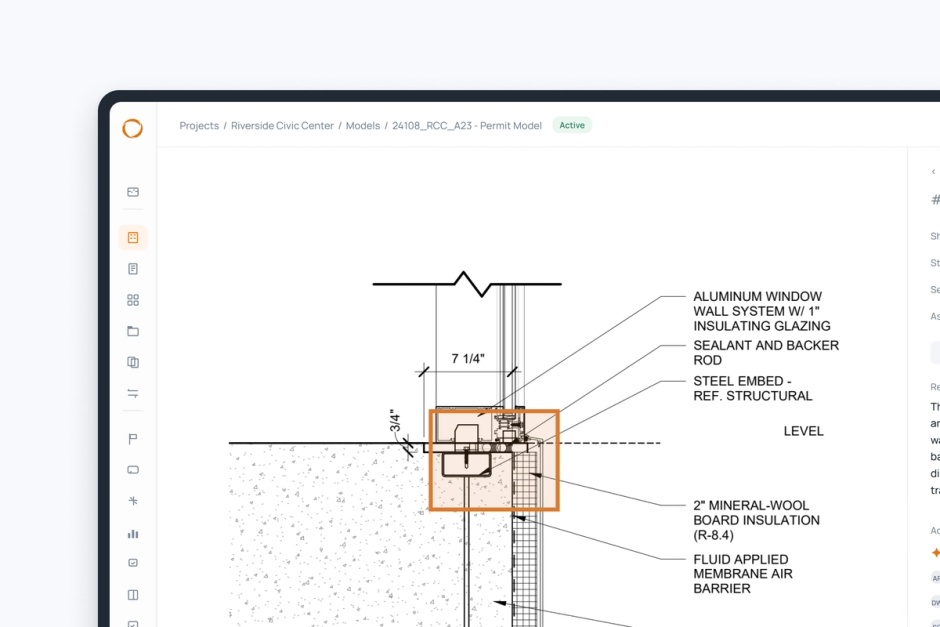
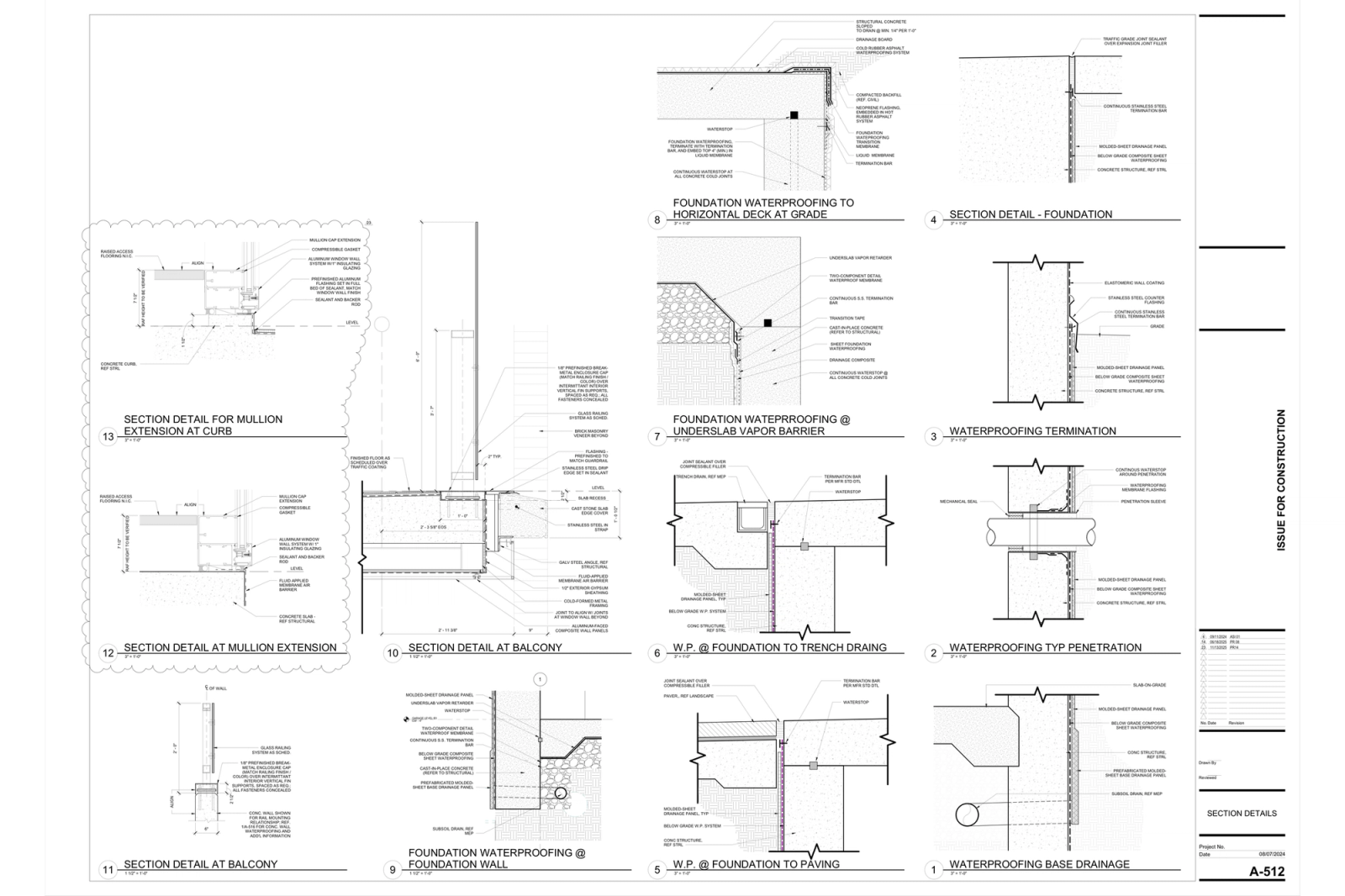
- Details: large-scale drawings of how materials meet at one condition, such as a window head or a parapet. Our guide to architectural details covers them in depth.
- Schedules: doors, windows, finishes, hardware and equipment, each tied to tags on the drawings.
Specifications and the project manual
The specifications provide an additional layer of detail beyond the drawings: which products, which standards, what quality, and how work is tested and accepted. Most US firms organize them by CSI MasterFormat divisions, such as Division 08 for openings and Division 09 for finishes. They live in the project manual, alongside the bidding requirements and the conditions of the contract.
How architects build a CD set, step by step
A CD set grows out of the design development model in a fairly fixed order. Most teams follow some version of these steps:
- Lock what design development decided. The owner approves the design, and changes after this point cost more on every sheet they touch.
- Set up the sheets from the firm template. Title block, sheet index, view templates and annotation styles all come from the template, so every sheet starts in the firm's graphics.
- Develop the plans, sections and elevations from the model. Dimensions, tags and keynotes go on as each view fills in.
- Place the details. Typical details come first, the firm-approved versions of conditions it draws on every job. Project details follow, for conditions unique to this building.
- Coordinate with consultants. Structural, MEP and civil drawings move back and forth on a schedule, and conflicts get resolved on the sheets, not on site.
- Write the specifications alongside the drawings. A product named in a note should match its specification section, word for word.
- Review the set at milestones. Many firms check at about 50%, 90% and 100% completion, so problems surface while there's time to fix them.
- Issue the set. It goes out as a permit set, a bid set and finally an issued-for-construction set, with revisions clouded and tagged after that.
Where the process tends to break down
Drawing one good CD set is a team effort. But drawing dozens of CD sets annually, to the same standard, is a massive coordination challenge that often breaks down. Here are the most common problems architecture firms experience:
- The detail exists, but nobody can find it. The firm drew that rated partition head three projects ago. It's buried in a model nobody opens, so someone redraws it under deadline, slightly differently.
- Graphics drift. Sheets drawn by different people, offices and consultants end up with different line weights, text styles and tags, and the set stops reading as one document.
- Late changes ripple. A moved door changes a tag, a schedule row, a detail reference and a note on four different sheets. A detail added late scrambles the numbers on its sheet.
- QA/QC is rushed. Deadline pressure causes QA/QC to be deprioritized or done in a cursory way. The issues and errors that remain in the CD set manifest during construction as RFIs, change orders and rework.
- The standard lives in people's heads. Which detail is approved and which was a one-off is knowledge that walks out the door with the people who had it.
None of this is a drafting problem. It comes from starting every set from files instead of from what the firm already knows.
Doing it well
The firms that turn out consistent sets treat the CD set as a firm product, not a one-off. Start with these habits:
- Start every set from one firm template. Title blocks, view templates, line styles and tags belong in the template, not in last year's project.
- Keep typical details as firm standards. One approved version of each common condition, kept in one place the whole firm searches, with an owner who decides what gets added.
- Use one numbering convention. Sheet numbers, detail numbers and keynotes should follow the same rules on every project, so anyone can read any set.
- Run a checklist at every milestone. Make sure that:
- the sheet index matches the sheets in the set;
- every callout and section mark points to a sheet that's in the set;
- every keynote appears in its legend;
- door, window and room tags match their schedules;
- products named in notes match the specification sections;
- consultant backgrounds and the code analysis are current.
- Review early, not only at the end. An issue or error found at 50% costs an afternoon. But if it's discovered during bidding, it requires much more effort to correct, which means more time and money.
- Clean up late changes in one pass. Renumbering, retagging and renaming one element at a time is where hours vanish and errors slip in.
How Pirros helps
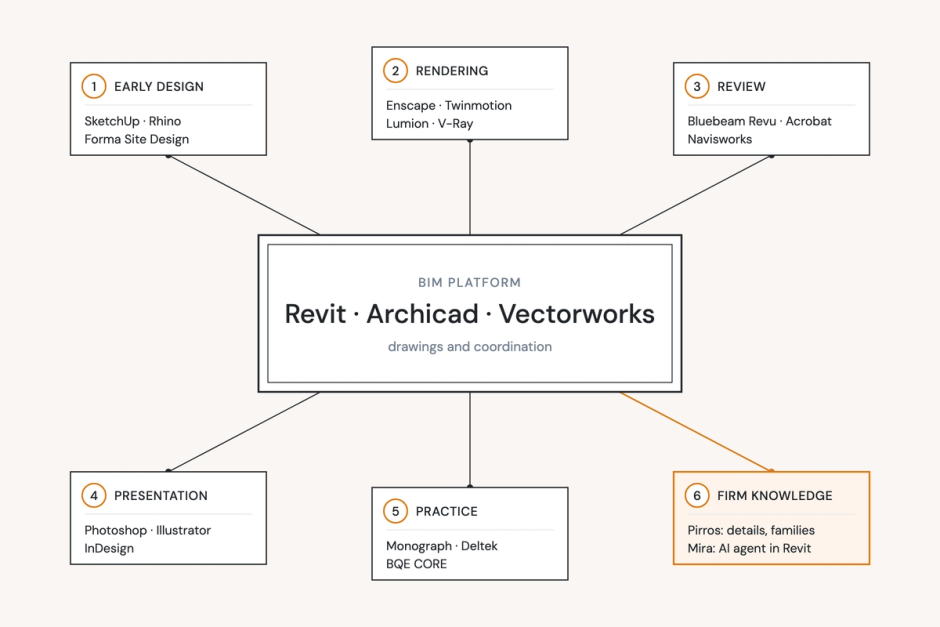
Pirros, the AI project hub for architects and engineers, puts the work your firm has already drawn into the set you're drawing now.
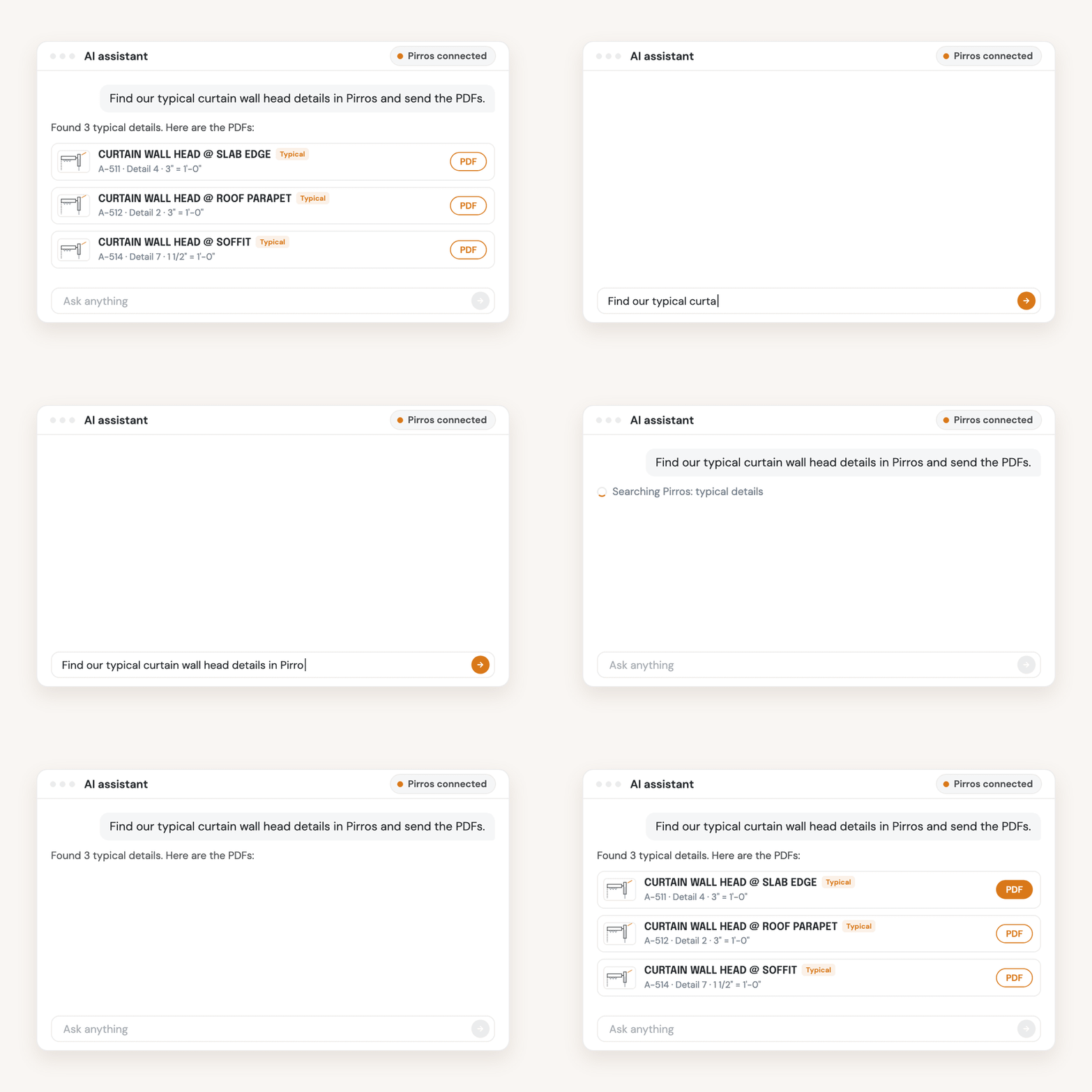
Find the detail you already drew. Detail management reads the geometry and annotations inside every detail from your past projects, so you search by the condition it solves, such as "partition, 1 hour rated, metal stud", instead of guessing a file name. The firm's approved versions are marked, and your team places them straight into the active Revit view.
At David Baker Architects, designers save an average of 10 minutes per detail in search and recreation time. Across the roughly 200 details in one of their projects, that comes to about 33 hours per project.
Review the set before it goes out. The Pirros Quality Management System runs an AI drawing review of your set against code requirements, your firm's standards and your project specifications. It flags the misses a checklist is meant to catch, such as a callout that points to a sheet not in the set, a keynote missing from its legend, or a detail that has drifted from the approved version. Your team decides what to fix, and every finding is assigned and tracked until it's resolved.
Number TEN Architectural Group is one of the first firms to use the QMS to review their projects. As Trent Piazzoni, an Associate and Project Architect there, puts it: "The drawings need to communicate the design intent as clearly as possible, leaving as little room for misinterpretation as we can."
Mira handles the late-change cleanup
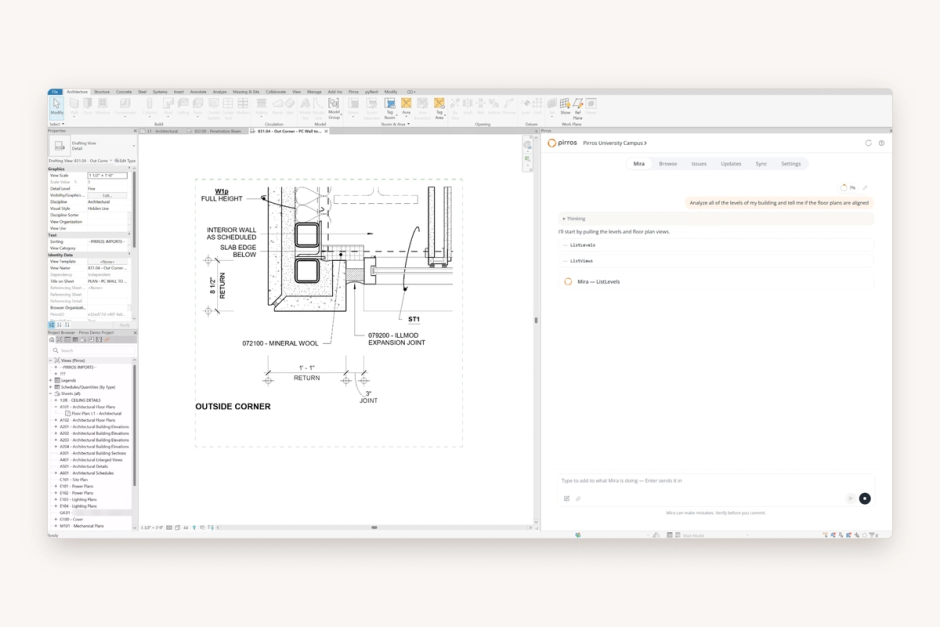
Mira, the AI agent for Revit, works inside your Revit session and takes on the jobs you'd otherwise do one element at a time. Three come up on every CD set:
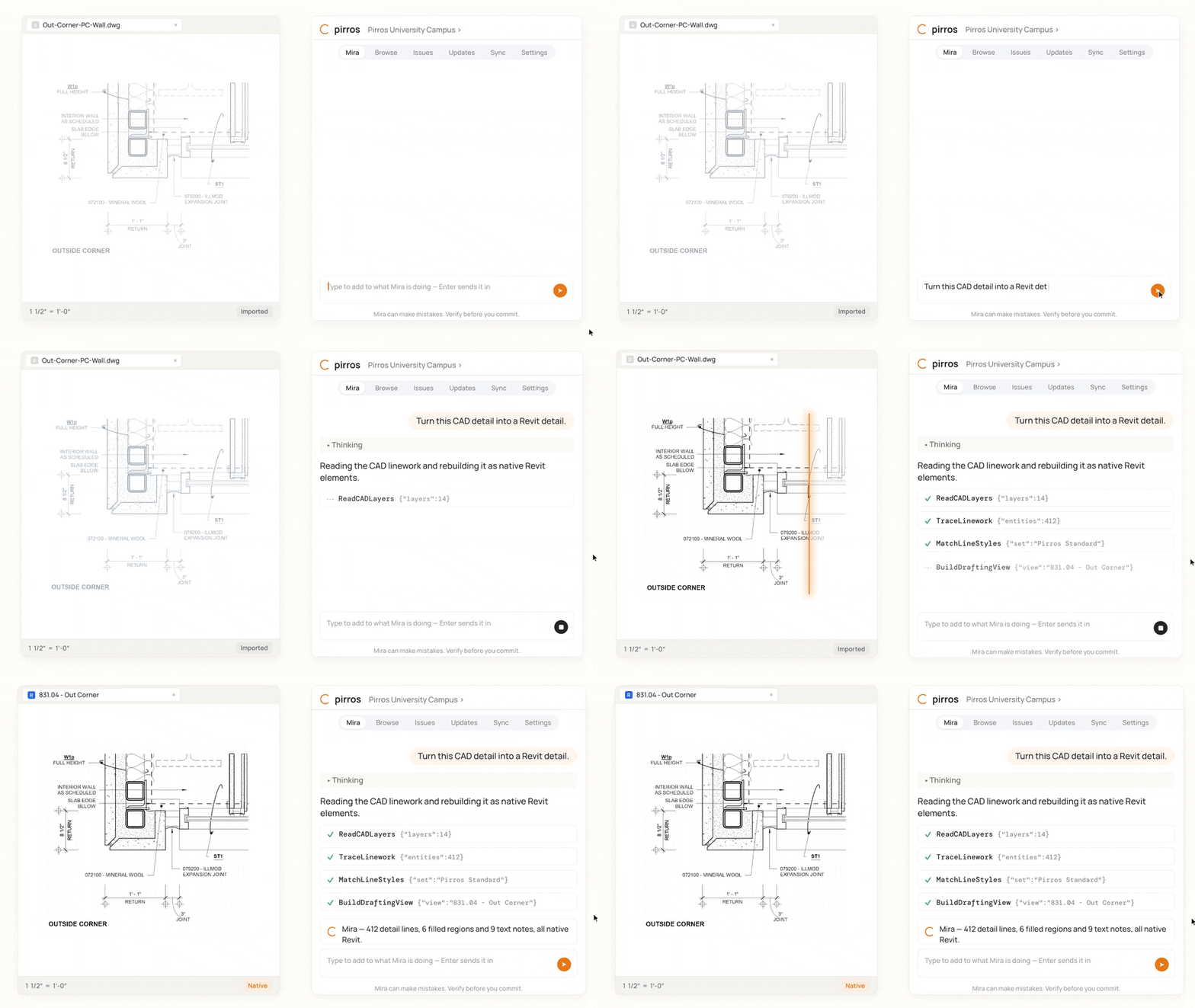
- "Renumber the details on this sheet." Mira reads the sheet, suggests a numbering convention (bottom-up, left to right, as the US National CAD Standard does, unless your other sheets say otherwise), and shows the result before it writes anything. Details marked SIM or N.T.S. are flagged, not overwritten.
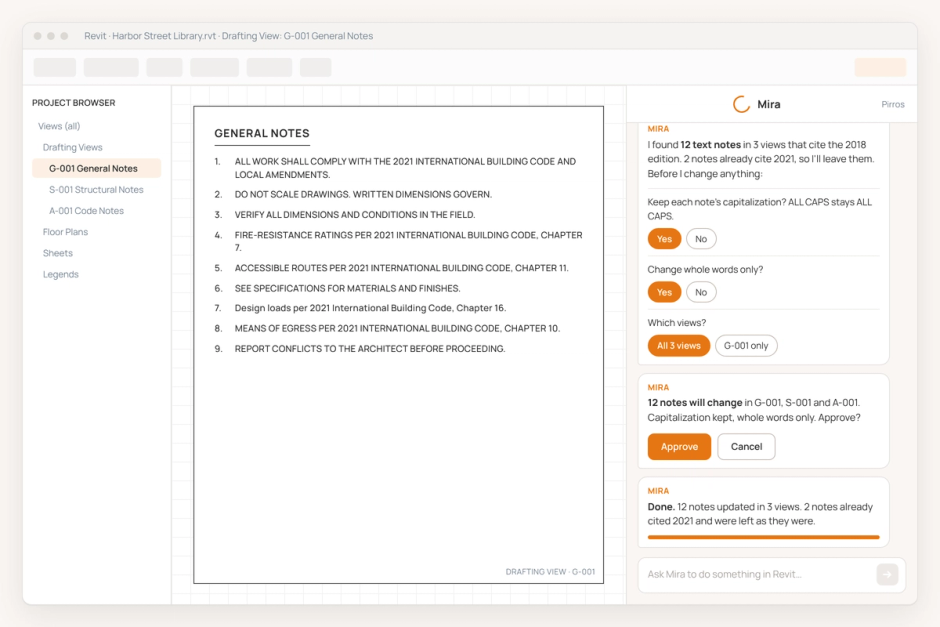
- "Replace 'Type X gypsum board' with 'Type C gypsum board' in every text note." For a late product substitution, Mira searches every view, not just the one you have open, keeps each note's casing, and asks before it matches part of a word.
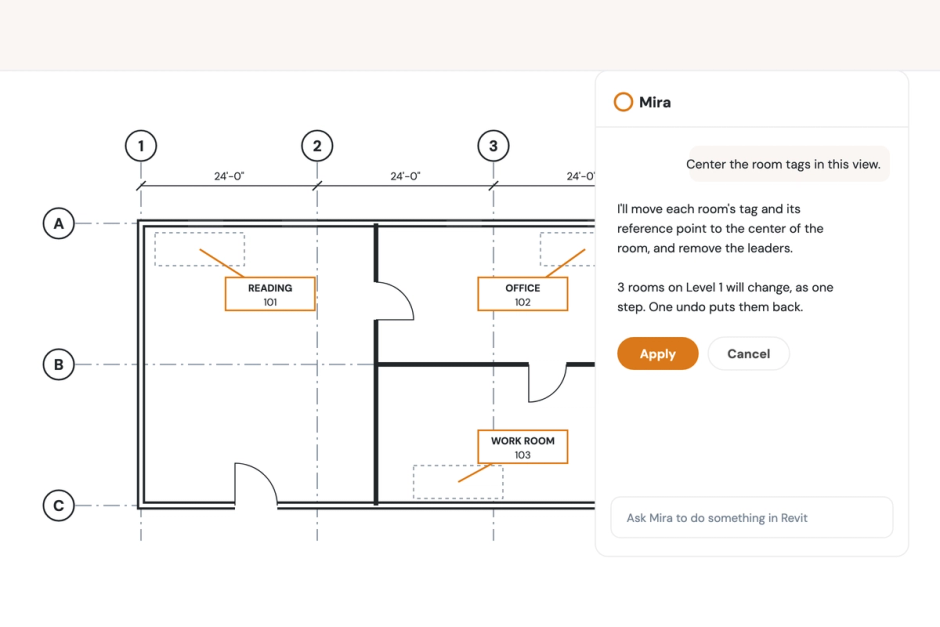
- "Center the room tags in this view." Mira moves each room tag and the room's own location point to the room's true center, and names any room it can't center fairly instead of guessing. The manual way is in our guide to how to center room tags in Revit.
Nothing changes until you confirm, and one undo reverses the whole batch. Mira handles the repetition; you approve the result.
For the manual steps behind these and other Revit tasks, see our Revit how-to guides.
Build your next set from what your firm already knows
Most of a CD set is work your firm has done before. Book a demo to see your own details searchable by the condition they solve. Working in Revit today? Try Mira free.