Wall Sections: What to Include, Examples, and How to Draw One in Revit
What a wall section shows, the layers and connections it needs, examples by wall type, and how to draw one in Revit, from the foundation to the roof.

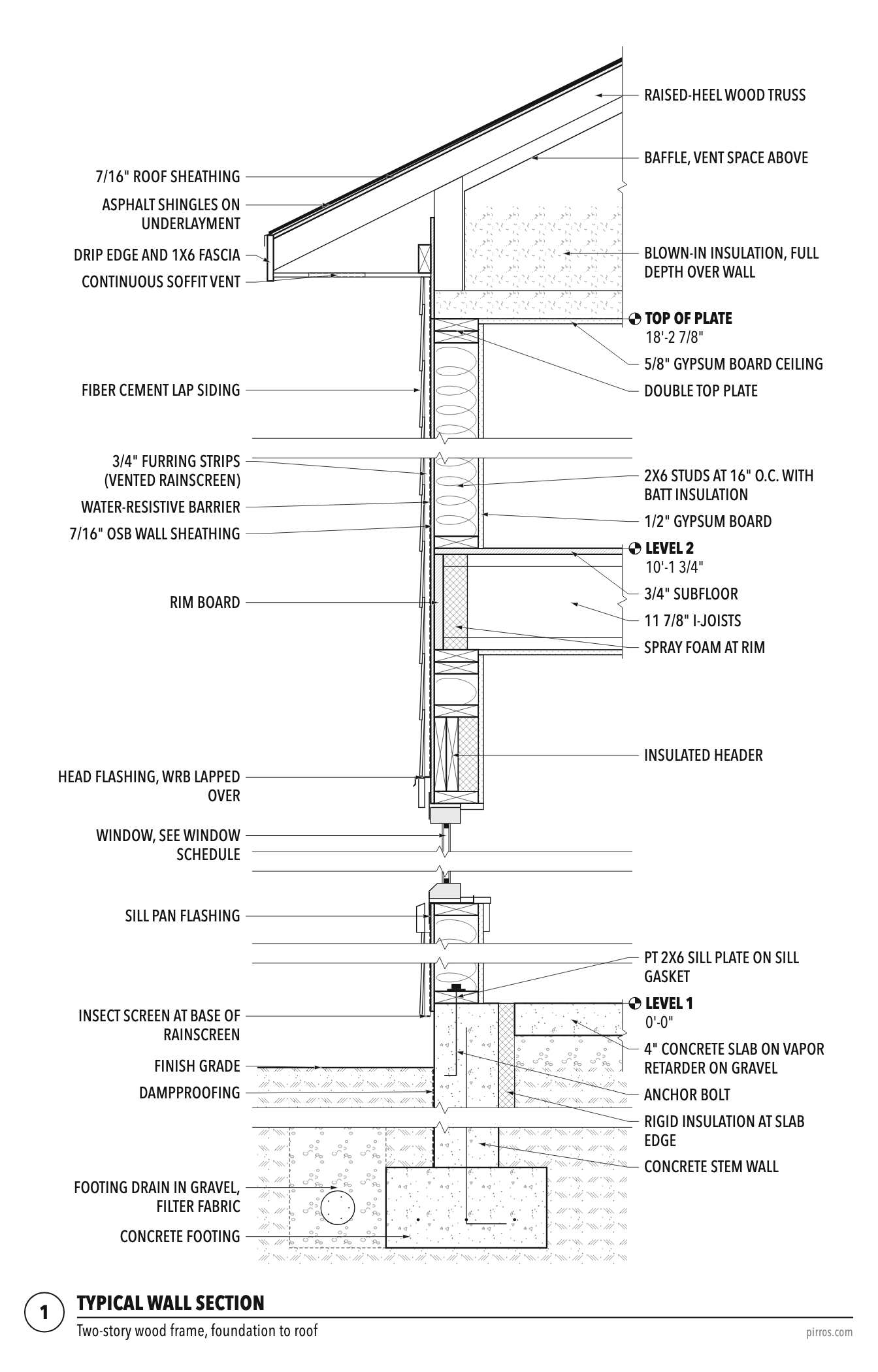
A wall section is a vertical cut through one exterior wall, from the foundation to the roof, drawn at a larger scale than a building section. It shows every layer of the wall and how it meets the footing, each floor, the windows and the roof, with notes naming each material.
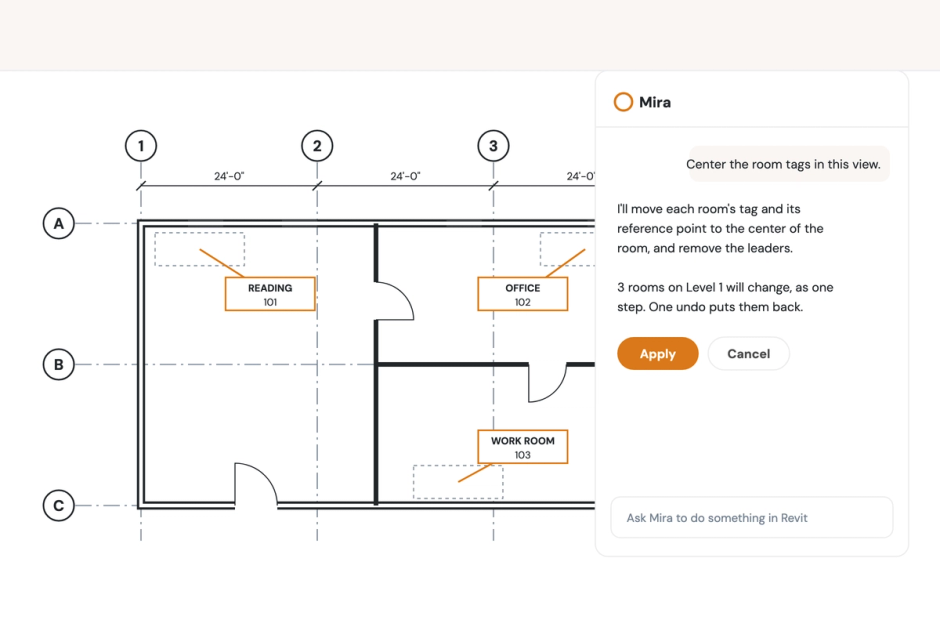
Drawing one in Revit? Mira, the AI agent for Revit, can cut the section, apply your view template and place it on a sheet when you ask in plain English, and nothing changes until you approve it. See the prompts.
What a wall section shows
A wall section follows one slice of the exterior wall the full height of the building. Read from the bottom up, it shows:
- The foundation: the footing, foundation wall or slab edge, below-grade waterproofing and drainage, and how the wall above bears on it.
- Each floor line: how the floor structure meets the wall, and how the insulation, air barrier and cladding carry on past it.
- Openings: a window or door head and sill wherever the cut passes through one, with its flashing.
- The top of the wall: the roof eave or parapet, and how the roof membrane and insulation tie into the wall.
- Heights: level lines and dimensions for floor-to-floor heights, plate heights and window heads.
Notes or keynotes name every material. Callouts send the reader to larger details for the connections that need more room.
Wall section, building section, and detail
These three drawings zoom in on the same wall, one step at a time.
- A building section cuts through the whole building at a small scale, commonly 1/8" or 1/4" = 1'-0". It shows floors, spaces and overall heights.
- A wall section cuts through one wall at a larger scale, commonly 3/4" or 1/2" = 1'-0" (1:20 in metric sets). It shows every layer, foundation to roof.
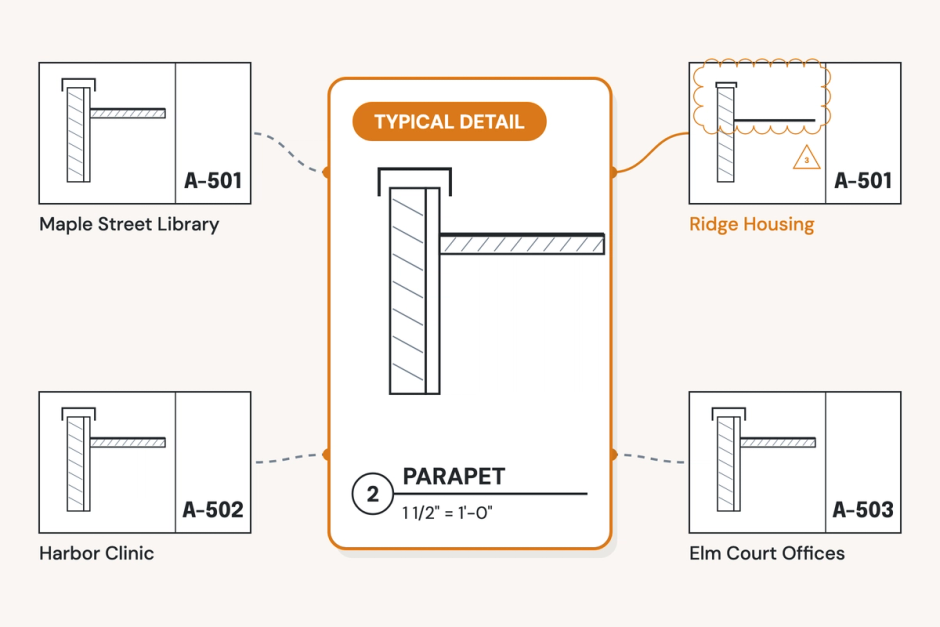
- A detail enlarges one connection along that wall, such as the window head or the parapet, commonly at 1 1/2" or 3" = 1'-0". Our guide to architectural details covers them in depth.
| Drawing | Typical scale | What it shows | Sheet series |
|---|---|---|---|
| Building section | 1/8" or 1/4" = 1'-0" | The whole building: floors, spaces and overall heights | 300 (sections) |
| Wall section | 3/4" or 1/2" = 1'-0" (1:20 metric) | One wall, every layer, foundation to roof | 300 (sections) |
| Detail | 1 1/2" or 3" = 1'-0" | One connection, such as a window head or parapet | 500 (details) |
Callouts tie the three together: the building section points to the wall section, and the wall section points to its details. In the US, the National CAD Standard puts wall sections on the sections sheets (the 300 series) and details on the 500 series.
A typical wall section applies wherever the plans don't point somewhere else. Draw another wall section only where the conditions change: a different cladding, a taller floor, a different foundation.
What to include in a wall section
List the layers from outside to inside, then draw the connections, because the connections are where walls fail.
Every exterior wall has four control layers: one each for water, air, vapor and heat. A good wall section passes the pen test: you can trace each layer through the whole section, past every floor line, opening and roof edge, without lifting the pen. Where the pen has to lift, the layer has a gap, and that gap is where the wall will leak or lose heat.
Layers, outside to inside:
- Cladding (siding, brick, panels or stucco), and the air space or rainscreen behind it, if any
- Continuous insulation, where the assembly has it
- Water-resistive and air barrier
- Sheathing
- Structure: studs, masonry or concrete, with cavity insulation where there is any
- Vapor retarder, where the climate and assembly call for one
- Interior finish
Connections to draw and note:
- Foundation: how the wall bears on it, the sill or slab edge, and below-grade waterproofing and drainage.
- Floor lines: how each barrier stays continuous past the floor structure, and the shelf angles or ties where there's masonry.
- Openings: head flashing, sill pan or sill flashing, and how the barrier laps the frame.
- Roof or parapet: where the roof membrane, roof insulation and wall air barrier meet.
- Fire and sound: rated assemblies, and firestopping where the section crosses them.
Leave out what belongs on other drawings. Outlets, ducts and pipes in the wall don't go in a wall section unless they change the assembly.
Wall section examples by wall type
The layers change with the structure and the cladding. Here are six common wall types.
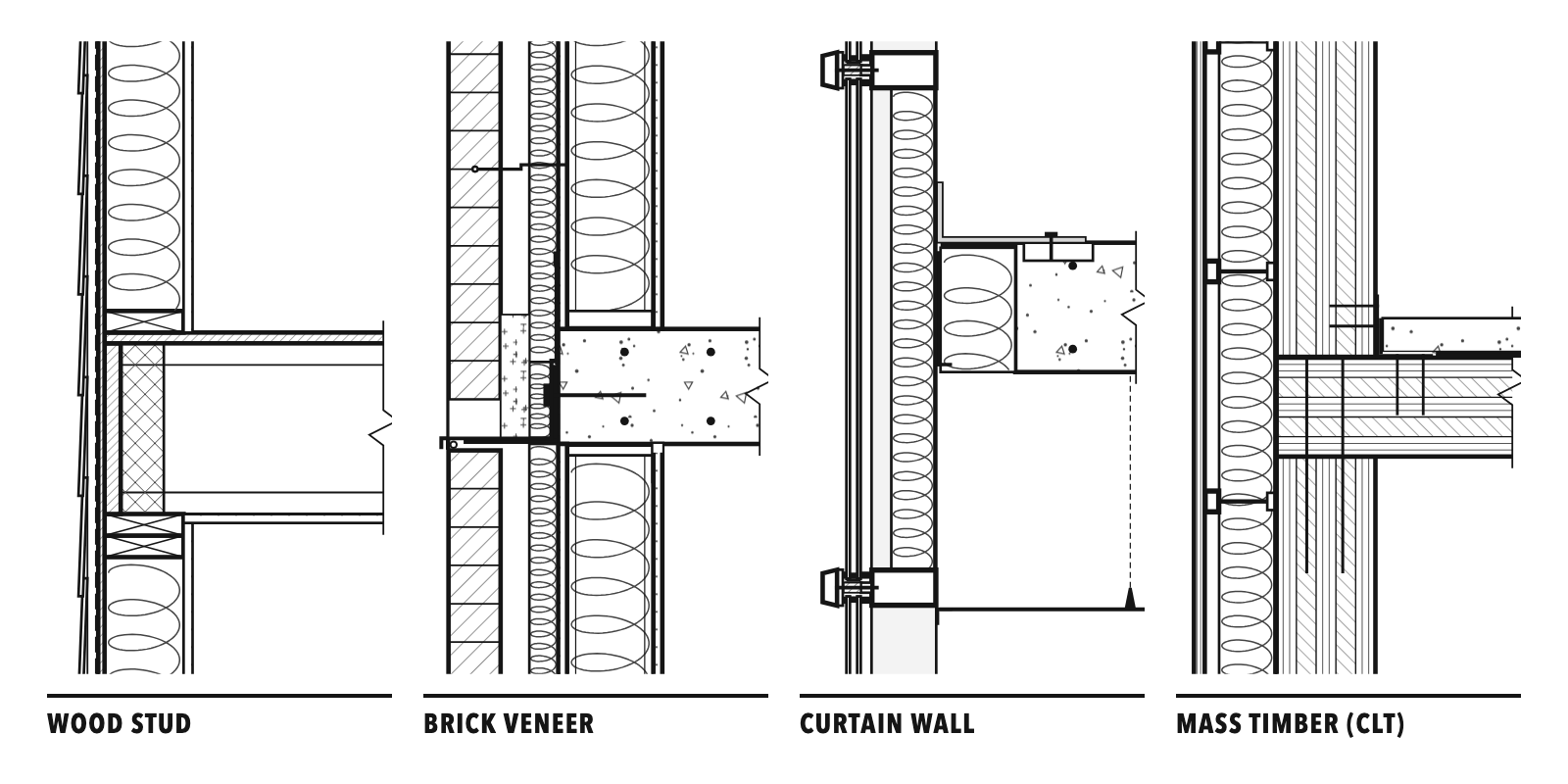
Wood stud wall section
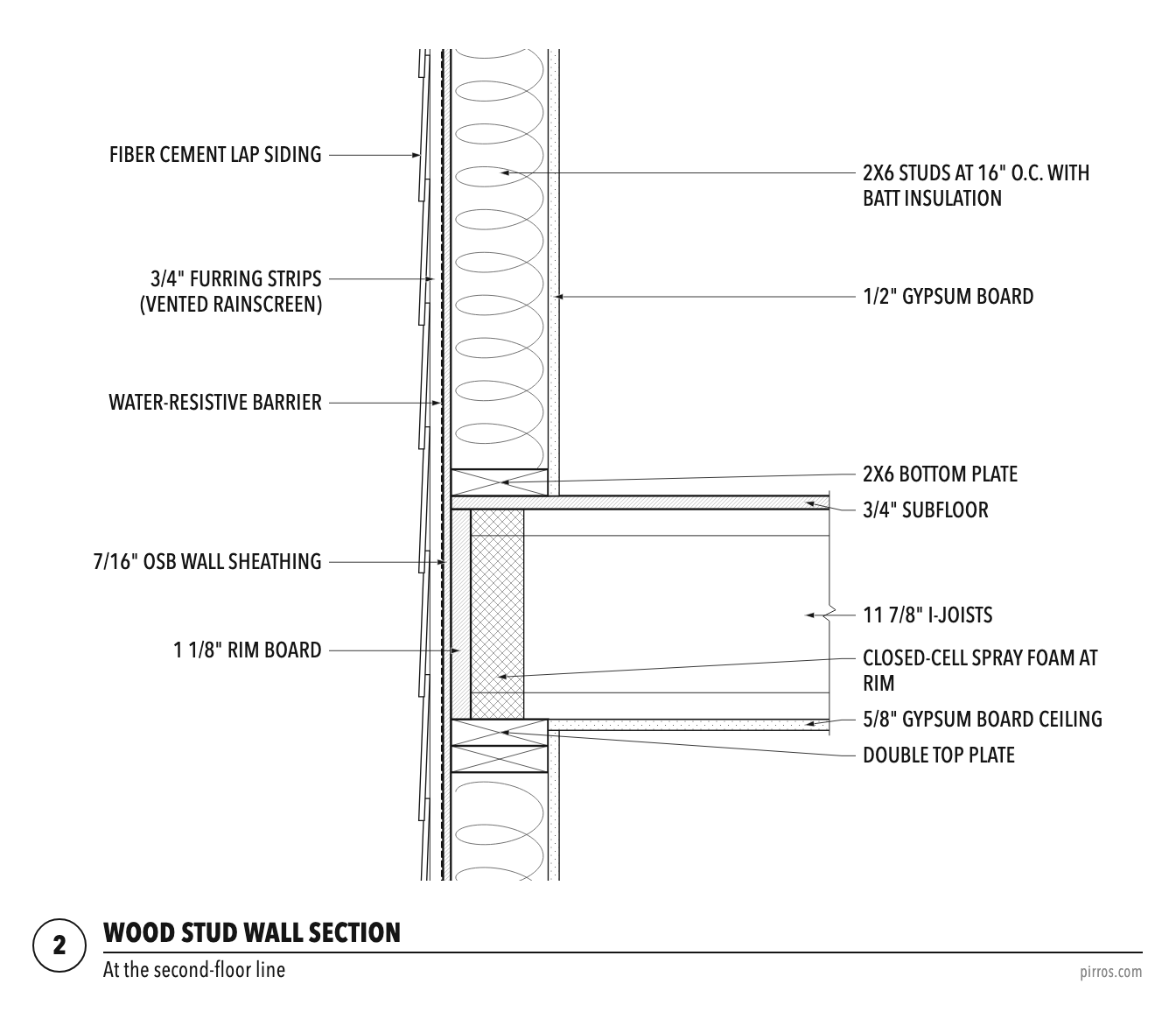
Light-frame wood studs hold cavity insulation, with sheathing and a water-resistive barrier outside and gypsum board inside. Platform framing puts a rim board at each floor, and the sill plate sits on the foundation with anchor bolts. The energy code (the IECC, or ASHRAE 90.1 for commercial work) sets how much insulation the wall needs. NFPA 285 can apply where exterior walls are fire-retardant-treated wood on a Type III building; typical Type V wood construction is exempt.
Metal stud wall section with brick veneer
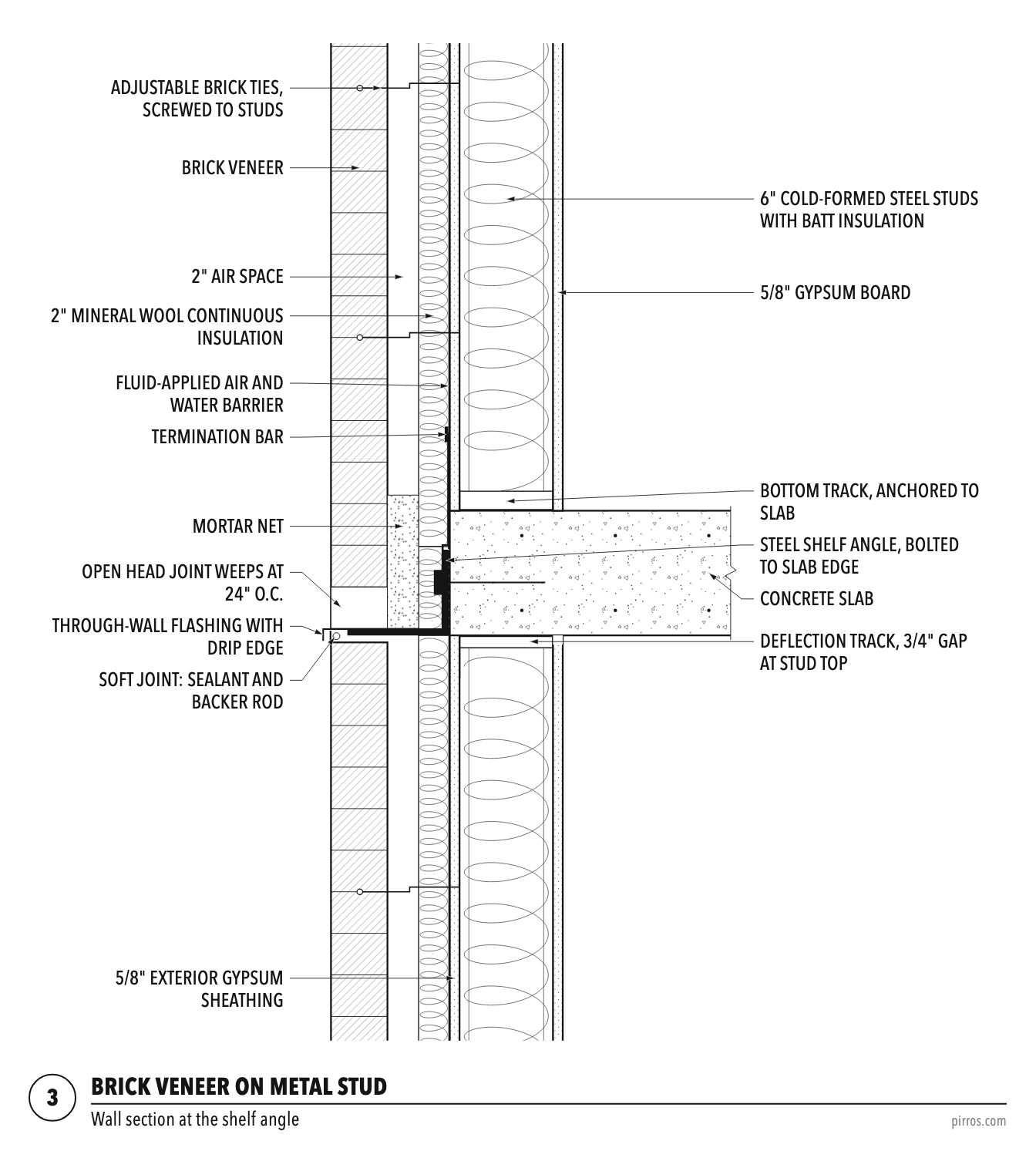
Cold-formed steel studs carry gypsum board inside and exterior sheathing outside, with the air and water barrier and continuous insulation on the sheathing. The brick sits in front of an air space, tied back to the studs. Through-wall flashing and weeps go at its base, over openings and at shelf angles in taller buildings. TMS 402 governs the veneer itself: tie spacing, the air space and support at each shelf angle. The energy code (the IECC or ASHRAE 90.1) sets the continuous insulation, and on Type I to IV buildings an assembly with foam plastic insulation or a combustible water-resistive barrier needs NFPA 285 approval.
CMU wall section
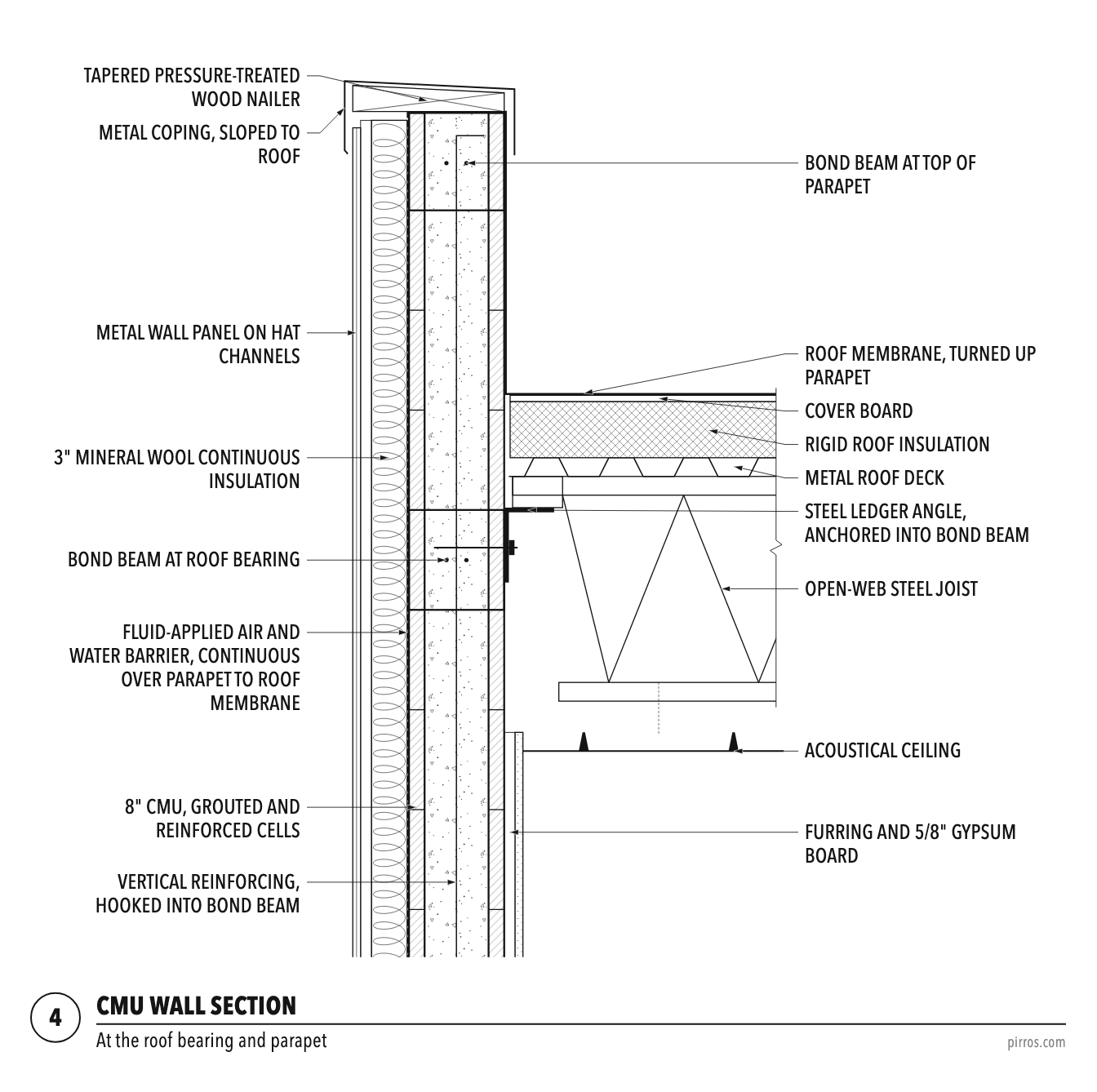
Concrete masonry units carry the load, grouted and reinforced where the structure needs it, with bond beams where floors and roof bear. The block is insulated outside under a veneer or panel, or furred and insulated inside. It is flashed and weeped like any masonry wall.
Concrete wall section
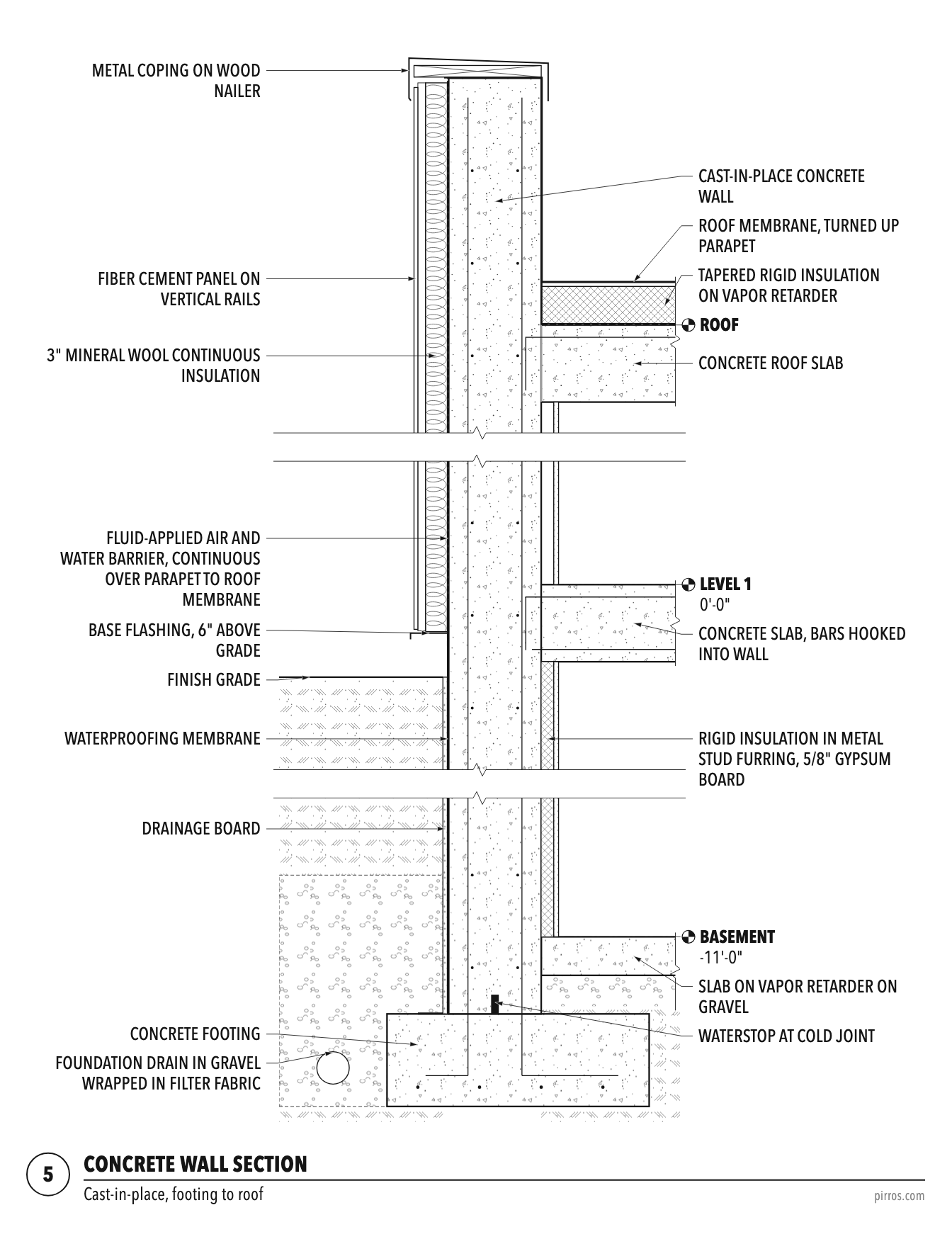
Cast-in-place or precast concrete forms the structure. Insulation goes outside the concrete or on furring inside it. Below grade, the section shows the waterproofing, drainage board and footing.
Curtain wall section
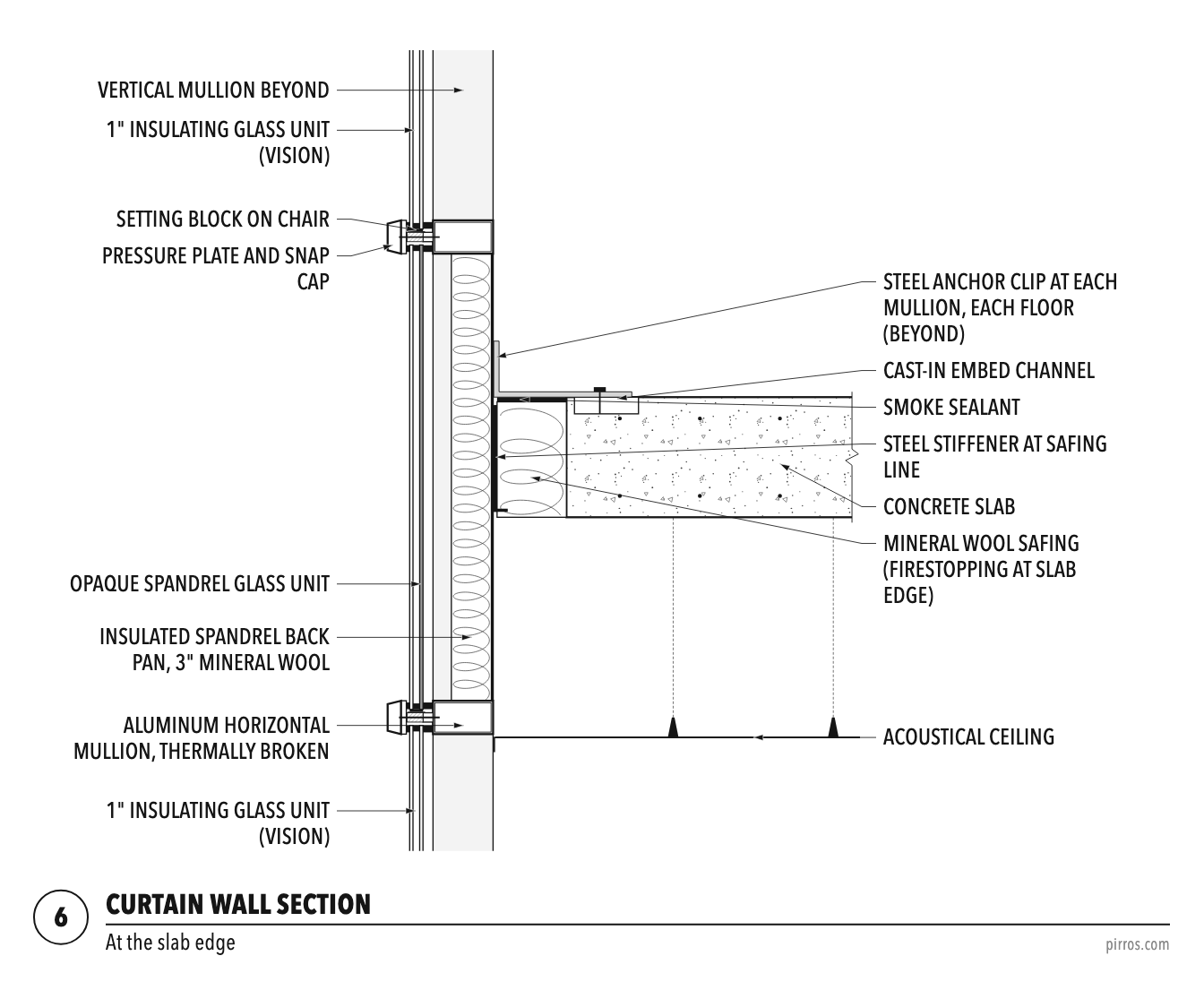
A curtain wall carries no floor loads; it hangs from the slab edges. The section shows the anchors at each floor, the insulated spandrel in front of the slab, and the firestopping between slab edge and curtain wall. That firestopping is a perimeter fire barrier, tested as a system to ASTM E2307.
Mass timber wall section
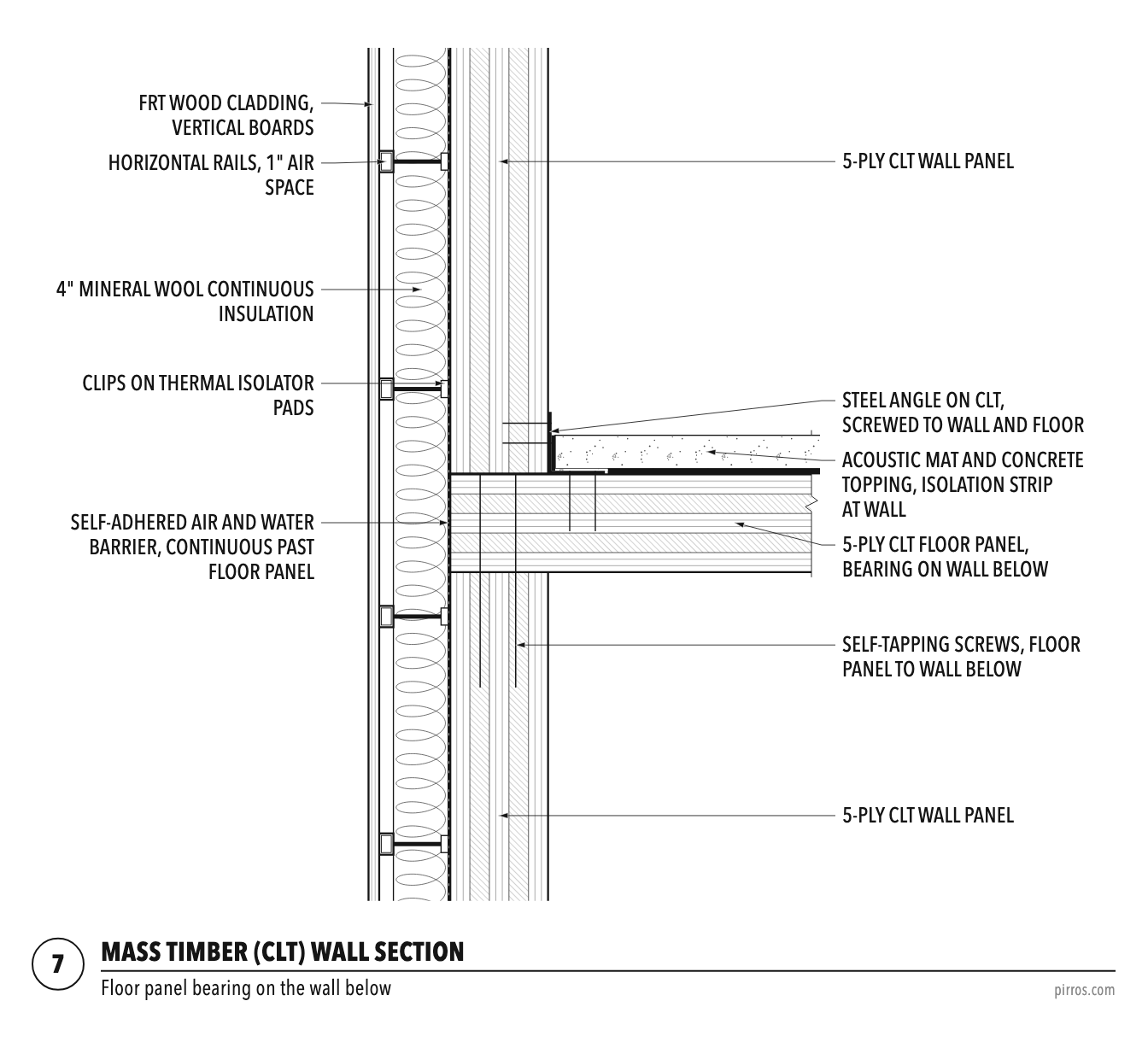
A cross-laminated timber (CLT) or other mass timber panel forms the wall, with continuous insulation, an air and water barrier, and cladding on a rainscreen outside. The section shows how the floor panels bear on or hang from the wall, and how the barriers stay continuous past them.
How to draw a wall section in Revit
Cut a section through a typical bay, crop it, set it to Fine and apply your view template, then add what the model doesn't show. Here are the steps by hand, then the same work as Mira prompts.
- Cut the section. Open a plan view and click View tab › Create panel › Section. In the Type Selector, pick your template's Wall Section type if it has one. Draw the line through a typical bay where it shows the most, such as through a window (Autodesk Revit 2027 Help).
- Crop it to the wall. Drag the crop region in to one bay of wall, and pull the far clip in so the view doesn't pick up the building behind it.
- Set the scale and detail level. In the View Control Bar, set your firm's wall section scale and set Detail Level to Fine, so walls, floors and roofs show their layers.
- Apply the view template. Use View tab › Graphics panel › View Templates › Apply Template Properties to Current View, so line weights, visibility and annotation match the other wall sections in the set.
- Add what the model doesn't show. Flashing, sealant, blocking and anchors usually come from detail components (Annotate tab › Detail panel › Component › Detail Component), and batt insulation from Annotate tab › Detail panel › Insulation. Draw on top of the model; don't redraw it.
- Note it. Keynote the materials and components (Annotate tab › Tag panel › Keynote), add level lines and spot elevations for heights, and dimension what the contractor needs.
- Call out the details. Use View tab › Create panel › Callout at the connections that need a larger scale, such as the window head, the sill and the parapet.
- Place it on a sheet. Drag the view from the Project Browser onto a 300-series sheet.
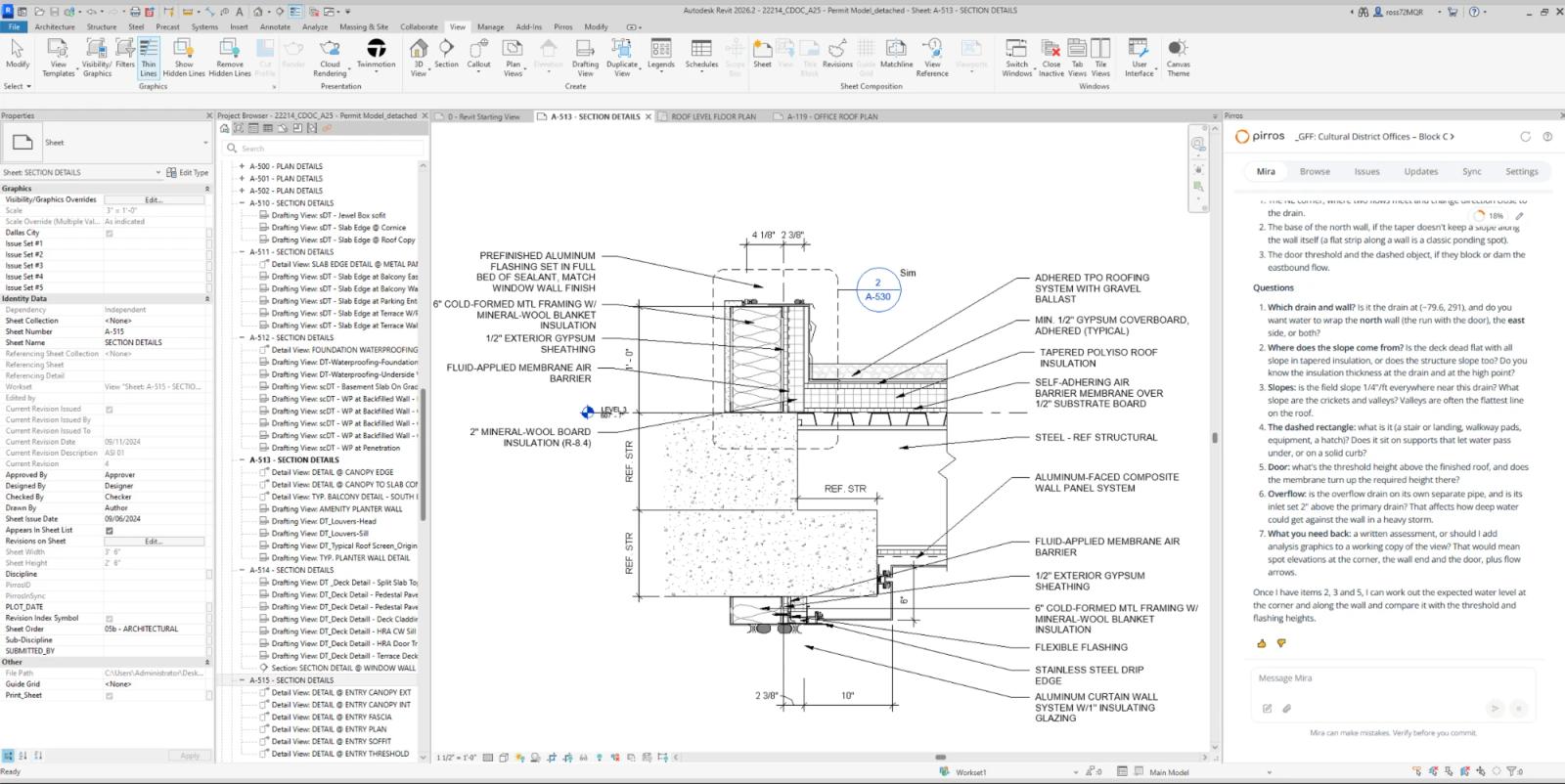
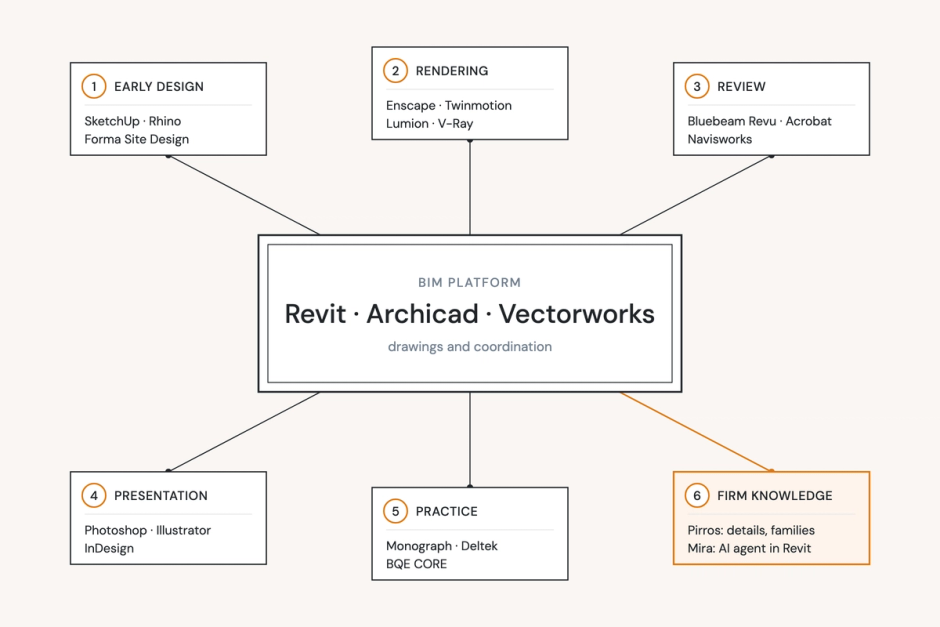
Or ask Mira. Mira, the AI agent for Revit, works in your open model and takes on the repetitive steps when you ask in plain English. It's free to download for Revit 2025, 2026 and 2027.
- Cut the section. Type: "Cut a wall section through grid line 3 at the south wall, looking east, and name it Typical Wall Section." Mira checks which way the grid runs and whether the name is taken, then shows you the section's extent before it draws anything.
- Apply the view template. Type: "Set the View Template to 'Wall Section' on every wall section that doesn't have one yet." Mira lists the views with no template and waits for your OK, then assigns it and leaves views that already have one alone.
- Bring a borrowed wall section onto your graphics. Type: "Audit this view against our standards. Here's our template." Mira matches line styles, text, filled regions, detail components and tags by their properties, brings judgment calls back as options with counts, and never edits what a note says.
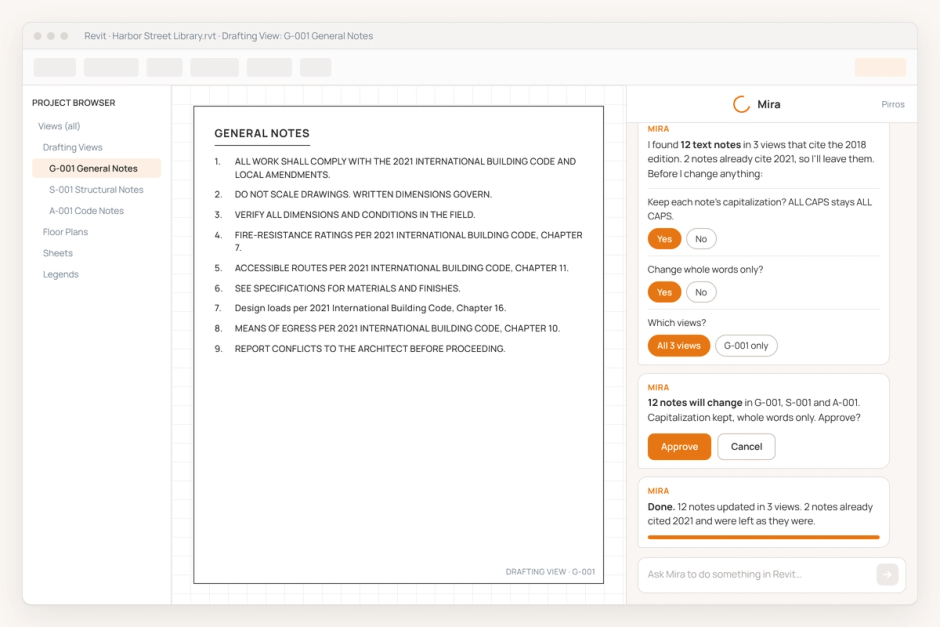
- Swap a product name in every note. Type: "Replace 'Old Material Name' with 'New Material Name' in every text note." Mira searches every view, keeps each note's casing, and asks first whether to match whole words. It edits text notes; keynotes change in your keynote file.
- Place it on a sheet. Type: "Place the Typical Wall Section view on sheet A-301." Mira checks that the view isn't already on a sheet and asks before it places anything.
- Renumber the details after late changes. Type: "Renumber the details on this sheet." Mira draws the numbering on a diagram of your sheet before it writes anything, and flags details marked SIM or N.T.S. instead of overwriting them.
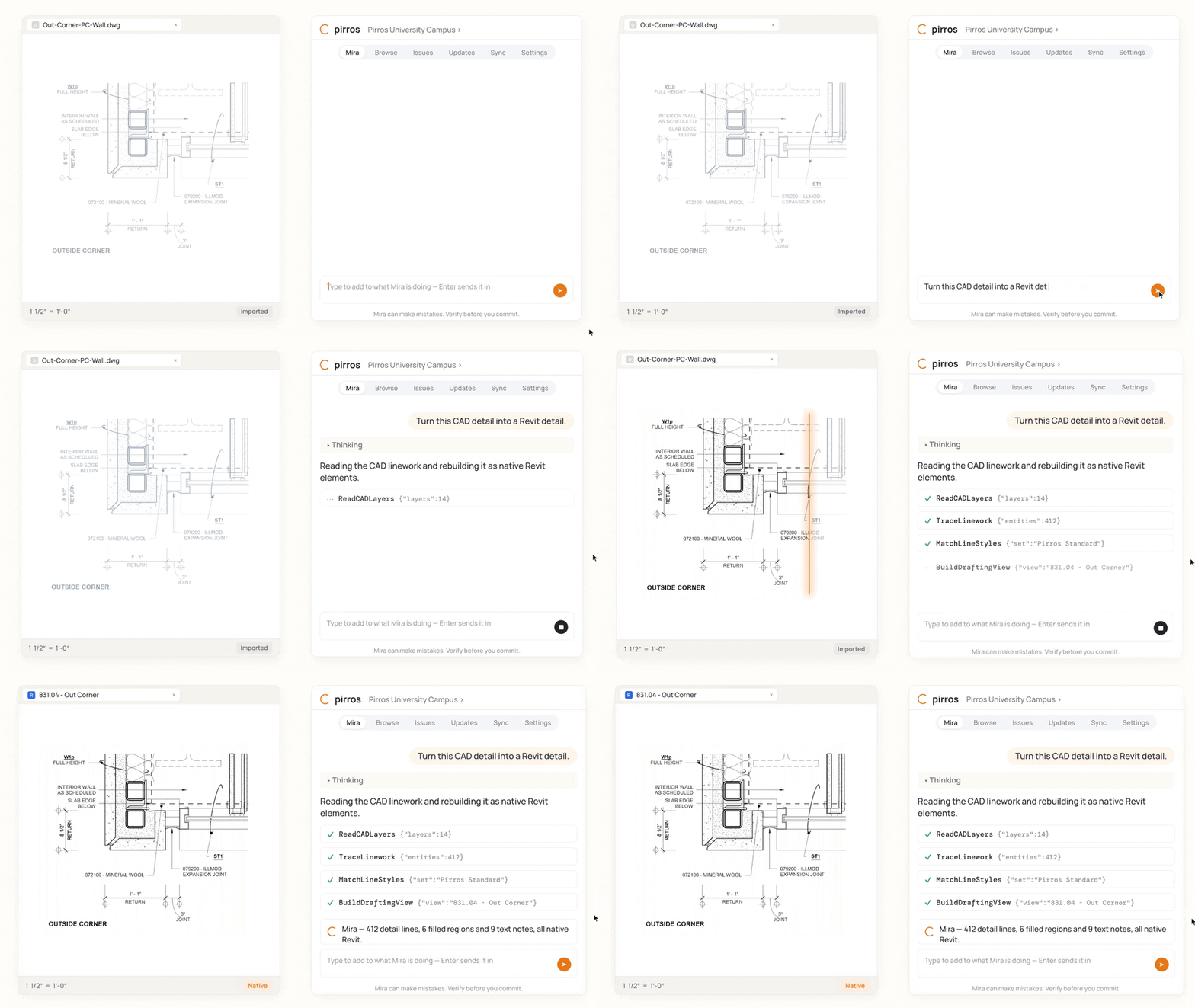
- Start from one you drew in CAD. Type: "Turn this CAD detail into a Revit detail." Mira reads the CAD linework and rebuilds it as a native Revit drafting view, asking before it changes anything. It works in any copy of Mira, free included.
Each works the same way: Mira shows what it found, nothing changes until you confirm, and every change can be undone like any other Revit edit.
Try Mira free on your next wall section.
Why is it difficult for firms to maintain wall sections?
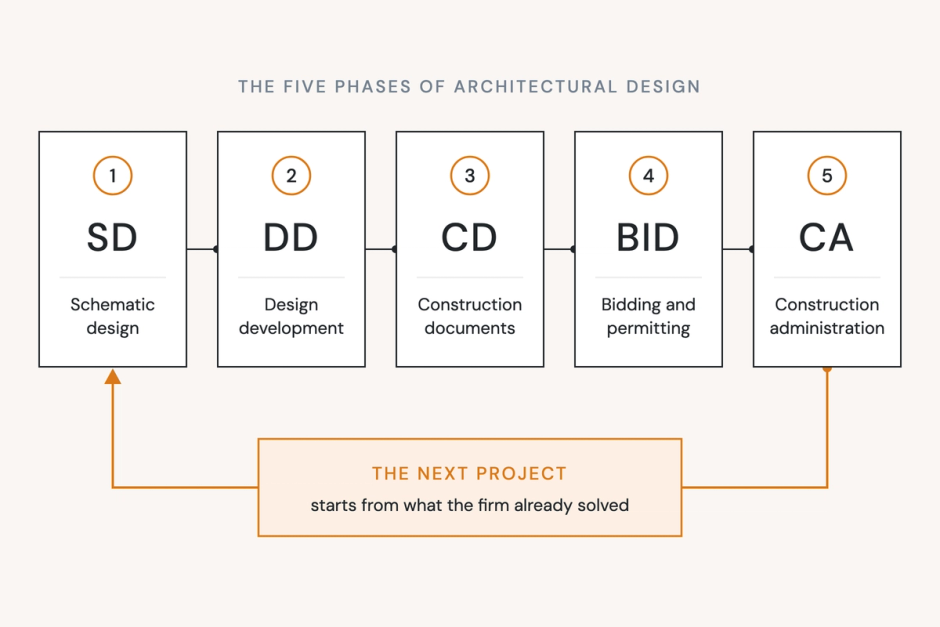
Drawing one wall section is the easy part. The hard part is how often a firm draws the same one.
- Every project starts over. The firm has drawn this wall on job after job, and the firm-approved version sits in an old Revit model, named "Wall Section 3". Since it's impossible to find through ordinary search, the team just draws it again. This wastes time and compromises accuracy.
- Live sections don't travel. A wall section is cut from the model, so it stays with that model. "Most of our project-specific details are live cut, because they tend to involve unusual conditions," says Carl Fosholt, PE, an engineer at CRAFT Engineering Studio. Until CRAFT made them searchable, that work tended to stay with the project that produced it.
- Notes go stale. A wall section copied from an old project can still name a discontinued membrane or an assembly listing that has changed. That turns up later as an RFI.
- The graphics drift. Sections borrowed from other projects or consultants bring their own line weights and text styles, and the set stops looking like one set.
Draw it once so the firm has it forever
Pirros makes every wall section and detail your firm has ever drawn searchable by what's in it.
- Find the one you already drew. Pirros reads the geometry and annotation in each view, so "brick veneer on metal stud at slab edge" finds it, whatever it was named. Convert a wall section to a detail view and it's searchable like any other detail. See detail management.
- Know which one to trust. Every result shows whether it's firm-approved or reference only.
- Place it in Revit. Pirros in Revit puts the same search in a sidebar, and the detail goes straight into the open model.
Lake Flato's teams spend "50% less time opening models, upgrading, and previewing Revit content," according to its case study.
See it with your own wall sections
Working in Revit now? Try Mira free. Want every wall section your firm has drawn to be findable? Book a demo.