Dynamo for Revit: What It's For and When to Use It
What Dynamo for Revit is, what BIM teams use it for, how to get started, and when a plain-language AI agent is the faster route for a one-off batch job.

Dynamo is the visual programming tool that installs with Revit. You connect nodes into a graph (more commonly known as a "script") that reads the model and changes it, then run the script whenever the job comes up again. Most firms have one or two people who can build a Dynamo script, and a longer list of people who ask them for one.
While Dynamo is most useful for building logic that your firm repeats on every project, using Mira, an AI agent for Revit, is often faster and easier for a one-off batch edit.
This guide covers what Dynamo is, the jobs BIM teams use it for, how to start, and how to decide whether a job needs a Dynamo script at all.
Dynamo is visual programming inside Revit
Dynamo lets you build a small program by connecting blocks on a canvas, rather than by writing code. Autodesk calls it an open source visual programming platform for designers, and it installs as part of Revit along with nodes made for Revit.
These are the parts you'll meet:
- Nodes. Each node does one operation: hold a number, collect every door in the model, read a parameter, set a value.
- Wires. A wire connects one node's output to the next node's input, so data flows left to right through the program.
- Scripts. The finished program is a script (also known as a graph), saved as a .dyn file. You can open it again on any project.
- Packages. Collections of custom nodes that other developers publish. You install them from inside Dynamo, under Packages › Package Manager, and firms rely on them for jobs the built-in nodes don't cover.
- Dynamo Player. Runs a finished script from a list, with fields for its inputs. Autodesk's help center says the person running it needs no Dynamo expertise.
A script isn't AI. It runs exactly the steps that the user wires up, in the same order, every time. That's the point: once a script works, it gives the same result on the next project.
Dynamo comes with Revit. Most other automation arrives as Revit plugins and add-ins, which someone installs separately.
What BIM teams use Dynamo for
BIM teams use Dynamo for jobs that touch many elements the same way, where clicking through Revit one element at a time would be too time-consuming.
- Filling parameters from Excel. Read a consultant's spreadsheet and write each row to the matching element, usually matched by Mark, the parameter that holds each element's ID, such as a door's number. Revit can't read a workbook on its own; see how to import Excel into Revit.
- Exporting data. Pull parameter values out to a spreadsheet when a schedule export doesn't reach what you need. For the built-in route, see how to export a schedule to Excel.
- Creating sheets and views in bulk. Make a set of sheets from a list of numbers and names, or duplicate a view for every level.
- Renaming to a standard. Rename views, sheets or types so they follow the firm's naming convention.
- Placing elements by rule. Place families at points from a survey, along a path, or at every grid intersection.
- Checking the model. Find elements that break a rule. Dynamo Player ships with sample scripts that select untagged and unkeynoted elements in the active view.
- Design logic. Generate geometry from parameters, such as facade panels or framing layouts, and study options by changing an input.
The first five use cases listed here are batch edits: a single change applied to many elements. The last two are logic that runs again and again.
How to get started with Dynamo
If Revit is installed, then so is Dynamo: open a project and go to Manage tab › Visual Programming panel › Dynamo.
- Open a project you can experiment in, such as a copy of a finished job. Never learn on a live project.
- Go to Manage › Visual Programming › Dynamo and start a new script.
- Set the run mode to Manual while you build, so the script doesn't write to the model every time you connect a node.
- Build a first script that only reads: collect all elements of one category, read one parameter, and show the values in a Watch node. Reading changes nothing in the model.
- When the read works, add a node that sets a value, and run it on a handful of elements before the whole model.
- Save the script to a shared folder and mark that folder as trusted. Dynamo won't run a script from a location you haven't trusted (Autodesk Help).
- Hand the finished script to colleagues through Manage › Visual Programming › Dynamo Player, so they run it without opening it.
The free Dynamo Primer is the official guide, from the interface to packages, and Autodesk's help covers Dynamo Player and the sample scripts.
Each Revit release installs its own Dynamo. Revit 2025 shipped with Dynamo 3.0, Revit 2026 with 3.4 and Revit 2027 with 4.0, and Revit updates move it forward: Revit 2027.3 carries Dynamo 4.2 (Dynamo Primer). A script built on one version should be tested on the next version.
Downsides to using Dynamo scripts
Most scripts keep working as long as the person who built them is around to fix them. When that person moves to another project or leaves the firm, here's what usually goes wrong:
The requests land on one desk. Most production staff never open Dynamo, so "can you make a script that…" goes to the BIM manager. A job that's quick to describe waits until someone has time to build, test and explain a script for it.
Upgrades move the ground. Every Revit release brings a newer Dynamo, and package authors list which versions their packages support. A script that worked last year needs testing after the upgrade, and a package nobody maintains anymore can leave it stranded.
Copies pile up. Scripts get copied into project folders and edited for one job. A year later there are several versions of the door-parameter script, and nobody knows which one still works.
Trust is a real question. Autodesk tells you to run only scripts from sources you know and trust, because a script can change anything in the model. A script from a forum, or from someone who has left, needs checking before it runs.
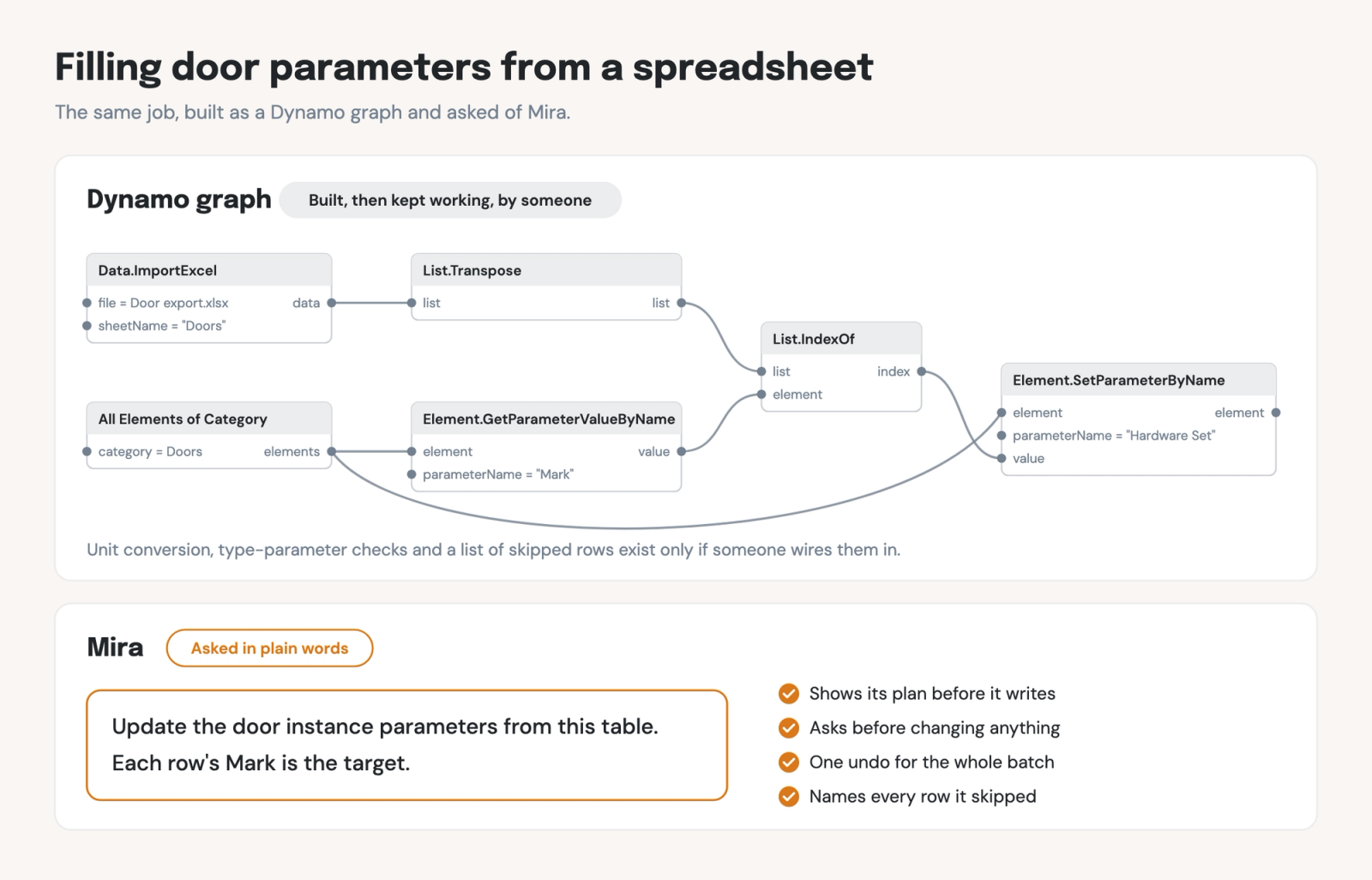
A script doesn't ask. It does what it's wired to do. If the spreadsheet has a typo, the typo goes into the model. If a length goes in without a unit conversion, it lands in feet, because that's how Revit stores lengths. Nothing flags it.
None of this is a reason to skip Dynamo. Firms that keep it working tend to do four things:
- Give every shared script an owner, who tests it at each Revit upgrade.
- Keep one trusted folder of approved scripts, and run them from Dynamo Player.
- Save scripts for jobs that repeat across projects.
- Don't build a script for a job that will run once.
When to use Dynamo vs. Mira
Mira is an AI agent for Revit that works in the model next to you. You type what you want in plain words. Mira looks at the model, shows what it plans to change, and waits for your approval. It's free to download and runs on Revit 2025, 2026 and 2027 on Windows.
We recommend using Dynamo for geometry and for logic that must run exactly the same way every time. Ask Mira for the edits you can describe in a sentence, whether you need them once or every week.
Reach for Dynamo when:
- The work is design logic: geometry driven by parameters, or options studied by changing an input.
- The steps must run exactly the same way every time, with no judgment calls along the way.
- You want a tool colleagues run from Dynamo Player without thinking about how it works.
- Someone at the firm can own the script through upgrades.
Ask Mira when:
- It's a batch edit you can describe in a sentence, and building a script would take longer than the edit.
- It comes up again. Save it as a skill and ask for it in plain words next time. With Mira for Teams, part of the Quality Management System, everyone at the firm runs the same skill.
- You want to see every change before it's written, and undo the whole batch in one step.
It works with you, not for you
Every Mira skill follows the same four rules, and they cover what a script only does if someone built it in:
- It looks first. Mira reads the model and shows what it found, often as a before-and-after preview, before anything changes.
- It asks, then acts. Nothing is written until you confirm. Judgment calls come back to you as options, with counts.
- One undo. The whole batch is one step. One Ctrl+Z puts every change back.
- It reports back. Mira reads each value after writing it and names anything it skipped, with the reason.
Take the most common Dynamo job: filling door parameters from a spreadsheet. With Mira, you type: "Update the door instance parameters from this table. Each row's Mark is the target." Mira matches each row to its door by Mark. It converts units before writing, so 2.5 inches doesn't land as 2.5 feet. It warns you when a parameter is a type parameter, because changing it on one door changes every door of that type. And it won't create a parameter that doesn't exist; it lists that column as something it couldn't write.
Mira also takes requests that no ready-made skill covers, such as "Swap every instance of Wall Type A with Wall Type B on Level 2." When no built-in tool covers a job, Mira writes a small C# tool for it at that moment. That tool isn't a Dynamo script and doesn't need Dynamo, and Mira asks your permission every time it creates one.
Autodesk is incorporating similar AI technology into the latest versions of Dynamo. Dynamo 4.2 added Autodesk Assistant, which finds nodes, explains scripts, and builds and runs scripts from plain-language requests; in Revit, you reach it through Revit's own Assistant (Dynamo 4.2 release). That makes scripts quicker to write and keep current. For a wider look at the options, see our guide to AI tools for Revit.
Try it on your next batch edit
Next time someone asks you for a Dynamo script to change a batch of elements, describe the change to Mira first. Build a Dynamo script when the job involves geometry or has to run the same way on every project.