
Pirros Resources & Insights
Case studies, webinars and industry research from across the AE space.
What Pirros looks like in practice
See how architecture and engineering firms are using Pirros.


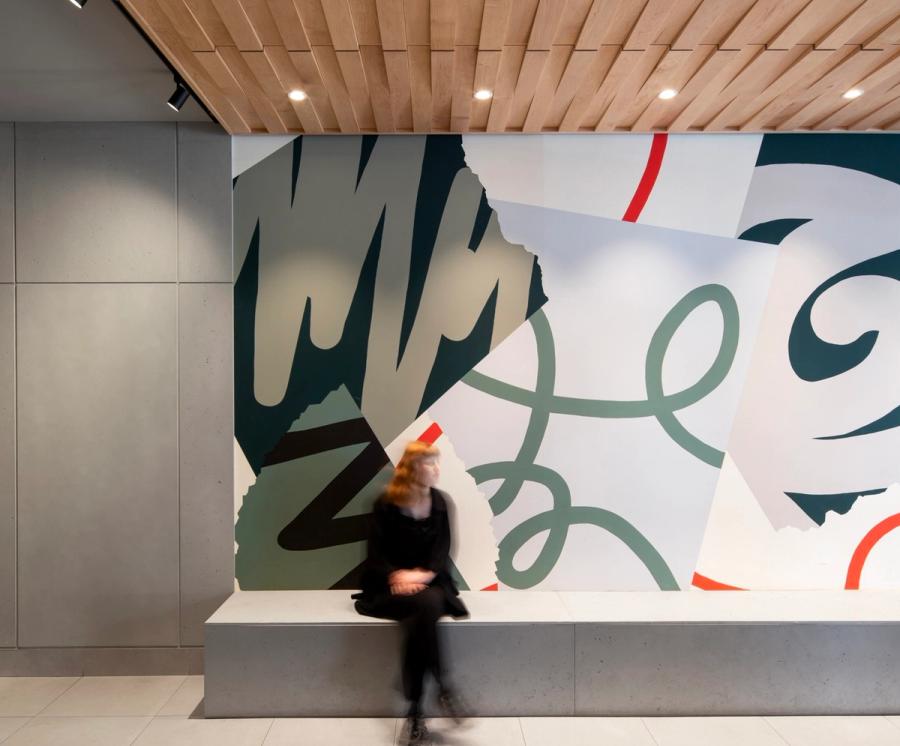





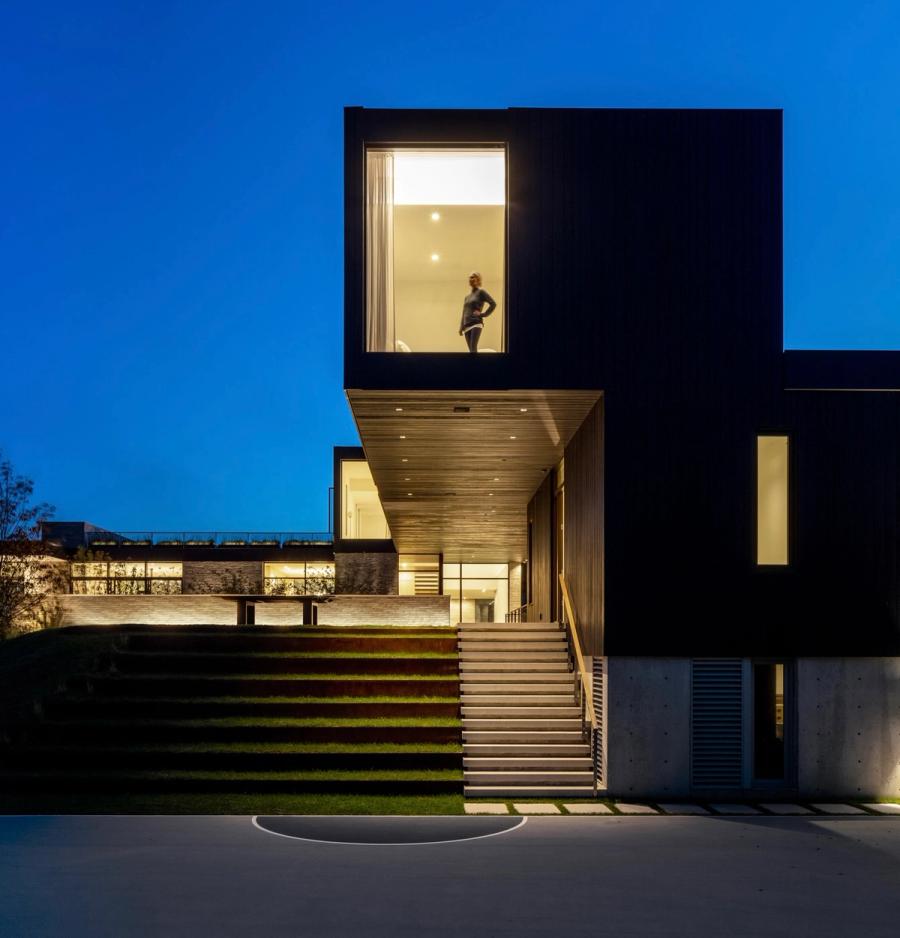







The Pirros Research Center
Insights to help firms improve and compound their advantages. Check out our recent guides and frameworks for improving workflows and scaling standards.


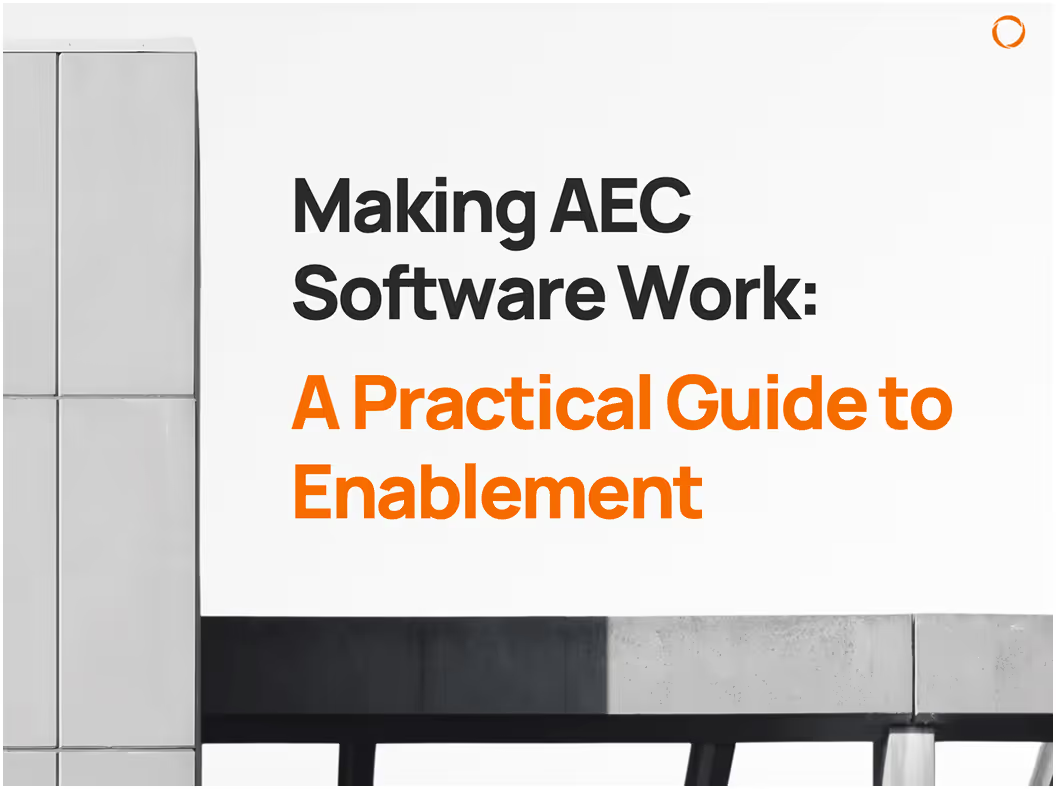

Revit how-to guides
Step-by-step answers to common Revit tasks, checked in current Revit. Every guide closes with the Mira prompt that takes the repetitive part off your hands.
- Annotation & Detailing
How to Create a Line Style in Revit
Click Manage tab › Settings panel › Additional Settings › Line Styles, click New and name the style. Set its Line Weight, Line Color and Line Pattern, then click OK. Pick the style from the Line Style list when you draw detail or model lines. Or, just ask Mira, a free add-in, to find and merge duplicate line styles.
Read the guide - Views & Visibility
How to Create and Apply View Templates in Revit
On the View tab, open View Templates and click Create Template from Current View, or duplicate a template in Manage View Templates. Assign it with the View Template property to link and lock a view's settings; Apply Template Properties copies them once. Or, just ask Mira to assign a template to every plan that doesn't have one.
Read the guide - Working in Revit
How to Export Revit to CAD (DWG)
Click File tab › Export › CAD Formats › DWG. Pick an export setup, choose the current view or a set of views and sheets, and click Next. Pick a folder, the AutoCAD version and the naming, and click OK. The setup decides layers and units. Or, just ask Mira, a free add-in, to export every floor plan to DWG.
Read the guide - Views & Visibility
How to Use View Filters in Revit
Click View tab › Graphics panel › Filters, click New, check the filter's categories and add its rules. Then open Visibility/Graphics, add the filter on the Filters tab and set how matching elements look. The filter highest in the list wins when two match. Or, just ask Mira, a free add-in, to build a filter from one sentence.
Read the guide - Views & Visibility
How to Transfer Project Standards in Revit
Open both projects. In the project that needs the standards, click Manage tab › Settings panel › Transfer Project Standards, pick the source under Copy from, check only the categories you need and click OK. If names clash, Overwrite replaces the target's versions and New Only keeps them. Then ask Mira to check a view against your firm template.
Read the guide - Views & Visibility
How to Hide and Unhide Elements in Revit
Click Reveal Hidden Elements, the light bulb on the View Control Bar. Hidden elements show in color. Select one, click Unhide Element or Unhide Category on the ribbon, then click the light bulb again. Clear a temporary hide with Reset Temporary Hide/Isolate. Or, just ask Mira, a free add-in, to list everything hidden in a view and unhide it.
Read the guide

Webinars & live sessions
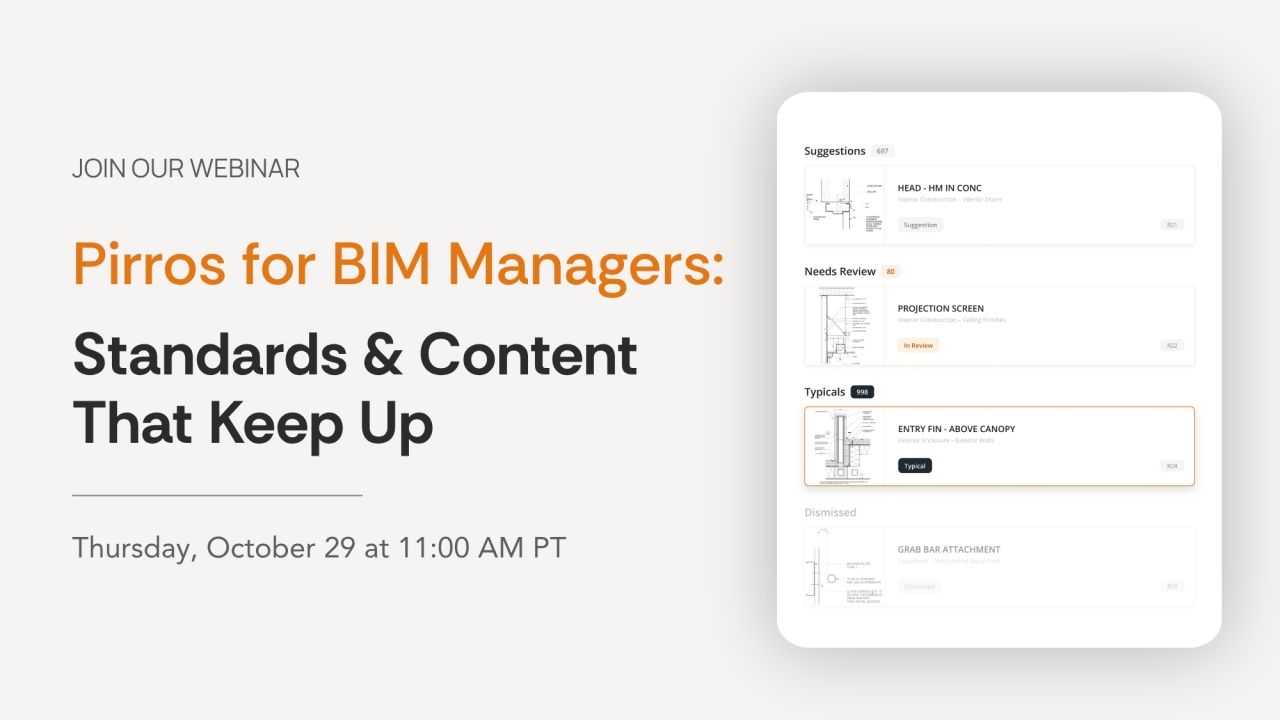
Watch product videos and industry insights webinars.







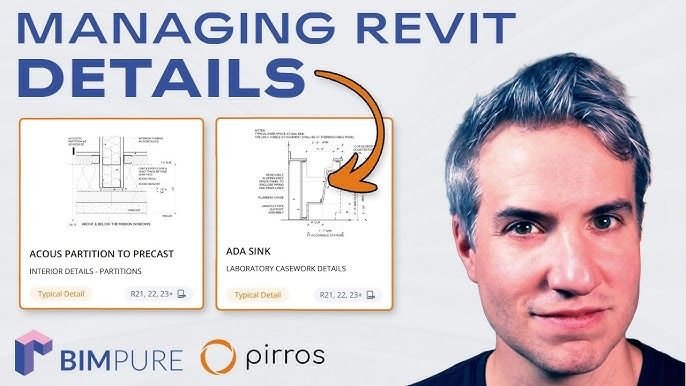


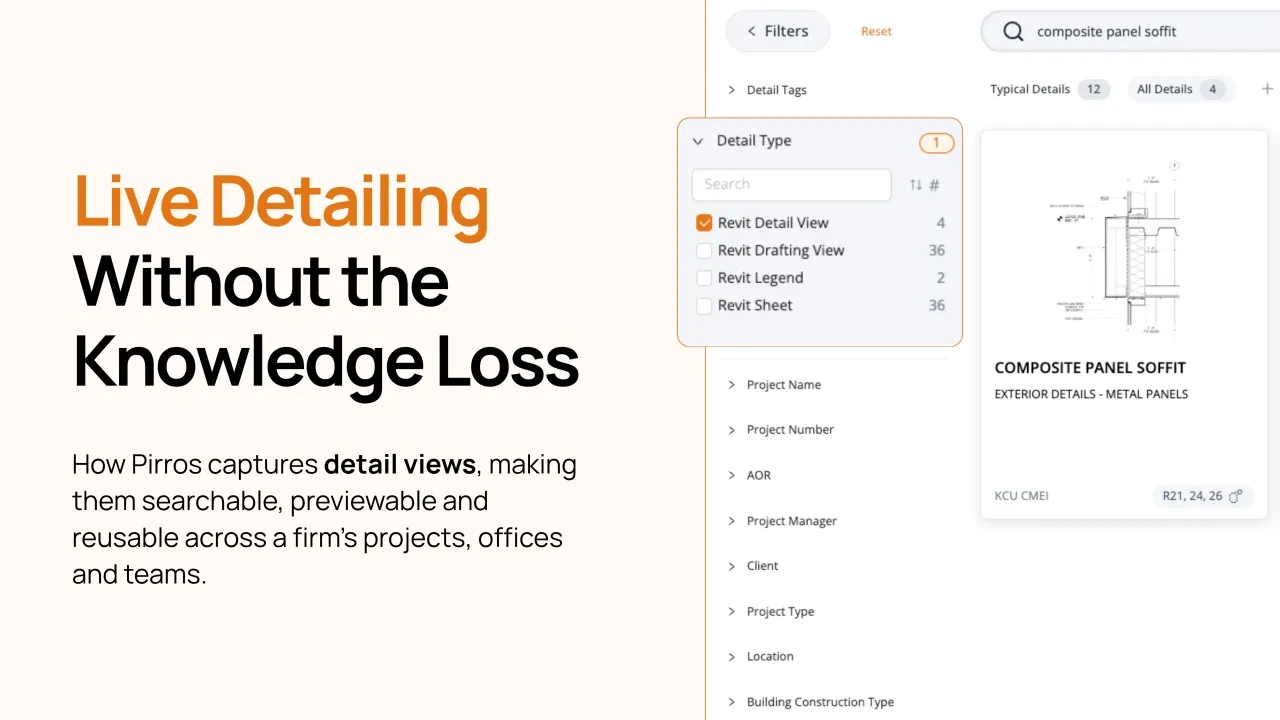


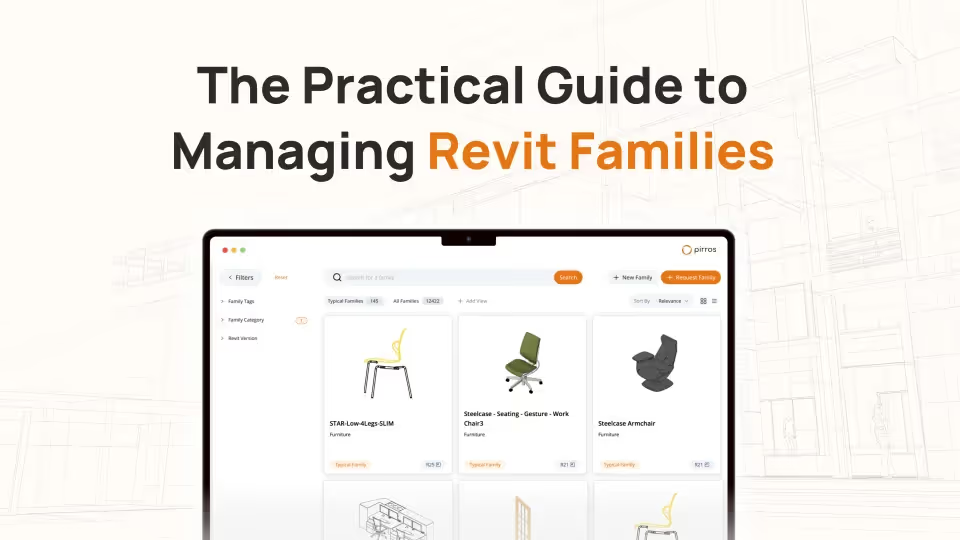








Pirros Blog
Perspectives on architecture and engineering.


Get practical insights that drive top AEC firms
Research, frameworks, and real-world results delivered to your inbox.
