Revit Families: Types, Sources and How Firms Manage Them
What Revit families are, the three types, where to find them free, and how firms keep one approved version of each instead of near-copies in every office.

A Revit family is a group of elements that share a set of parameters and a graphical representation: an example would be a single door design that's adaptable to every door size needed in the project. Revit has three kinds of families: system, loadable and in-place. Firms build families, download them and reuse them from past projects, which often causes families to deviate from the firm-approved version over time.
In this guide, we explain the basics of Revit families, plus the role of the BIM manager in maintaining accurate standard Revit family libraries.
What a Revit family is
A family is a group of elements with a common set of parameters and a related graphical representation. Every element in a Revit model comes from one: walls, doors, windows, furniture, and the tags and title blocks that document them.
Inside a family are its types. A single-flush door family might carry a 3'-0" x 7'-0" type and a 3'-6" x 7'-0" type. Each door you place is an instance of one of those types.
That gives you three levels:
- Family: the design, such as a single-flush door.
- Type: a named set of values for that design, such as 3'-0" x 7'-0".
- Instance: one placed element in the model.
Parameters live at two of those levels. A type parameter applies to every instance of the type, so changing a door type's width resizes every door of that type in the model. An instance parameter belongs to one element, such as a window's sill height. Getting that split wrong is the most common reason a "simple" family edit changes more of the model than a user intended.
Every family also belongs to a category, such as Doors, Windows or Casework. The category decides which schedules the family appears in, how tags find it and how visibility settings treat it, so a family built in the wrong category is wrong in every view.
The three kinds of Revit families
Revit has three kinds of families, and they differ in where they live and who can change them.
System families
System families build the elements you would assemble on site: walls, floors, roofs, ceilings and stairs, plus ducts and pipes. Levels, grids, sheets and viewports are system families too. They are predefined in Revit and live inside templates and projects, not in separate files.
You can't create or delete a system family, but you can duplicate its types and edit them. To move types between projects, use Manage tab › Settings panel › Transfer Project Standards.
Loadable families
Loadable families are separate RFA files that you load into a project: doors, windows, casework, furniture, fixtures and equipment, along with annotation such as tags and title blocks. They are the families firms build and edit most, in the Family Editor. You bring one in with Insert tab › Load from Library panel › Load Family.
A loadable family with many types can come with a type catalog, a text file that lists its types so you load only the ones the project needs.
In-place families
An in-place family is a one-off element modeled inside the project, for geometry that is unique to that building or has to follow other geometry around it. Revit gives each in-place family a single type, and it is built for that one project rather than for reuse. Start one with Architecture tab › Build panel › Component › Model In-Place.
Where Revit families come from
Firms get families three ways: they build them, they download them, or they reuse them from past projects. Most firms do all three, which can create problems.
- Build your own. A family built in-house matches the firm's standards from the start. The steps are in our guide to create a family in Revit.
- Download them. Building product manufacturers publish families of their own products, BIM marketplaces collect thousands more, and Autodesk publishes free families for each Revit release. Many of the rest are free too.
- Reuse them. Most of a firm's best families are already sitting in its past projects, often tuned by someone who has since changed jobs.
Downloaded families need to be carefully reviewed before they go into a project. Check the file size, how many families are nested inside it, how many parameters it carries, whether its category is right, and whether its names follow your convention. A manufacturer's family is built to show off a product, not to fit your schedules, tags and naming.
Near-copies pile up across projects
Across a firm, the same family gets copied, renamed and edited until nobody is sure which is the firm-approved version. Building one good family is easy; keeping hundreds of them consistent across projects and offices takes a lot of time. Nothing flags these problems until someone places the wrong family in a model:
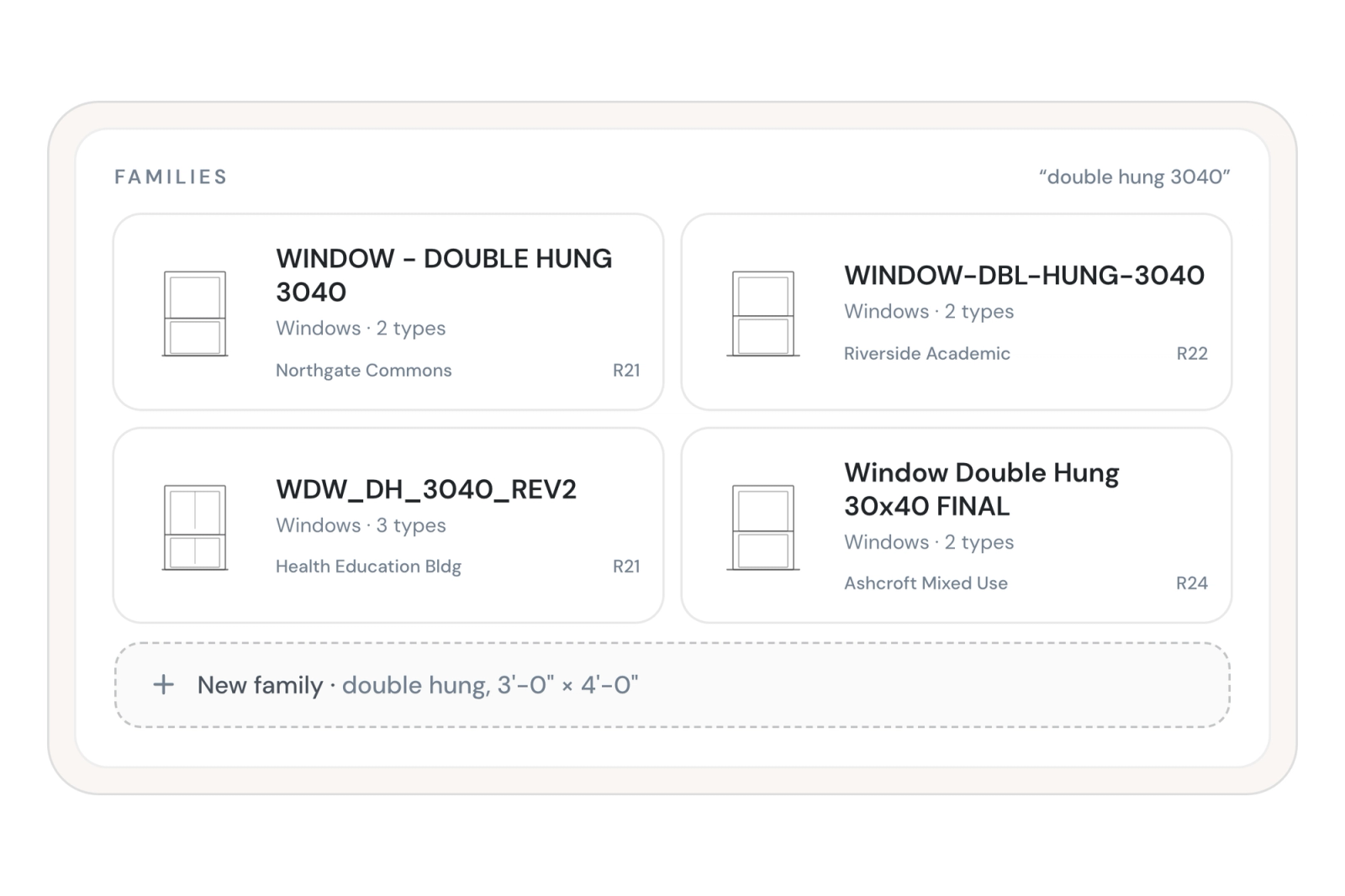
- One window with four names. Search a firm's projects for one double-hung window and you find four: WINDOW - DOUBLE HUNG 3040, WINDOW-DBL-HUNG-3040, WDW_DH_3040_REV2 and Window Double Hung 30x40 FINAL. Nobody is sure which one is the right one, so the user builds a fifth version.
- Whole type catalogs ride along. A project loads every type of a family to use one, and the extra types follow it into the next project.
- The approved family is stuck in an old project. The vetted version sits in a model from three Revit versions ago, so users grab whichever one loads first.
- Bloated families slow models down. A downloaded family with heavy geometry, deep nesting or hundreds of parameters makes every model it lands in heavier.
- The standard lives in someone's head. When the person who knows which family to use leaves the firm, the firm loses this knowledge.
None of these is a Revit bug. They come from families being files, scattered across projects.
How firms keep Revit families under control
The firms that manage families well treat them as firm standards with an owner, not as files anyone can copy. Start with these:
- Agree on one naming convention. Category, type and description, in the same order every time, so a search finds one family instead of four spellings of it.
- Approve one version of each family. Mark it as the standard, and treat everything else as reference: useful for ideas, not for a drawing set.
- Keep the standards in one place. A shared location the whole firm searches, not a folder per office or per project.
- Use shared parameters for anything scheduled or tagged. A parameter that has to report the same way across families should be one shared parameter, not a look-alike in each family.
- Check a family before it becomes a standard. File size, nesting, parameter count, category and naming, every time.
- Upgrade the standards once. When the firm moves to a new Revit version, upgrade the approved set centrally instead of letting every project upgrade its own copies.
- Give it an owner. The BIM manager decides what becomes a standard. Everyone else can flag a family worth promoting.
How Pirros helps
Pirros, the AI project hub for architects and engineers, gives a firm one searchable place for its families and its details, built from the projects it has already drawn. Revit family management in Pirros reads what is inside each family (its dimensions, materials, type names and custom parameters), so a search for "double hung 3040" finds every version, whatever the file was called. It covers loadable families, system families, nested families and model groups, with no manual tagging.
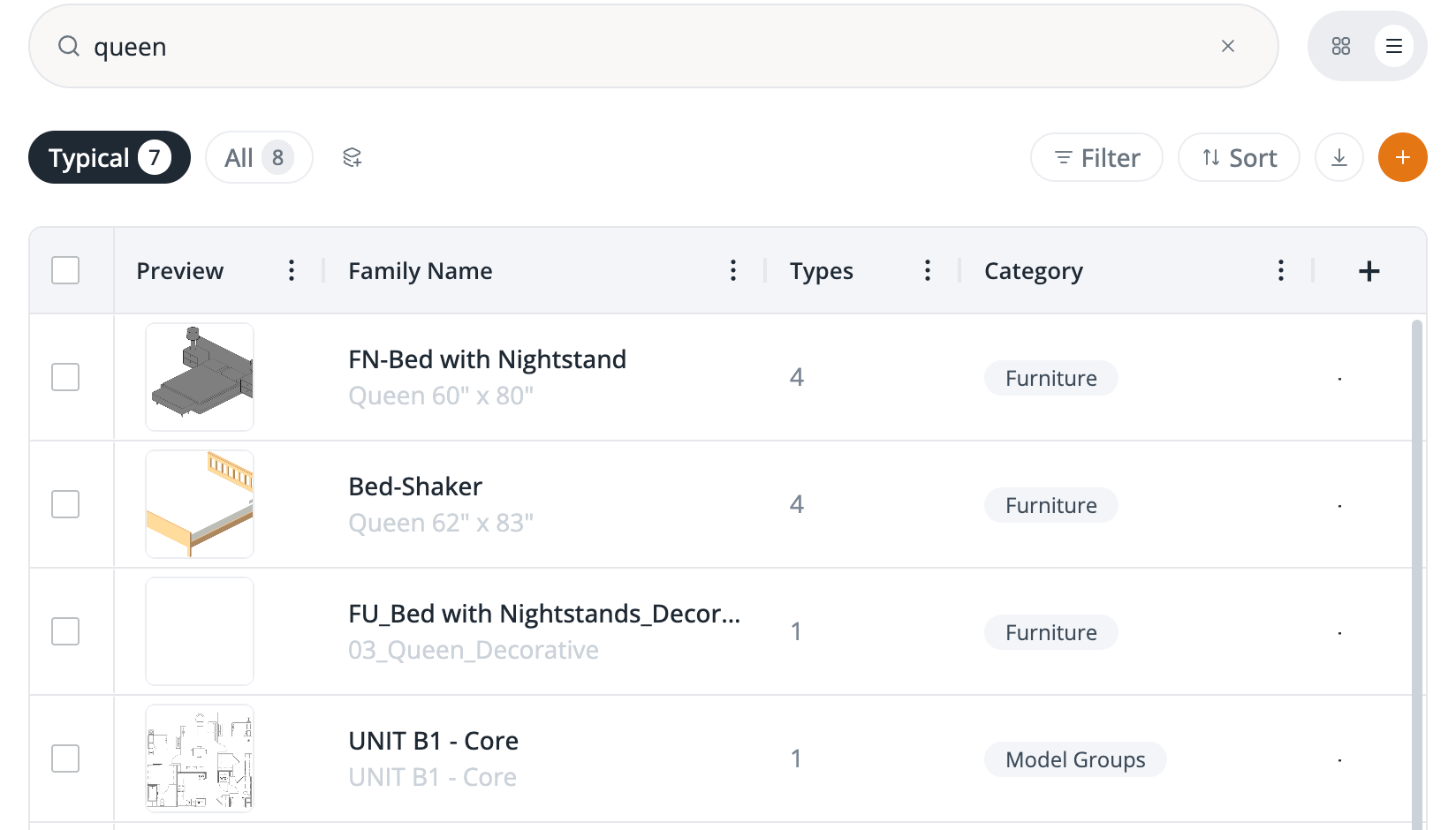
- The standard is marked. Families the firm has approved show as "typical", and everything pulled from a project stays labeled as project reference, so people reach for the right one first.
- Standards grow from real work. Pirros suggests the families your projects repeat as candidates, architects can flag one worth standardizing, and an admin promotes it to the firm standards. Nothing becomes a standard without a person deciding it should.
- Families travel with their details. Details can be attached to the families they belong to, so the right detail shows up with the right family.
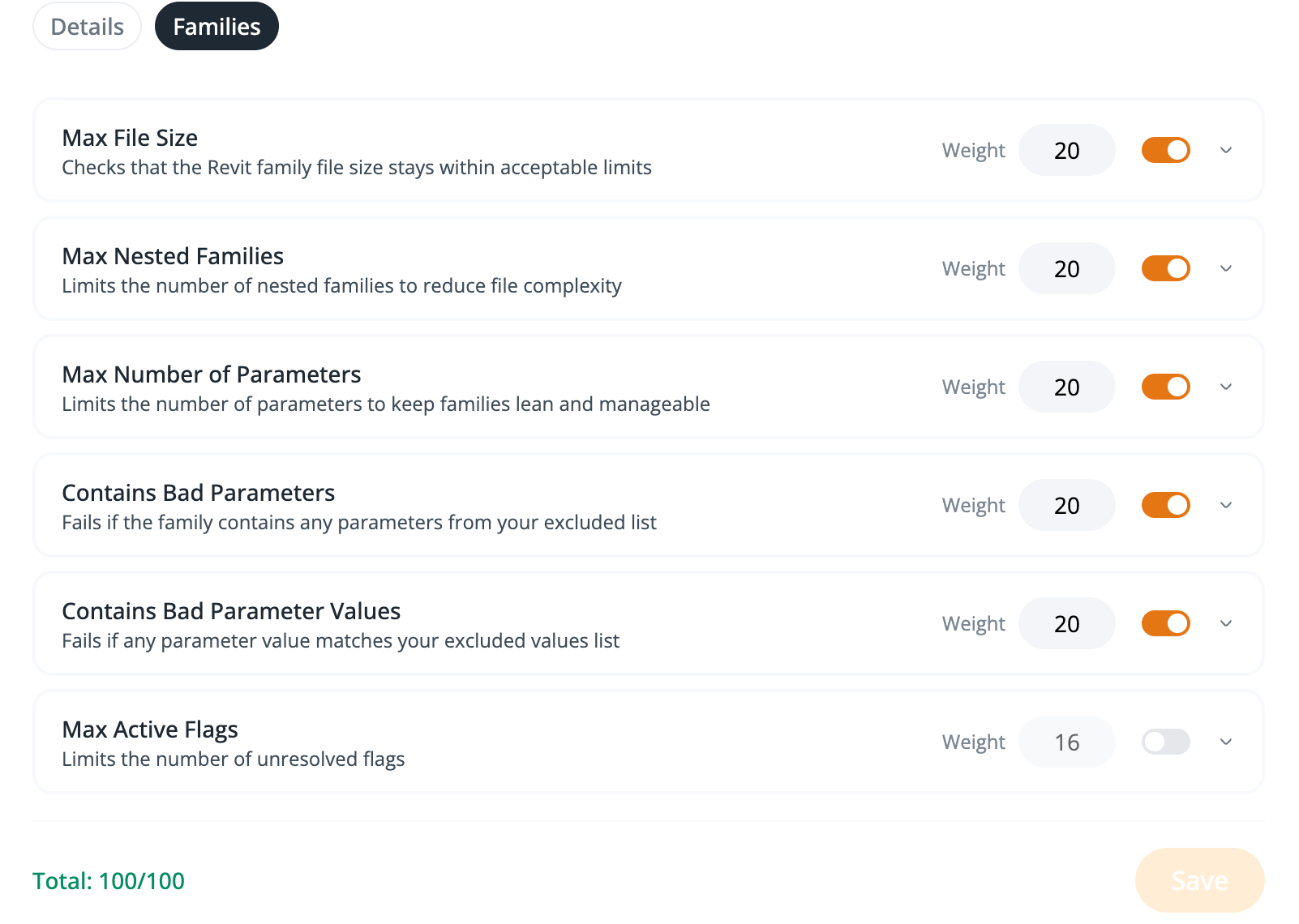
- Health is checked, not guessed. Each family gets a health score from five default factors: maximum file size, maximum nested families, maximum parameters, bad parameters and maximum active flags.
- They go straight into the model. Pirros in Revit puts Pirros search in a Revit sidebar, so you drag a family straight into the open model, with no folder hunt.
That is how Lake Flato turned decades of buried Revit knowledge into fast, trusted, everyday production.
Once the right family is in the model, Mira, Pirros's AI agent for Revit, handles the repetitive edits around it. Its Bulk Set Parameters skill fills existing parameters across hundreds of elements from a table, a rule or a selection, and warns you when a parameter sits on the type, so the change would reach every instance. It fills the parameters a family already has; it won't create new ones. Mira handles the repetition, and you approve the result.
Mira also answers questions about your model and about Revit itself, such as "Are there any exterior elevations of this building that are not placed on sheets?" It can also make type edits you ask for, such as "Duplicate this cabinet type and make it 6 inches taller." For anything that changes family types or touches many elements, it spells out its plan first so you can confirm or adjust it.
Book a demo to see your own families searchable by what is inside them. Working in Revit today? Try Mira free.