General Notes: What They Are and What to Include
What general notes on construction drawings cover, how they differ from keynotes, what to include by discipline, and how to keep them current in Revit.

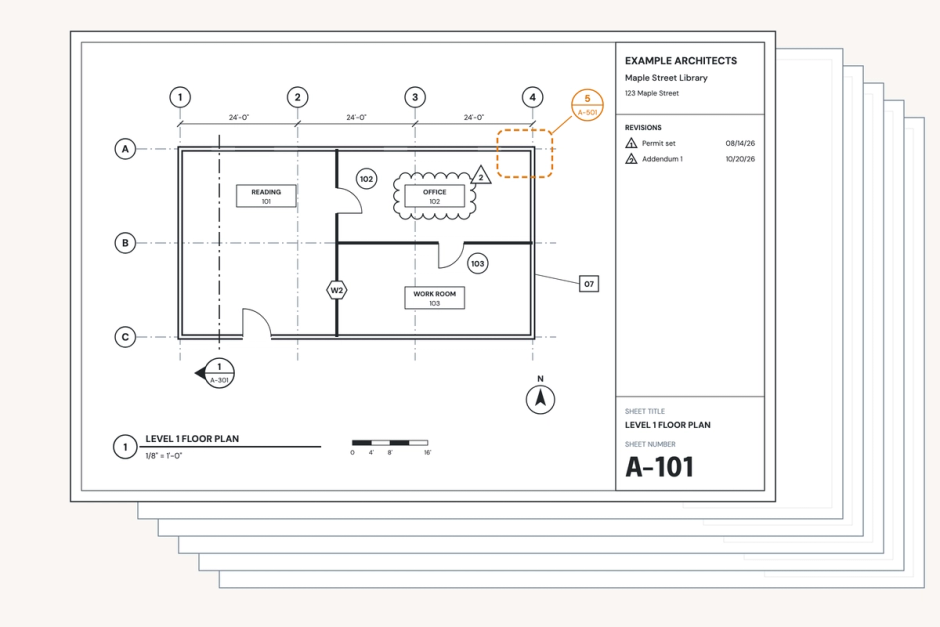
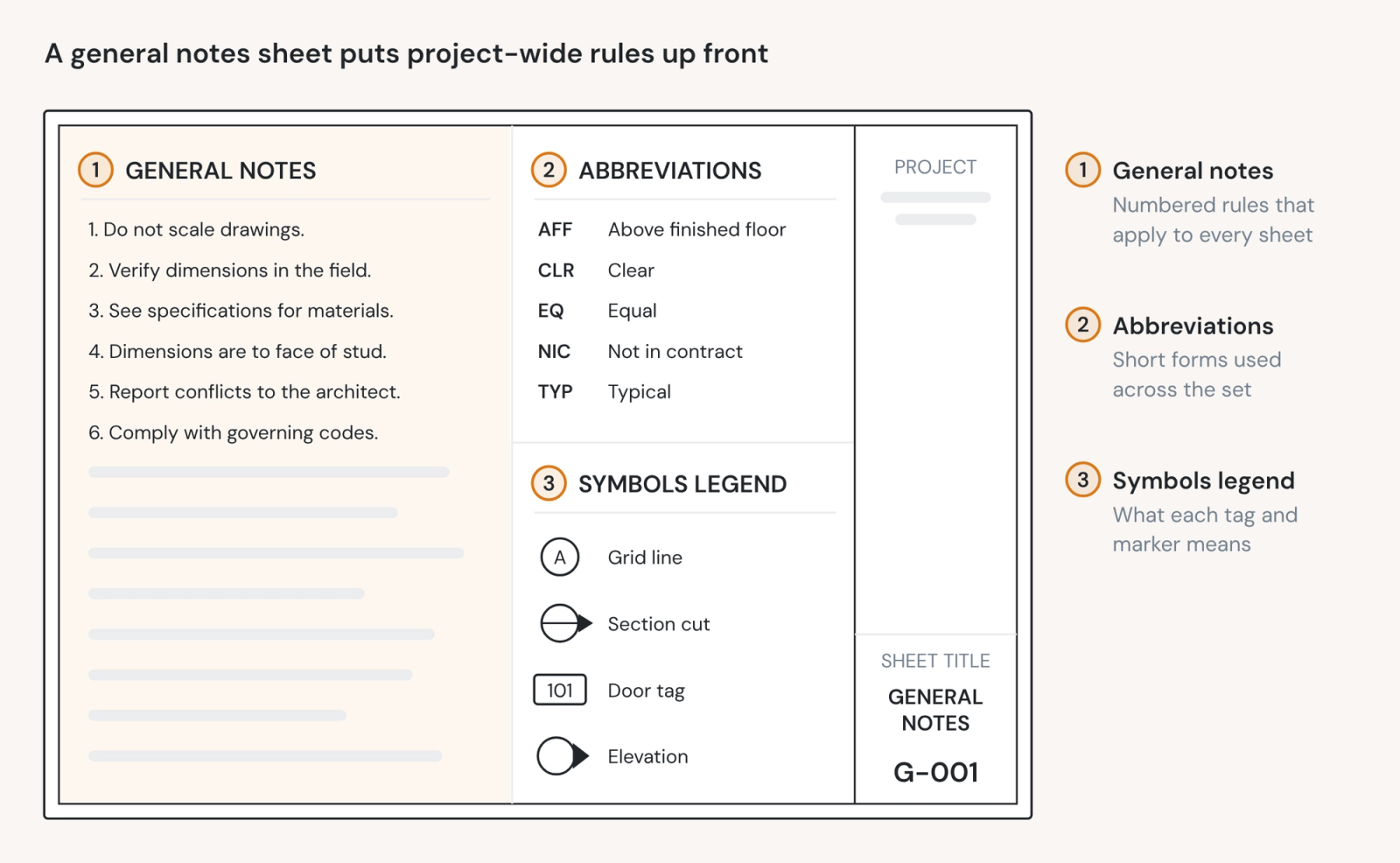
General notes are numbered notes that apply to a whole drawing set, a discipline or a sheet, rather than to one spot on a drawing. They're located on a plan set's general sheets and at the front of each discipline's drawings. They set rules such as "do not scale drawings," point to the specifications and define the abbreviations used.
They matter because they carry requirements that apply to everyone involved in executing a building project: contractors bid and build from them, and a missing, outdated or conflicting general note can cause RFIs, change orders and rework across the whole project, not just on one sheet.
General notes, sheet notes and keynotes
A typical plan set carries several different types of notes:
- General notes apply to the whole set, or to a whole discipline when they open that discipline's drawings. "Verify existing conditions before starting work" holds on every sheet.
- Sheet notes, also called plan notes or drawing notes, apply to one sheet or one drawing: "All partitions on this level are Type 3A unless noted otherwise."
- Keynotes tie a numbered tag on a drawing to a line of text in a keynote legend, often organized by specification section. Revit builds them from a keynote file; see keynotes in Revit.
A simple test: if a note is true on every sheet, it is a general note.
Where general notes go in a drawing set
General notes are usually located at the front of a set of construction documents: on the general sheets that open the set, then on the first sheet of each discipline.
The usual numbering comes from the United States National CAD Standard, published by the National Institute of Building Sciences. Its Uniform Drawing System gives every sheet a discipline letter and a sheet type number. G is the general discipline, and sheet type 0 holds general information: symbols, legends and notes. So project-wide notes land on G-001, architectural general notes on A-001, structural on S-001 and mechanical on M-001.
Smaller sets often fold the general sheet into the cover or into A-001. That works also, as long as the sheet index tells a contractor where the notes are.
What to include in general notes
Every drawing set needs notes on how to read the documents, and each discipline adds the codes, loads, materials and coordination its work depends on. Here are typical general notes you might see on a standard plan set:
General and architectural notes
These set the rules of the documents themselves:
- Dimensions govern. Do not scale the drawings.
- Verify existing conditions and dimensions in the field before starting work. Report discrepancies to the architect before proceeding.
- The drawings and specifications are complementary. Work required by one is required by both.
- Coordinate the architectural drawings with the structural, mechanical, plumbing and electrical drawings. Report conflicts to the architect.
- Typical details apply wherever the condition occurs, whether or not they are referenced on the plans.
- Abbreviations and symbols are defined on G-002.
Architectural general notes add what holds across the building: wall types, fire-rated assemblies, blocking for wall-mounted items and finish conventions.
Structural general notes
Structural general notes carry the design basis, and the building code requires it. IBC Section 1603 says the design loads "shall be indicated on the construction documents." An engineer expects to see:
- Design codes and editions: "Design conforms to the 2021 International Building Code as adopted by [jurisdiction], and the standards it references, including ASCE 7-16, ACI 318-19 and AISC 360-16."
- Design loads: live, snow, wind, earthquake, flood and rain data, and any special loads, per IBC 1603.1.1 through 1603.1.9.
- Foundations: the geotechnical report by name and date, and the allowable bearing pressure.
- Materials: concrete strength by element, reinforcing grade, structural steel and bolt specifications, masonry and wood grades.
- Special inspections: which work needs them, per the statement of special inspections.
- Delegated design: components the contractor's engineer designs, such as cold-formed steel framing or precast, and what they must submit.
MEP general notes
Mechanical, electrical and plumbing general notes name their codes and editions, including the energy code, and set the rules for coordination:
- Drawings are diagrammatic and show general arrangement. Provide the offsets, fittings and access a complete installation requires.
- Coordinate routing with structure, ceilings and other trades before fabrication.
- Seal penetrations of fire-rated assemblies with a listed firestop system.
How to write general notes
Keep each note short, numbered and in the imperative. Greater levels of detail should be left for the specifications.
- One requirement per note. Numbers let an RFI or a field report cite "General Note 7" without ambiguity.
- Point to the specifications; don't restate them. A note that copies a spec paragraph will disagree with it the first time the spec is edited and the note isn't.
- Never contradict the specifications. Many contracts set an order of precedence between drawings and specifications. Read yours before you assume the drawings win.
- Check notes against your details. In an ASCE Collaborate discussion on general notes, David Thompson, a principal at KTA Structural Engineers, warned that general notes "can overrule the carefully crafted details" elsewhere in the set.
- Cloud a changed note like any other revision. A changed general note changes every sheet it governs, so issue it with the revision and describe it there.
General notes in Revit
Revit has no dedicated general notes tool. Firms place them in one of three ways:
- Text notes in a drafting view. Create the view at View tab › Create panel › Drafting View, add the notes with Annotate tab › Text panel › Text, and drag the view onto the sheet. It is easy to edit and easy to carry into the next project, but a drafting view can sit on only one sheet.
- Text notes in a legend. Create it at View tab › Create panel › Legends › Legend. A legend can go on as many sheets as you need, so notes repeated on every plan sheet live in one place.
- A note block schedule. Each note is a parameter value on a generic annotation symbol, listed at View tab › Create panel › Schedules › Note Block. Sorting by note number is built in, but long notes are awkward to format in schedule cells.
In a text note, use the text editor's numbered list instead of typing the numbers, so a note inserted in the middle renumbers the rest. Keynotes are a separate tool, tied to elements and a keynote file.
Whichever way you choose, the notes are text inside one project file. Nothing ties them to the firm's approved version, or to the same notes in the next project.
Every project inherits the last project's notes
General notes are some of the most copied text a firm produces. This means that a new project often starts with the prior one's notes, and that past errors or ambiguities are frequently carried over:
- Superseded code editions. The note cites an edition the jurisdiction has since replaced, or one this jurisdiction never adopted.
- Discontinued products. A product named years ago, or swapped in by a past substitution, stays in the notes after the manufacturer drops it.
- Abbreviations nobody defines. The notes use abbreviations the abbreviations list no longer carries, or defines differently.
- Notes for another building. A note about a pool deck rides along to a project without a pool, and tells the contractor nobody read the notes.
- Consultants' notes in another voice. Each consultant brings their own phrasing and abbreviations.
- Late changes that have to reach everywhere. A newly adopted code edition or an owner's standard has to land in every note, in every view, on every active project that carries it.
None of this looks like an obvious error on the sheet, which allows them to persist.
One approved set, kept current
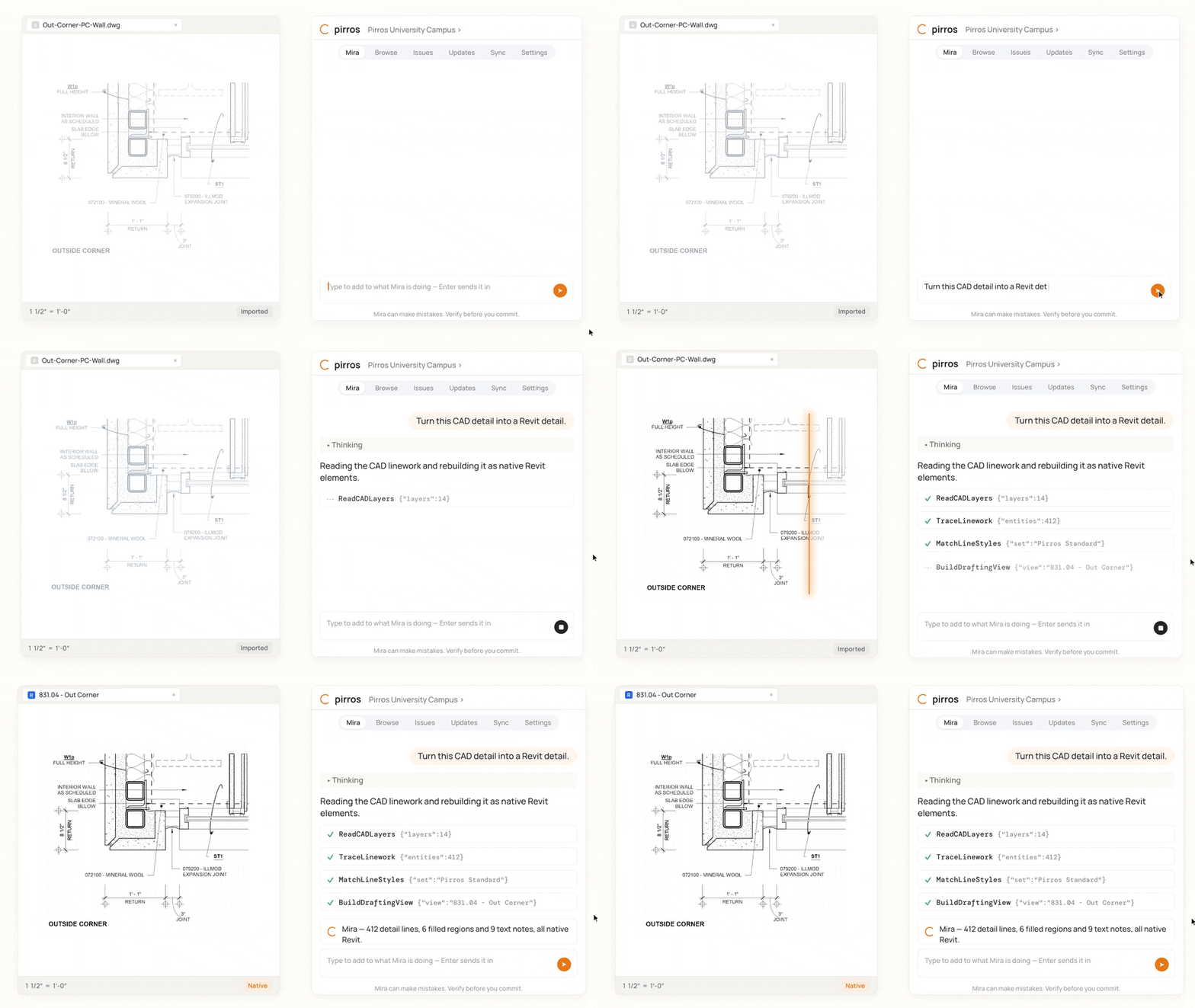
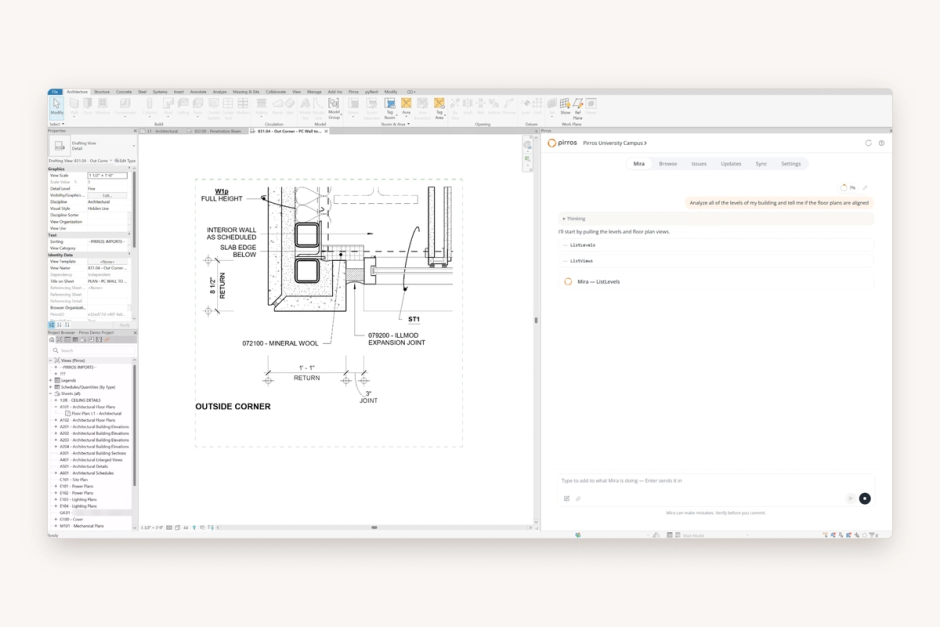
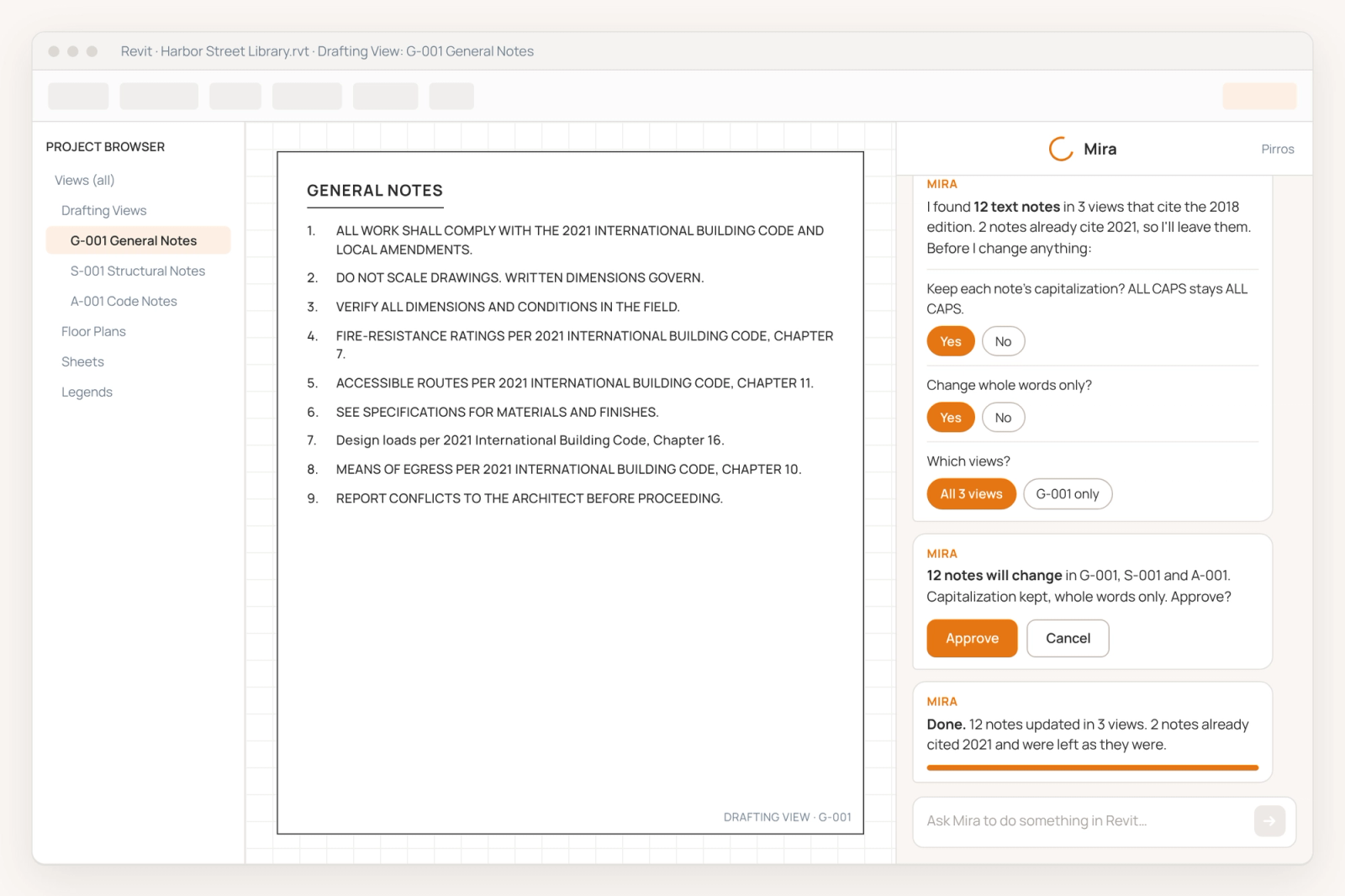
Fortunately, Mira, the AI agent for Revit, can help you keep general notes up to date and accurate. You decide what the notes say, and Mira executes the repetitive edits. When a general note changes on a live project, tell Mira in plain words:
"Replace '2018 International Building Code' with '2021 International Building Code' in every text note."
Before it writes anything, Mira finds every match and asks about the cases a plain find-and-replace gets wrong: whether each note keeps its own capitalization (ALL CAPS stays ALL CAPS), whether to change whole words only, and which views to include. It tells you how many notes will change, skips notes that are already correct, and waits for your go-ahead.
Two limits are worth knowing. Mira edits text notes, not keynotes or tags, so this works when your general notes are text in a drafting view or legend. And changing the edition is the easy part: checking what the new edition changed, and whether each note still holds, stays with the architect.
Across the firm, the durable solution is one approved set of notes. And the Pirros platform goes far beyond just using Mira to make updates to notes.
On Pirros, a firm can keep its current general notes as a firm standard, so a new project starts from the approved version, instead of from the last project's copy. When you update the standard, every future project will utilize the current, firm-approved version of general notes.
Then, Pirros's detail health checks scores everything the firm draws, based on adherence to the rules in the general notes. Each detail gets a score from 0 to 100. Abbreviation compliance checks abbreviations against your approved list, and AI vision flags spelling errors. A restricted words list catches errors like referencing a superseded code edition or a discontinued product. An admin chooses which checks to turn on.
Together, the features of the Pirros platform keep your general notes accurate and keep the rest of the plan set consistent with them. That means fewer conflicts to chase down late in a project, and less time and money lost to RFIs and rework.