Types of Construction Drawings and How to Read Them
What construction drawings are, the main types in a set from site plans to details, and how to read sheets, scales and symbols, from the people who draw them.

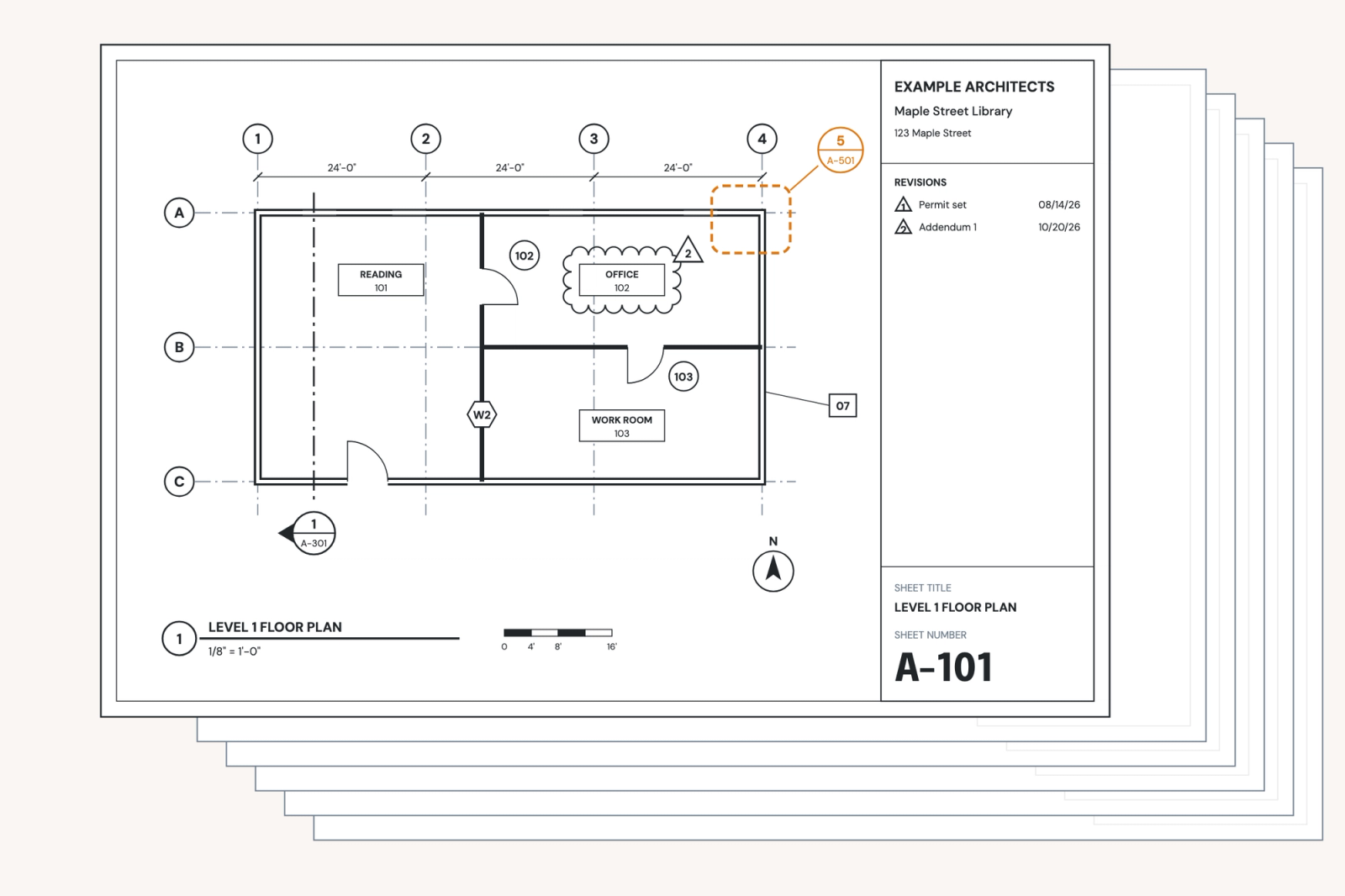
Construction drawings are the graphical representation of a building's construction documents: the plans, elevations, sections, details and schedules that tell a contractor what to build and where to build it. They are organized by discipline: a typical order is architectural, structural, mechanical, electrical, and plumbing. They are also numbered, so that anyone on site can find the sheet they need.
Most guides to construction drawings are written for the people who build from them. This one is written from the other side of the table, by people who draw them: what goes in a set, how to read one, and why a set that reads like every other set from your firm is the easiest one to build from.
What construction drawings are
Construction drawings are the graphic half of the construction documents. The other half is the specifications, the written requirements for products, materials, workmanship and testing. The working rule most architects learn early is that drawings show quantity and specifications show quality.
Drawings illustrate size, scope and location, as well as how building components fit together. Specifications describe building materials in greater detail, as well as their required performance standards. For example, a wall section shows the studs, sheathing, air barrier and cladding in place and to dimension; the specification names the air barrier, says how its laps are sealed and what testing it has to pass.
Neither half outranks the other by default. The AIA's standard general conditions treat the contract documents as complementary, so a requirement in any one of them binds as if it appeared in all. A requirement that shows up only in the specifications is still part of the work, and a note on a drawing that contradicts a spec section turns into an RFI. Good sets say each thing once, in the place it belongs, and point to it from everywhere else.
Architects produce drawings in the "construction documents" phase of pre-construction, after design development, when the design is settled and the job is describing it precisely enough to permit, price and build. The AIA describes this phase as the one where the architect "produces drawings with greater detail".
The full package, with specifications and schedules, is covered in our guide to construction documents.
The types of construction drawings in a set
A set is sorted two ways at once: by discipline and by view.
By discipline
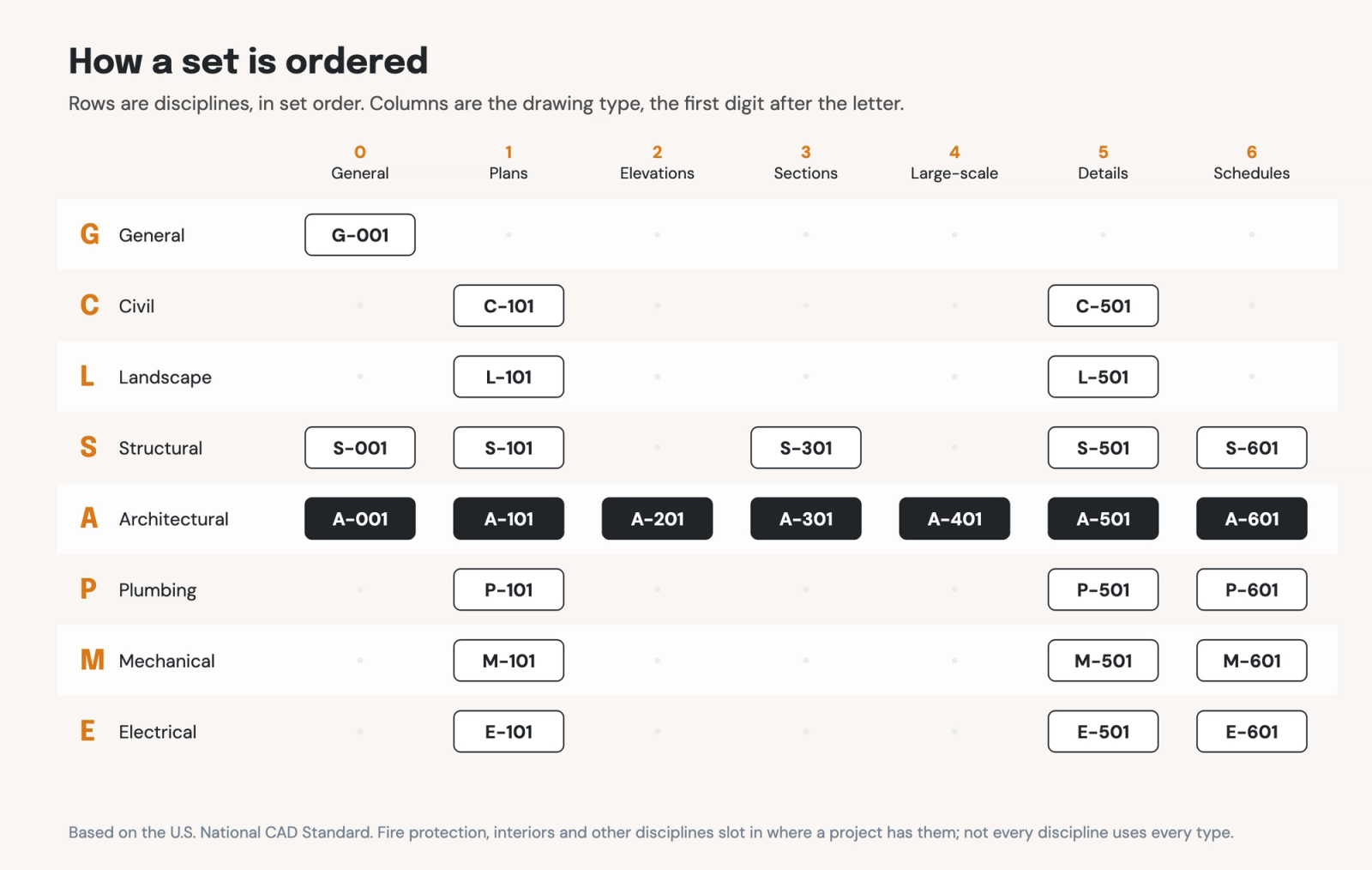
Each discipline gets its own group of sheets and its own letter. The U.S. National CAD Standard sets the letters, so a set from one firm reads much like a set from another. The ones you'll encounter on most projects are:
- G, General: cover sheet, sheet index, code analysis, symbols and abbreviations.
- C, Civil: site plan, grading, utilities and site work.
- L, for landscape architecture: planting, paving and irrigation.
- S, Structural: foundations, framing, and the structure's own details.
- A, Architectural: the building's plans, elevations, sections, details and schedules.
- M, E and P: mechanical, electrical and plumbing, each with its own plans, details and schedules.
Larger projects add more, such as fire protection, interiors or food service. The documents post has the full list.
By view
Within each discipline, the drawings come in several categories and answer a different question.
- Plans provide an aerial view of the project site. Floor plans, site plans, roof plans and reflected ceiling plans say where things are on each level.
- Elevations look straight at a face of the building, outside or in. They say how tall things are and what the surfaces look like.
- Sections cut through the building. A building section shows how levels stack up; a wall section shows every layer of the enclosure from footing to parapet.
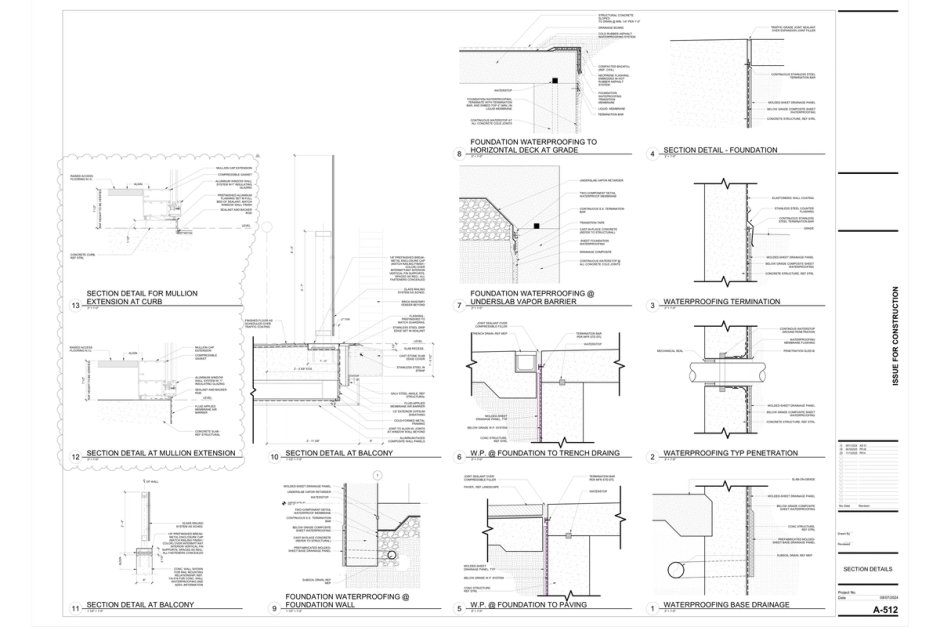
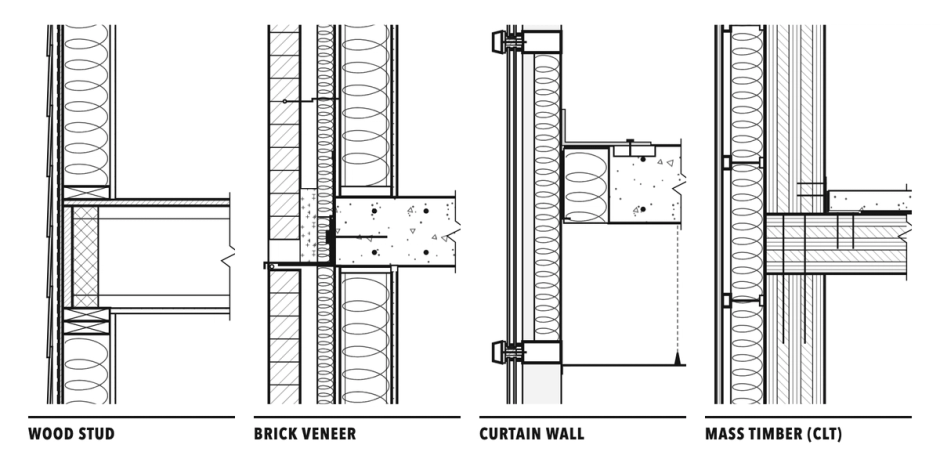
- Details zoom in on one condition at a large scale: a window head, a stair nosing, a roof edge. They say exactly how materials meet. Our guide to architectural details covers them in depth.
- Schedules are tables: doors, windows, finishes, hardware, equipment. Each row ties back to a tag on the drawings.
All sheets are organized by letter and number. In the National CAD Standard, the letter is the discipline and the next digit is the kind of drawing: 1 for plans, 2 for elevations, 3 for sections, 4 for large-scale views, 5 for details and 6 for schedules and diagrams, with 0 for general information. A-101 is the first architectural floor plan; A-501 is the first sheet of architectural details.
How to read construction drawings
Read a set from the general to the specific: index first, then plans to get oriented, then follow the references down to sections and details. Here is the order most architects would walk a new hire through.
- Start with the cover sheet and sheet index. The index lists every sheet in the set, so you know what exists before you go looking for it. The G sheets that follow hold the general notes, the symbol legend and the abbreviations list. Read them once; every other sheet assumes you have.
- Read the title block on every sheet. It sits along the right edge or the bottom and gives the project, the firm, the sheet number and title, the issue date and the revision history. The revision list tells you whether you're holding the current version.
- Get oriented on the plans. Find the north arrow and the column grid. Grids are usually lettered in one direction and numbered in the other, so "grid C-4" names one spot on every plan, section and structural sheet in the set.
- Check the scale of each drawing. Every view has its own scale, written under its title, such as 1/4" = 1'-0". A sheet can hold several scales. If the set was printed at half size, the written scale is wrong; the graphic scale bar shrinks with the print, so use that instead.
- Trust dimensions, not a ruler. Most sets carry a note that says not to scale the drawings. Dimensions govern, and the general notes say what they're measured to, such as face of stud or centerline.
- Follow the callouts. A section mark, elevation marker or detail callout on a plan points to another drawing. The bubble shows two things: the drawing's number on top and the sheet it's on below. 5/A-501 means detail 5 on sheet A-501.
- Match tags to schedules. A door tag on a plan carries a mark, and the door schedule has a row for that mark with its size, type, hardware and fire rating. Wall type tags, room tags and window tags work the same way.
- Read the keynotes and notes. Keynotes are short codes on the drawing with their meaning in a legend on the sheet. Text notes say what a line or hatch is, or point you to a specification section.
- Cross-check the disciplines. The structural grid should match the architectural grid. A duct on the mechanical plan has to fit in the ceiling space the architectural section shows. Most coordination questions start here.

Construction drawing symbols
Symbols are the shorthand that keeps drawings readable: one small graphic stands in for a reference, an element or an instruction. The National CAD Standard has a symbols module, but every firm adds its own, so the legend on the G sheets is the one that counts for that set. The ones you'll see on almost every set:
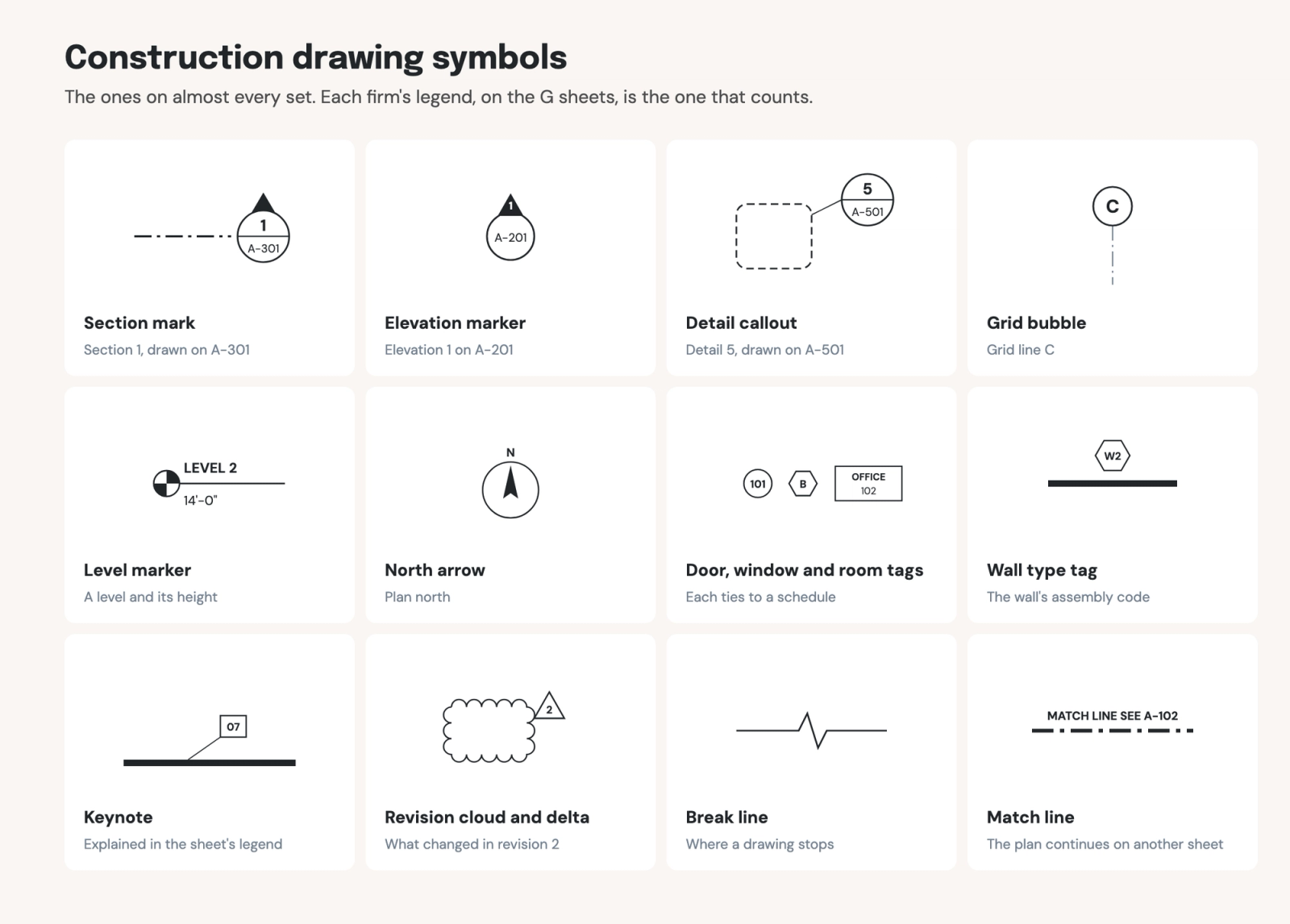
- Section mark: a line through the drawing with a bubble at the end. The arrow points the way you're looking, and the bubble names the section and its sheet.
- Elevation marker: a circle or square with arrows, pointing at the walls that have an elevation drawn.
- Detail callout: a circle or rounded box around an area, with a bubble that names the detail and its sheet.
- Grid bubble: a circle at the end of each grid line, holding its letter or number.
- Level marker: a symbol with a line and a height, marking a floor or other level on elevations and sections.
- North arrow: which way north is, on plans. Some sets also show a project north.
- Door, window and room tags: shapes holding a mark or a number that ties to a schedule.
- Wall type tag: a small shape on a wall, holding the code for its assembly.
- Keynote: a number or code, often in a box, explained in a legend on the sheet.
- Revision cloud and delta: a scalloped outline around what changed, with a triangle holding the revision number.
- Break line and match line: a jagged line where a drawing stops, and a line where one plan continues on another sheet.
How architects create construction drawings in Revit
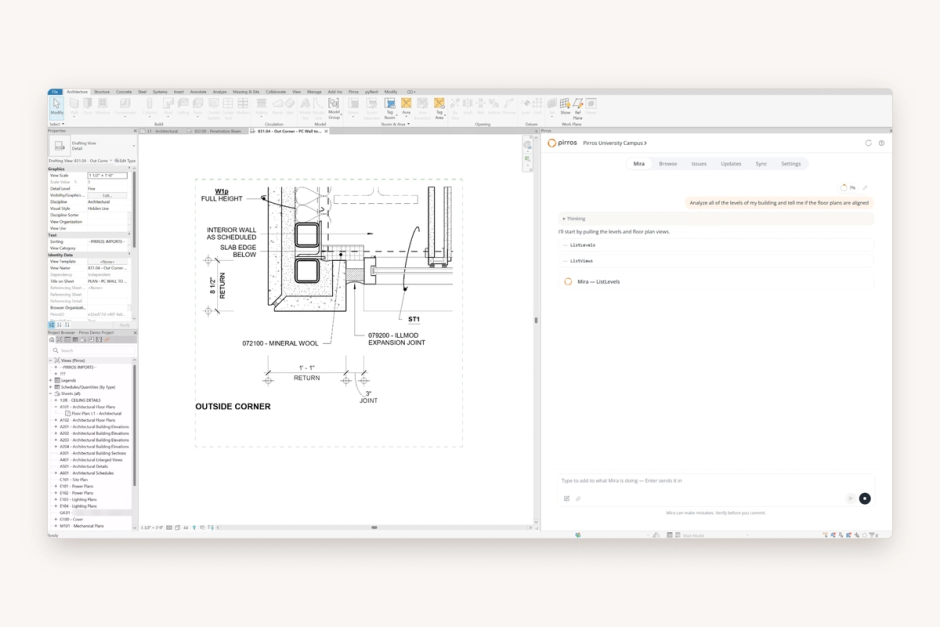
In Revit, most construction drawings are views of one model, rather than separate drawings. A floor plan, a building section and an elevation all look at the same walls in the model, so a wall moved in one view moves in all of them, a core advantage to drawing sets in Revit.
A few things work differently from drawing by hand or in CAD:
- Sheets hold views. A sheet is a title block with views placed on it as viewports. The view's scale and title come with it.
- References fill themselves in. Once a detail is placed on a sheet, every callout and section mark pointing to it shows the right number and sheet, and updates if the detail moves.
- Schedules are live. A door schedule reads the doors in the model, so a door added on a plan appears in the schedule on its own. A sheet list schedule can serve as the sheet index.
- Details are often drafted, not modeled. Large-scale details are usually drafting views, drawn in 2D, or callouts with linework drawn over the model. That's why most firms reuse details from past projects rather than drawing every condition again.
That reuse is where much of a set's quality comes from, and where much of its inconsistency starts.
Where the process breaks down
A set is easiest to build from when it reads like every other set from the same firm. However, sets are drawn by different people, on different projects, in different offices, creating inconsistencies and small differences that create confusion.
- The same condition is drawn multiple ways. For example, imagine that a firm has detailed a rated partition head on a dozen projects. Under deadline, nobody can find the best version, so someone redraws it, slightly differently. Now there are thirteen, and nobody is sure which is the firm-approved version.
- Graphics drift. Details copied in from old projects and consultants bring their own line weights, text and symbols. The set stops reading as one document.
- References break late. A detail added in the last week scrambles the numbers on its sheet. A callout points to a sheet that was cut from the set. A door tag no longer matches its schedule row.
- Review comes too late. Quality control checks happen at the end, when every change costs the most. What slips through shows up during construction as RFIs, change orders and rework.
None of this is a drafting problem. It comes from starting every set from files instead of from what the firm already knows.
How Pirros helps
Pirros, the AI project hub for architects and engineers, puts the details your firm has already drawn into the set you're drawing now, and reviews the set before it goes out.
Find the detail you already drew
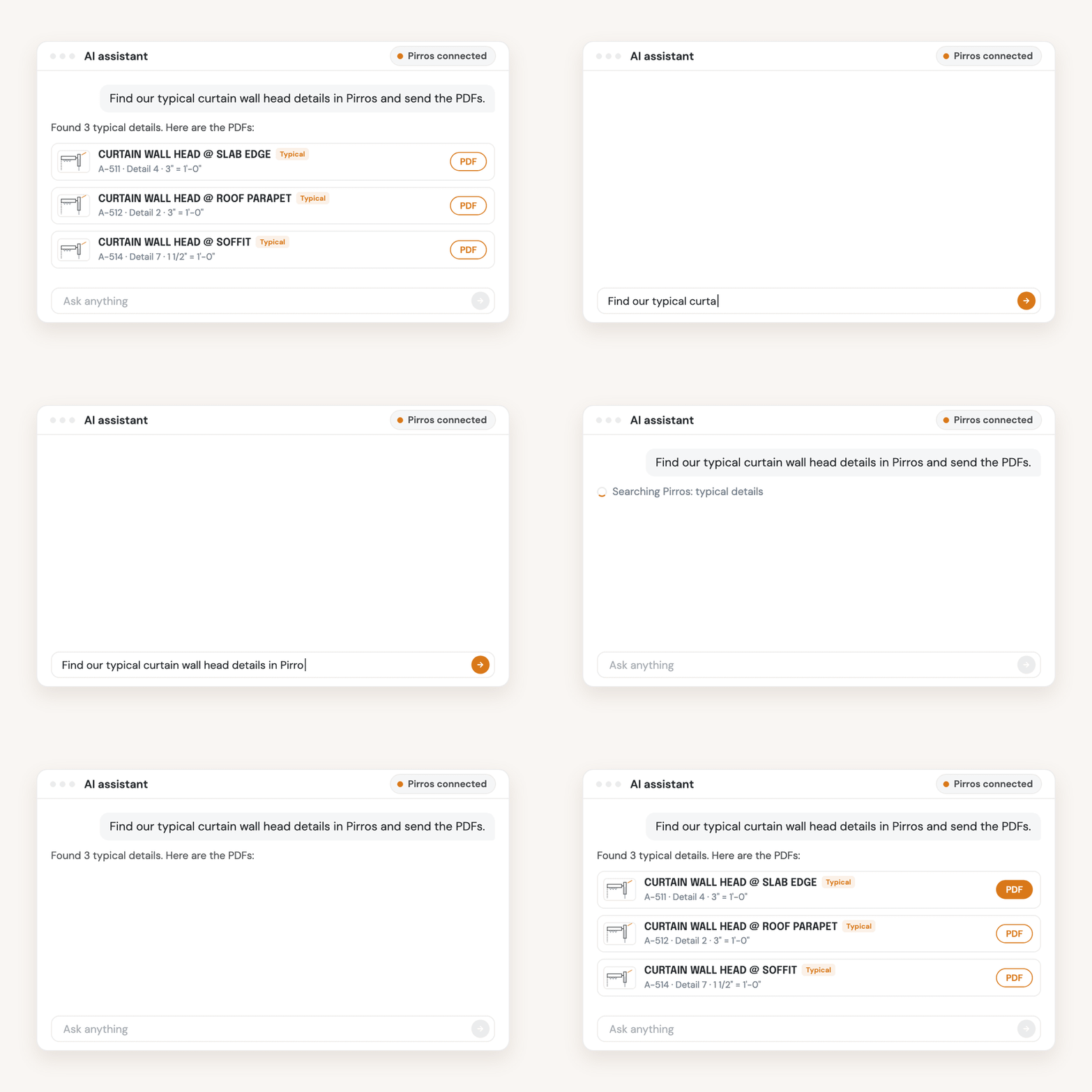
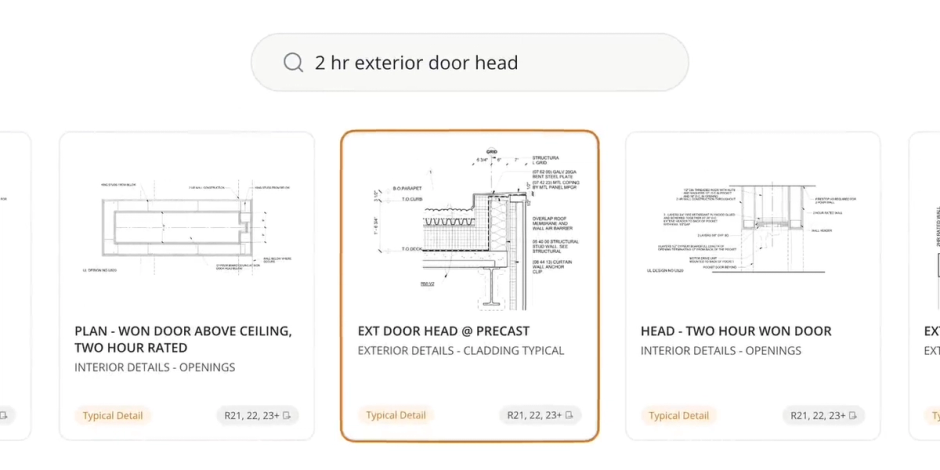
Detail management reads the drawing inside every detail from your past projects, not just its file name. You search by the condition it solves, such as "partition, 1 hour rated, metal stud", and the firm's approved versions are marked. Your team places them straight into the active Revit view.
At David Baker Architects, designers saved "an average of 10 minutes per detail in search and recreation time" after the firm adopted Pirros. And a detail that's found and reused, instead of redrawn, matches the version the firm already trusts.
Review the set before it goes out
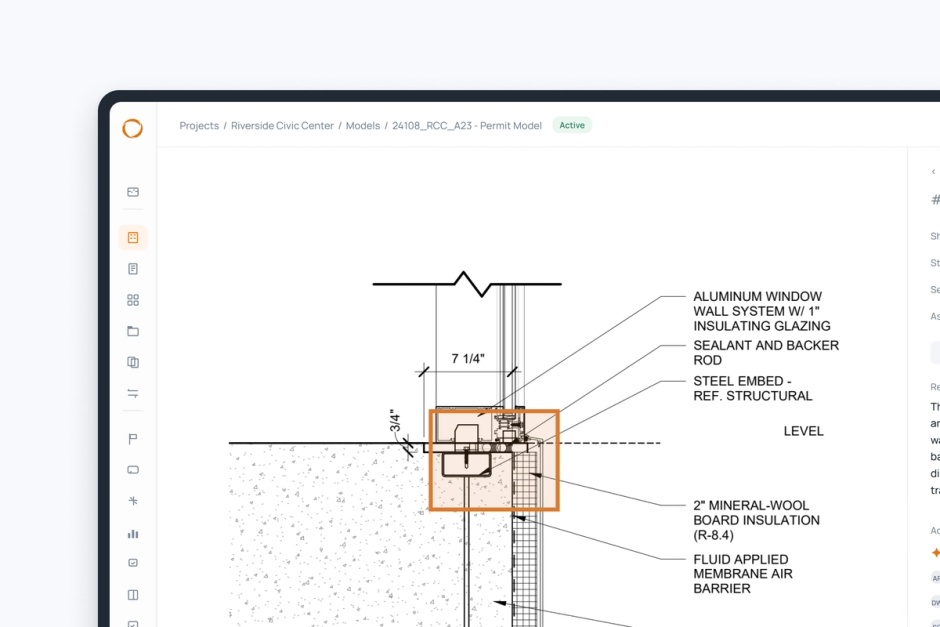
The Pirros Quality Management System runs an AI drawing review of your set against code requirements, your firm's standards and your project specifications. It flags what a reviewer would look for: a callout that points to a sheet not in the set, a keynote missing from its legend, a detail that has drifted from the approved version. Your team decides what to fix, and every finding is assigned and tracked until it's resolved.
Number TEN Architectural Group put it to work on a project with a tight schedule to go out to bid. Running the set against the current building code surfaced sloped glazing and safety glass requirements that had been left out of the set, so the team carried them straight into the specification. "It'd be another set of eyes for us," says Jessica Cembroski, an Associate and Project Delivery Manager there.
Mira cleans up the sheets
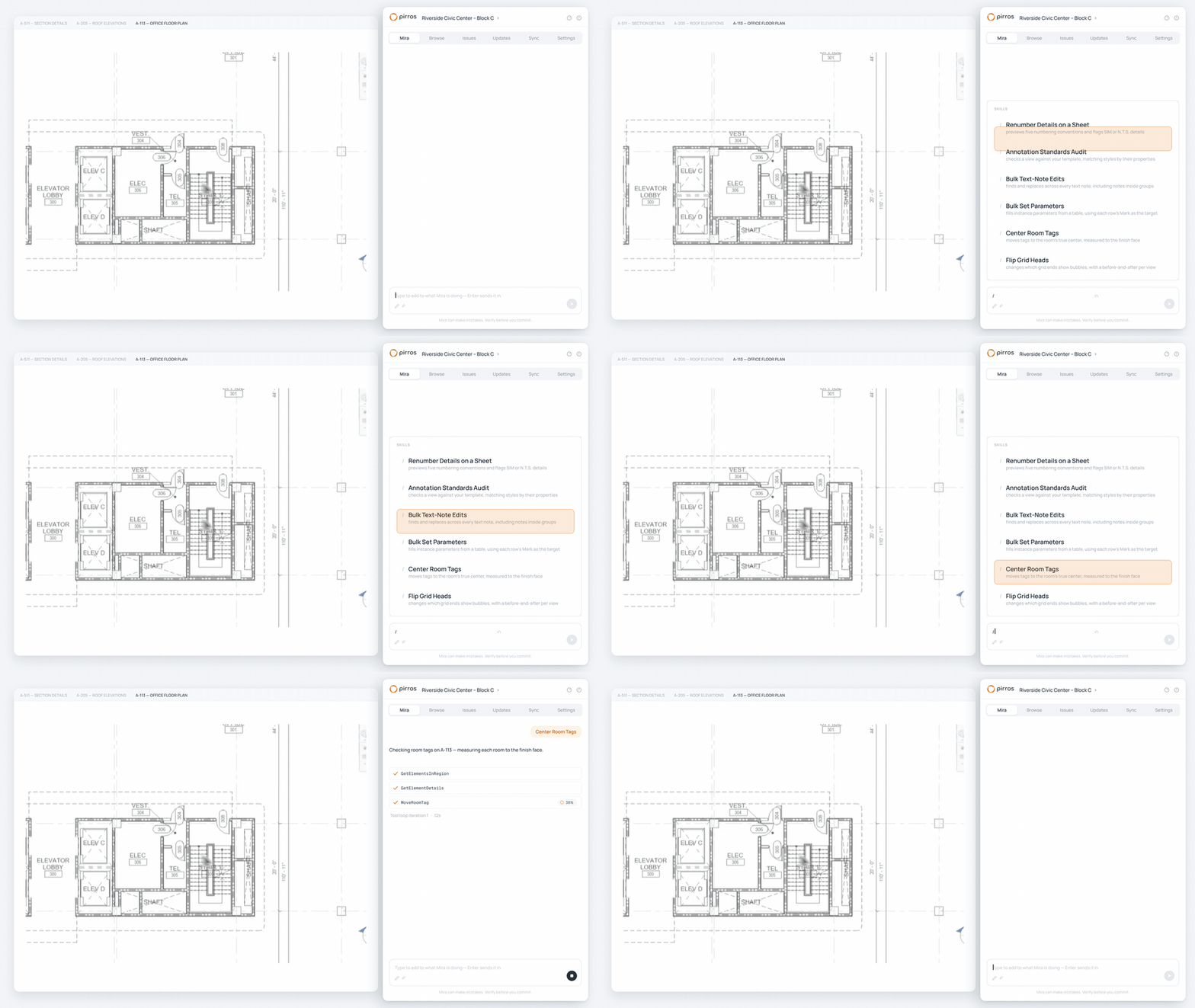
Mira, the AI agent for Revit, works inside your Revit session on the sheet cleanup that keeps a set readable. Ask "Renumber the details on this sheet" after a late change, "Flip the grid heads on the selected grids" to put bubbles where your standard wants them, or "Audit this view against our standards" for a consultant's detail. Mira shows what it will change before it writes anything, and a batch on one sheet or view undoes in one step. Mira handles the repetition; you approve the result.
Build your next set from what your firm already knows
Most of a construction set is work your firm has done before. Book a demo to see Pirros find, reuse and review it, or try Mira free in Revit 2025, 2026 or 2027.