Autodesk Assistant in Revit 2027: What It Does and Where an AI Agent Goes Further
Autodesk Assistant is Revit 2027's built-in AI assistant: what it can do, how to open it, where it stops, and the repeat jobs an AI agent like Mira handles.

Autodesk Assistant is the AI chat panel built into Revit 2027 and later. It answers how-to questions from Autodesk's help, looks things up in the model you have open, and makes changes you ask for or confirm, such as views, sheets and schedules. For edits that your firm repeats across the whole model or drawing set, an AI agent like Mira goes further.
Revit 2027 is the first version of Revit with an AI assistant built in, the most noteworthy change in what's new in Revit 2027. Here's everything you need to know about Autodesk Assistant.
What is Autodesk Assistant?
Autodesk Assistant is a chat panel inside Revit that answers questions and works on the model you have open. Autodesk groups what you can ask into three kinds of request (Autodesk Help):
- Help with Revit: "How do I create a section view?" Answers come from Autodesk's own documentation, with links to the source.
- Questions about the model: "Find all doors on Level 1."
- Changes to the model: "Create a floor plan for Level 2."
Behind the panel, Assistant uses six groups of tools: model queries, exports, sheets and documentation, rooms, schedules and data, and element operations. It can also read files you attach, such as a PDF spec, a Word document, an Excel sheet or an image, and use them as context.
It also comes with:
- Insights and recommended prompts: suggestions such as a shortcut for a task you repeat, based on the features you use.
- Prompt Library: prompts you save and reuse, stored in the cloud with your chat history and linked to your Autodesk account.
- Language: chat is officially supported in English. The panel's buttons and labels follow Revit's language setting.
- Your data: Autodesk says your prompts, Prompt Library and chat history aren't used to train AI models.
Autodesk launched Assistant in Revit as a tech preview in April 2026. Its Assistant user guide now says the tech preview has ended and the expanded capabilities are generally available to users.
How to open Autodesk Assistant in Revit
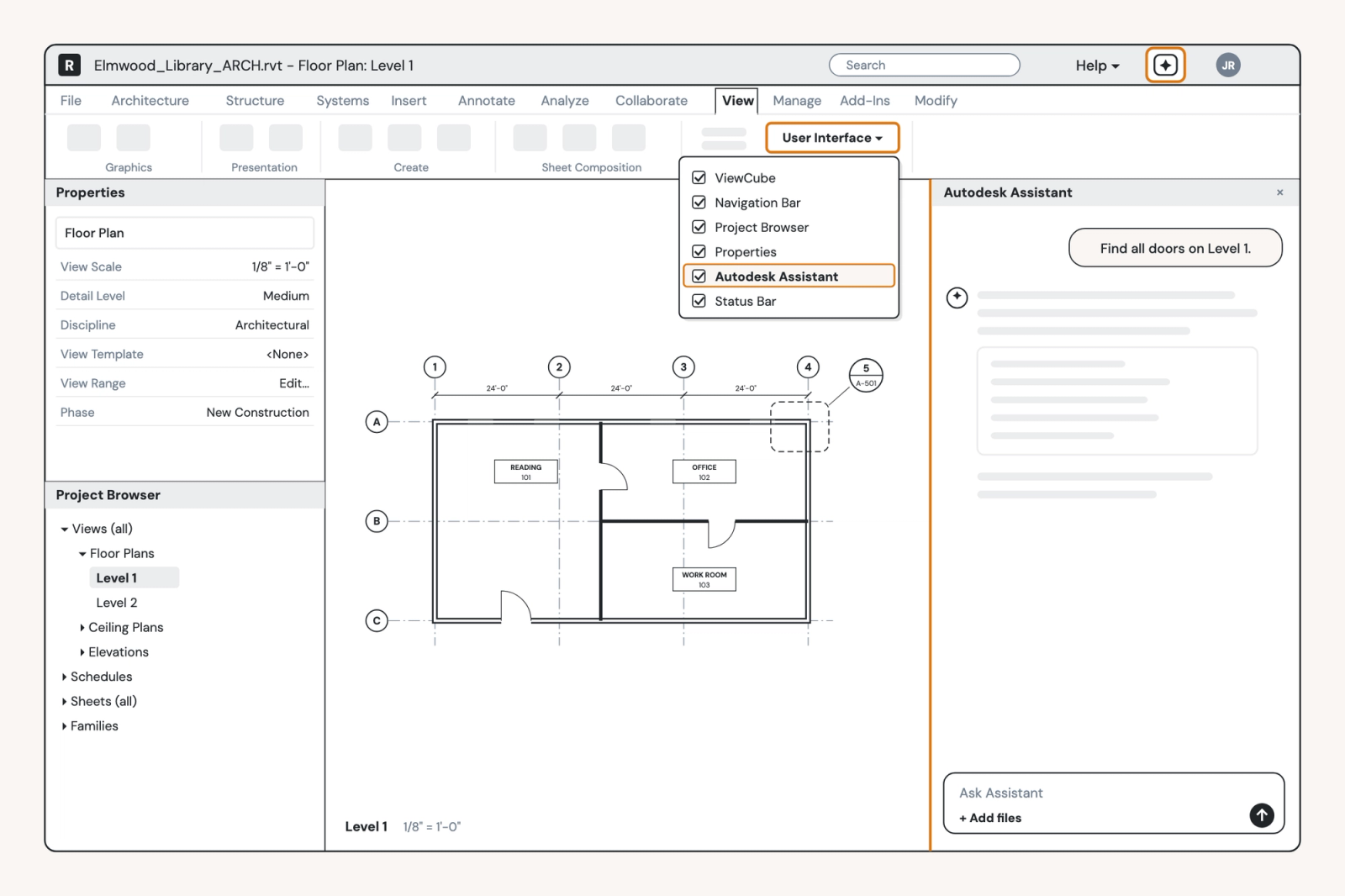
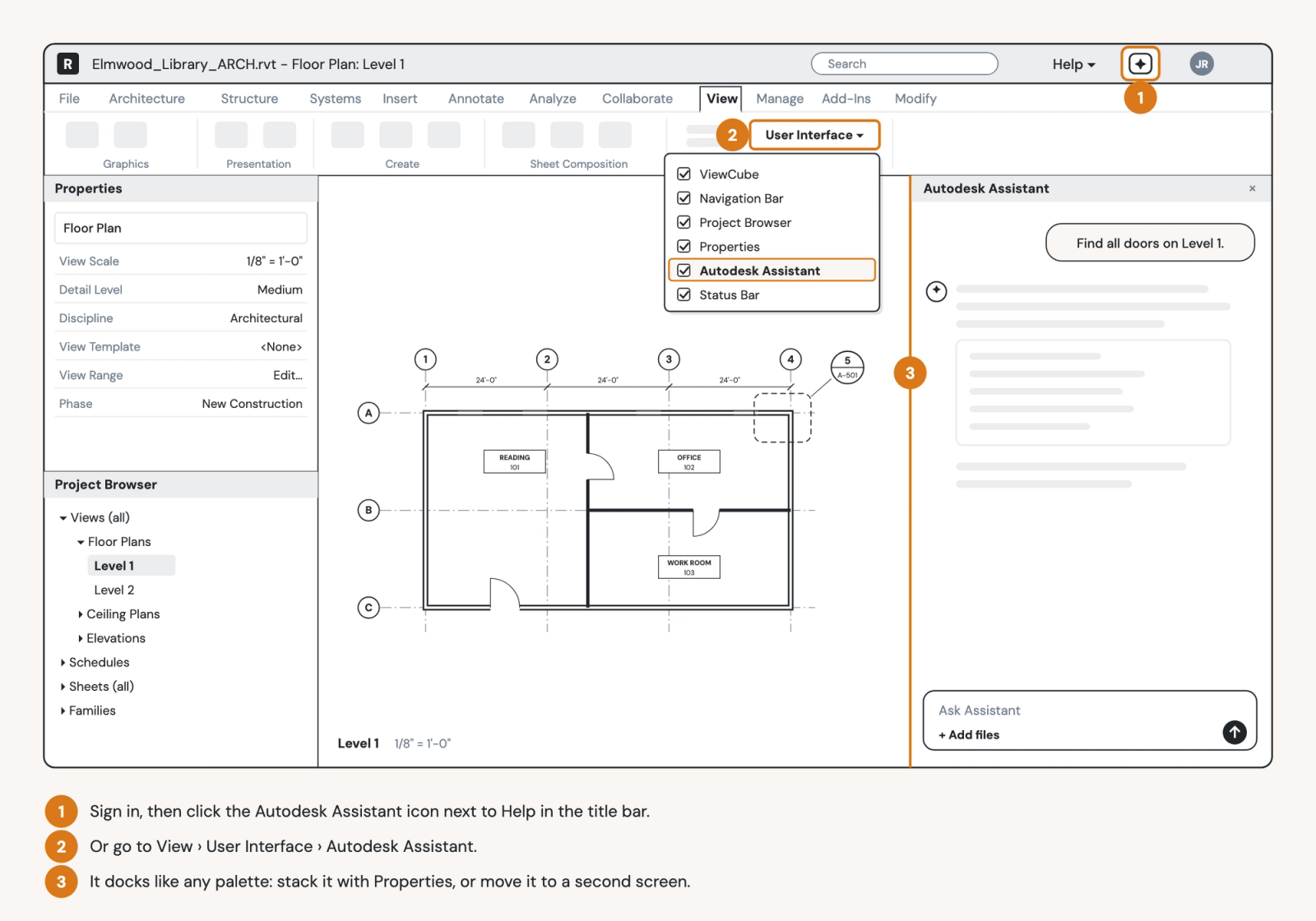
Sign in to Revit 2027 with your Autodesk account, then click the Autodesk Assistant icon next to Help in the title bar.
- Sign in to Revit 2027 or later with your Autodesk account.
- Click Autodesk Assistant next to Help in the title bar. The icon changed in Revit 2027.3, so on earlier updates it looks different.
- If you don't see the icon, go to View › User Interface › Autodesk Assistant.
- If it still isn't there, close and restart Revit. Autodesk says the panel is usually open by default once you're signed in.
- Dock the panel where it suits you. It behaves like any other palette: stack it with Properties and the Project Browser, move it to a second screen, or give it a keyboard shortcut.
How to get good results
Autodesk's own advice comes down to four habits:
- Write specific prompts. "Create a schedule for all interior doors" works better than "create a schedule".
- Break big jobs into steps. Ask for the sheets first, check them, then ask for the PDF export.
- Start a new chat for a new task. Assistant uses the whole conversation as context, so an old task can throw off a new one.
- Save before a broad change, and review what Assistant changed before you save or sync.
Autodesk's examples show the range of what Assistant can do: "Create a door schedule sorted by level", "How many structural columns have their Base Level set to L2?" and "Check whether all views on sheets A100–A106 have a view template assigned."
What has changed since launch
Autodesk has updated Assistant four times since it launched in April, and from Revit 2027.2 the updates arrive automatically, without waiting for a Revit release (New in Autodesk Assistant in Revit). Newest first:
- November 2026 (Revit 2027.3 and 2027.4): Assistant builds, runs and debugs Dynamo graphs from a prompt, through a new DynamoMCP tech preview. Our guide to Dynamo for Revit covers when a script is the right tool.
- October 15: Assistant can remove schedule filters, grouping and sorting. Autodesk also fixed results reported in the wrong units and a case where Assistant confirmed a transparency change that hadn't happened.
- July 22: Assistant changes graphic overrides and shows, hides or adjusts view detail in plain language. It now explains a request it can't complete, and responses carry timestamps.
- May 19: coloring, tagging and schedule filters became more consistent, with checks against unintended model-wide family changes. Every run is logged in the Revit journal, AI changes are labeled in the Undo menu, and a Stop button interrupts a request.
- April 2026: Revit 2027 ships with Assistant as a tech preview.
Each person's prompts, each project's model
Assistant works for one person, in one open model, one conversation at a time, which is a significant limitation for collaboration within a firm.
- It knows what's in front of it. Its sources are your conversation, Autodesk's documentation, the open model and the files you attach. It doesn't know the details and families your firm has drawn on past projects, or which version of each is the approved one.
- Prompts stay with the person who wrote them. The Prompt Library is linked to each person's Autodesk account, and Autodesk doesn't describe a way to share one across a firm. A BIM manager can't hand the team one tested way to do a job.
- It needs Revit 2027. Projects that stay on Revit 2025 or 2026 can't use it.
- Results need to be checked. Autodesk asks users to verify responses and review changes before they save or share.
- Updates apply automatically. Though this is convenient, this means that the tool can start to behave differently in the middle of a project. Autodesk says controls for those updates are planned.
Before your team uses Assistant on live projects, a BIM manager should:
- Determine which jobs it may do on live projects, such as queries and view setup.
- Save, or sync with central, before any broad change.
- Review what it changed before anyone syncs.
- Check its counts against a schedule before they reach a deliverable.
- Keep one shared list of prompts that work.
Where an AI agent goes further
An AI agent built for production work takes on the jobs Assistant isn't built for: the same edit across a whole set, done to your firm's standard. Mira, the free AI agent for Revit, works inside your Revit session on Revit 2025, 2026 and 2027, so it also covers the projects that haven't moved to 2027. Mira outperforms Revit's built-in assistant on every test, every time.
"Mira will dimension our floor plans to our standards, create the sheets and place the plans on them. That's what Autodesk Assistant promises, but being able to go inside Mira's brain and customize it has been so much more powerful for us."
Josh Hafel, Senior Design Technology Leader, GFF
Mira handles the repetition; you approve the result. It comes with ready-made skills for jobs you'd otherwise do one element at a time:
- Renumber details on a sheet. "Renumber the details on this sheet." Mira reads the sheet and your other sheets, then draws each numbering order it could use, such as bottom-up, left to right, before you pick one.
- Audit a view against your standards. "Audit this view against our standards." Mira reads your firm's template file and remaps the text, lines and fills that don't match, with ranked options and counts where it isn't sure.
- Edit text notes in bulk. "Replace Old Material Name with New Material Name in every view." It finds every match across the model, keeps ALL CAPS notes in caps, and asks whether "board" should also change "baseboard".
- Set parameters in bulk. "Update these door parameters from this table." It matches each row to a door by Mark and warns you when a parameter is a type parameter.
- Center room tags. "Center the room tags in this view." It moves each tag and the room's reference point to the middle of the room, and names any room it couldn't center.
- Flip grid heads. "Flip the grid heads on the selected grids." It shows each grid's bubbles before and after, then offers to do the same on your other plans.
Newer skills rebuild an exploded CAD detail as a native Revit detail and build a family from a manufacturer's cutsheet.
Every skill follows the same steps. Mira reads the sheet, view or selection first and tells you what it found. It shows a preview or a summary and waits for your go-ahead. Afterwards it checks the result and names anything it skipped, and why. Most skills make the whole change as one step, so one Ctrl+Z reverses it.
Mira also works from what your firm already knows. With the Pirros Quality Management System, Mira can search your typical details and families, use them as context, and check whether a detail uses your typical families. Mira for Teams, part of the QMS, shares the skills your firm writes with everyone and lets you manage who uses Mira.
Assistant, MCP and your other AI tools
Assistant runs on MCP, the Model Context Protocol, the open standard AI tools use to connect to other software. Autodesk's MCP servers run in the background for Assistant, and you don't set them up.
Autodesk has also opened Revit to outside AI tools. The Revit Public MCP Server, a tech preview add-on, connects AI clients such as Claude Desktop or Cursor to the model open in Revit, with Read, Write and Experimental extensions. Our guide to Revit AI tools covers those servers and what each can change. To bring your firm's details and families into Claude or ChatGPT without Revit open, see the Pirros MCP.
Hand Mira your next repeated edit
Keep Autodesk Assistant for quick questions in the model you have open. The next time a job means the same edit across a sheet, a view or a whole set, describe it to Mira: it handles the repetition, and you approve the result. Mira is free to download, so try it on your next repeated edit and put the time it gives back into design.